Does Unplugging Echo Reset Actually Fix Your Alexa
Does unplugging Echo reset actually fix Alexa? The short answer is yes, but only for certain issues. Unplugging your Echo device forces a soft reboot that clears temporary glitches, fixes frozen screens, and restores connectivity. However, a simple unplug won’t erase your settings or solve deeper software problems. This guide walks you through exactly when a power cycle helps, how to do it the right way, and what to try when unplugging isn’t enough to get your Alexa device back on track.
Key Takeaways
- Unplugging does trigger a soft reset: It clears temporary memory and restarts the Alexa operating system without deleting your data.
- It fixes common issues: Frozen screens, unresponsive voice commands, and Wi-Fi dropouts often resolve with a simple power cycle.
- It does not erase your settings: Unlike a factory reset, unplugging keeps all your preferences, routines, and connected devices intact.
- Timing matters: Waiting at least 30 seconds before plugging back in ensures the device fully discharges and resets properly.
- Some problems need more than a reboot: Persistent issues may require a factory reset, app-based troubleshooting, or contacting Amazon support.
- Smart home devices benefit too: Resetting your Echo can also fix connectivity issues with other smart home gadgets linked to Alexa.
📑 Table of Contents
- What Happens When You Unplug Your Echo
- Does Unplugging Echo Reset Actually Fix Alexa
- Soft Reset vs Hard Reset: What Is the Difference
- Step-by-Step: How to Reset Your Echo by Unplugging
- Common Echo Problems That a Reset Fixes
- When Unplugging Won’t Fix the Problem
- Tips to Keep Your Echo Running Smoothly
- How Other Tech Devices Compare
- Final Thoughts
What Happens When You Unplug Your Echo
You have probably stood there staring at your Echo device, wondering if pulling the plug will actually do anything. Maybe Alexa stopped responding mid-command. Maybe the screen froze on a Spotify album cover. Or maybe the whole thing just feels sluggish and you want a fresh start.
Here is what actually happens when you unplug your Echo. The device loses power to its temporary memory. This clears out any small software hiccups that may be causing problems. Think of it like restarting your phone when it starts acting weird. You are not deleting anything important. You are just giving the system a clean slate to work from.
The Alexa operating system reloads when power returns. All your routines, reminders, and connected smart home devices come back online. Nothing gets erased. Nothing gets lost. That is the beauty of a simple power cycle.
However, not every problem goes away with a quick unplug. Deep software bugs, account-level issues, or hardware failures need different solutions. Knowing the difference saves you time and frustration.
Quick tip: Always wait at least 30 seconds after unplugging before plugging back in. This gives the capacitors inside the device enough time to fully discharge. A quick 5-second pull-and-plug rarely does the trick.
Does Unplugging Echo Reset Actually Fix Alexa
The honest answer is it depends on the problem. For everyday glitches, unplugging works surprisingly well. But for serious issues, you may need to dig deeper. Let us break down exactly when this simple trick delivers results and when it falls short.
Problems That a Power Cycle Fixes
Most people reach for the power cord when they notice one of these common issues:
- Alexa not responding to voice commands: The wake word works, but nothing happens after that. A power cycle often clears the communication backlog causing the delay.
- Frozen or blank screen: If you own an Echo Show and the display stops updating, unplugging forces a fresh render of the interface.
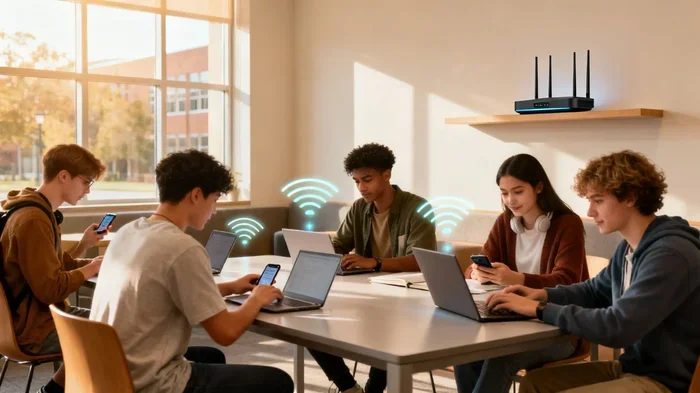
- Wi-Fi connection drops: Smart speakers lose Wi-Fi for all kinds of reasons. Restarting the device reinitiates the Wi-Fi handshake and often restores the connection.
- Bluetooth pairing issues: If your Echo refuses to connect to a speaker or headphones, a reset can clear stale Bluetooth cache and let you pair fresh.
- Music streaming skips or stops: Spotify, Amazon Music, and other services sometimes glitch mid-playback. A reboot clears the stuck process.
- Smart home devices going offline: When your lights or plugs stop responding to Alexa, the Echo itself may be the bottleneck. A power cycle can restore the bridge.
These issues represent the vast majority of what people experience with their Echo devices. And for most of them, unplugging really does solve the problem. It is fast, free, and requires zero technical skill.
Problems That Unplugging Will Not Fix
Now for the bad news. Some issues are beyond what a simple power cycle can handle:
- Account login problems: If your Amazon account gets flagged or your session expires, no amount of unplugging will help. You need to sign back in through the Alexa app.
- Firmware bugs: Sometimes Amazon pushes a bad update. The device may need a full factory reset and re-setup to clear the corrupted software.
- Hardware failure: A blown speaker, damaged microphone array, or cracked screen will not fix itself with a reboot. You need physical repair or replacement.
- Voice recognition training issues: If Alexa cannot understand your voice, the problem lives in the voice profile training data, not in the device memory.
- Skills or third-party app malfunctions: Some external services go down on their own. No reset on your end will bring them back until the developer fixes the issue.
Understanding this distinction helps you avoid frustration. If unplugging does not fix the problem after two attempts, move on to more advanced troubleshooting.
Soft Reset vs Hard Reset: What Is the Difference
People use the words “reset” and “reboot” interchangeably. But they mean very different things when it comes to your Alexa smart speaker. Understanding the difference matters.
What a Soft Reset Does
A soft reset is exactly what happens when you unplug your Echo and plug it back in. The device restarts its software. Temporary memory gets cleared. The system reloads its configuration from storage. Nothing permanent changes.
A soft reset is safe to do anytime. It does not affect your settings, your routines, your linked accounts, or your smart home devices. You can do it once a week if you want to keep things running smoothly.
Think of it like closing all your browser tabs and reopening them. The bookmarks stay. The history stays. Everything feels fresh and responsive again.
What a Hard Reset (Factory Reset) Does
A hard reset wipes the device back to its original factory settings. Every routine gets deleted. Every smart home link gets removed. Your Wi-Fi password gets erased. You start from scratch.
You should only factory reset when nothing else works. It is a last resort for serious software problems. And it takes time to set everything back up again.
Important note: A factory reset is different from simply unplugging. If you want to learn more about how factory resets work across different devices, check out this guide on does factory reset remove Google backup for helpful context on how reset processes vary between platforms.
Quick Comparison Table
| Feature | Soft Reset (Unplug) | Hard Reset (Factory) |
|---|---|---|
| Deletes settings | No | Yes |
| Time required | 1-2 minutes | 15-30 minutes |
| Fixes frozen screens | Yes | Yes |
| Fixes deep software bugs | Rarely | Yes |
| Requires re-setup | No | Yes |
| Risk of data loss | None | Complete |
| Recommended frequency | As needed | Only as a last resort |
Step-by-Step: How to Reset Your Echo by Unplugging
The process is simple. But doing it the right way makes all the difference. Follow these steps for the best results.
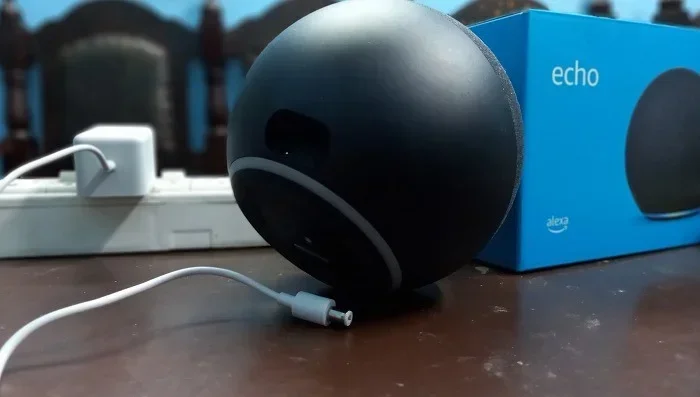
- Identify the power source. Check whether your Echo plugs directly into a wall outlet or connects through a USB cable. Some Echo models use a power adapter, while others use a USB port on a smart home hub.
- Unplug the device. Pull the plug gently from the outlet or disconnect the USB cable. Do not yank the cord harshly. You want to avoid damaging the port.
- Wait at least 30 seconds. This is the step most people skip. The device needs time to fully discharge its capacitors and clear its temporary memory. Thirty seconds gives it enough time to do a complete reset.
- Plug the device back in. Reconnect the power source firmly. Wait for the light ring to turn orange or blue, depending on your model.
- Wait for the setup chime. Alexa will announce that the device is ready. This usually takes 60 to 90 seconds after plugging in.
- Test the device. Say “Alexa, what time is it?” or ask a simple question. If the response is quick and accurate, the reset worked.
That is it. Six simple steps that solve most common Echo problems. The key is patience during that 30-second wait. Rushing the process is the number one reason people think unplugging does not work.
Expert tip: If you own multiple Echo devices, reset them one at a time. Resetting all of them simultaneously can cause your smart home network to briefly go offline, which confuses the whole system.
Common Echo Problems That a Reset Fixes
Let us look at real-world scenarios where unplugging your Echo actually makes a difference. These are the issues that people run into every single day.
Alexa Stops Responding Mid-Conversation
This happens more often than you might think. You ask Alexa a question. She starts answering. Then she just… stops. The light ring stays on but nothing comes out.
Usually, this means the Alexa voice processing got stuck on a server-side task. A power cycle clears the local queue and forces a fresh connection to Amazon’s cloud servers. Nine times out of ten, the second attempt works perfectly.
Wi-Fi Keeps Dropping
Smart speakers depend on a stable internet connection. When your Wi-Fi router and Echo start having a bad relationship, a reset can re-establish the connection properly.
Unplugging the Echo forces it to re-scan for available networks when it boots back up. It picks the strongest signal and reconnects with a clean slate. This often solves the intermittent disconnect problem that drives people crazy.
Smart Home Devices Stop Responding
If you have smart bulbs, smart plugs, or smart locks connected through Alexa, a frozen Echo can make your whole smart home setup feel broken. Lights stop responding. Plugs won’t turn on. The whole system feels useless.
Resetting the Echo often restores the communication bridge between Alexa and your other devices. The Echo reboots its device discovery process and reconnects to everything automatically.
Bluetooth Audio Cuts Out
Connecting your Echo to external speakers via Bluetooth is a great way to boost sound quality. But Bluetooth connections can degrade over time. Stale pairing data causes dropouts and static.
Unplugging the Echo clears the Bluetooth cache. When it reconnects, it establishes a fresh, clean connection to your speaker or headphones. The audio quality improves and the connection becomes more stable.
If you are dealing with Bluetooth connectivity issues across devices, you might also find this article on does Bluetooth work on Apple Watch without iPhone helpful for understanding how Bluetooth pairing works across different ecosystems.
When Unplugging Won’t Fix the Problem
Sometimes the power cycle does not work. And that is okay. It does not mean your Echo is broken. It just means the problem lives somewhere else. Here is what to try next.
Check Your Wi-Fi Connection First
Before you reset anything, make sure your Wi-Fi is actually working. Try loading a website on your phone. If the internet is down, your Echo will not work either. Restart your router if needed and wait a few minutes for it to come back online.
Restart Through the Alexa App
You do not always need to physically unplug the device. The Alexa app lets you restart your Echo remotely:
- Open the Alexa app on your phone.
- Go to Devices and select your Echo.
- Tap the gear icon for settings.
- Scroll down and tap Restart Device.
- Wait for the reboot to complete.
This method works just as well as unplugging for most issues. It is especially handy when your Echo is mounted high on a wall or hard to reach.
Try a Factory Reset as a Last Resort
If nothing else works, a factory reset brings your Echo back to square one. The process varies by model, but generally involves holding down specific buttons for 10 to 20 seconds. The light ring will change color to indicate the reset has started.
After a factory reset, you will need to set up the device again through the Alexa app. Reconnect to Wi-Fi. Re-link your smart home devices. Re-enable any skills you had before. It takes time, but it solves problems that nothing else can touch.
Important: Before doing a factory reset, make sure you note down any important routines or device configurations. Once the reset happens, that data is gone for good.
Contact Amazon Support
If your Echo still has problems after a factory reset, the issue might be hardware-related. Contact Amazon customer support. They can run diagnostics remotely and arrange a replacement if your device is under warranty. Most Echo devices come with a one-year warranty, so check your purchase date before assuming the worst.
Tips to Keep Your Echo Running Smoothly
Prevention is always better than cure. A few simple habits keep your Alexa device running like new and reduce the need for frequent resets.
- Restart your Echo once a month: A regular soft reset clears out accumulated memory and keeps things running fast.
- Keep your firmware updated: Amazon pushes updates automatically, but sometimes they get stuck. Check for updates in the Alexa app settings.
- Place your Echo in a stable Wi-Fi zone: Distance from the router causes connection drops. Keep the device within reasonable range.
- Avoid overloading the device: Too many connected smart home devices can slow down the Echo. Group devices logically and remove ones you no longer use.
- Use a surge protector: Power surges can damage your Echo over time. A cheap surge protector adds a layer of protection.
- Keep the device ventilated: Echo devices generate heat. Do not place them in enclosed cabinets or on top of other electronics that produce heat.
These small steps add up. They extend the life of your device and reduce the number of times you need to reach for the power cord.
How Other Tech Devices Compare
The concept of unplugging to reset is not unique to Echo devices. Many smart home gadgets follow the same principle. When your devices freeze or act up, a power cycle is almost always the first recommended fix.
Interestingly, the way different brands handle resets varies quite a bit. For example, some smart home brands require dedicated apps for troubleshooting and device management. If you are curious about how other smart home ecosystems handle app-based support, you might want to read about does Homewerks have an app to see how a different brand approaches the smart home experience.
The takeaway is that a simple power cycle works across the board. Whether it is an Echo, a smart plug, or a Wi-Fi camera, unplugging and waiting solves a surprising number of issues. The key is knowing when a soft reset is enough and when you need to go deeper.
When it comes to voice assistants and their relationship with other platforms, there are interesting dynamics at play. If you have ever wondered about the broader ecosystem connections, you might find it interesting to explore topics like does Apple have a password manager to understand how different tech companies approach user security and device integration.
Final Thoughts
So, does unplugging Echo reset actually fix your Alexa? For the vast majority of everyday problems, the answer is a resounding yes. A simple power cycle clears temporary glitches, restores frozen screens, fixes Wi-Fi dropouts, and gets your smart home devices talking again. It takes less than two minutes and costs nothing.
But unplugging is not a magic cure-all. It handles surface-level software hiccups. It does not fix hardware failures, deep firmware bugs, or account-level problems. When a simple reset does not work, you need to escalate to app-based troubleshooting, factory resets, or professional support.
The best approach is to start simple. Unplug the device. Wait 30 seconds. Plug it back in. Test it. If that does not work, move to the next step. This systematic approach saves time and keeps you from doing unnecessary resets that do not help.
Your Echo is a powerful piece of technology. Treat it well, keep it updated, and give it the occasional reboot it needs. It will reward you with years of reliable voice assistant service. And now you know exactly what to do when things go wrong.
Keep this guide bookmarked. The next time Alexa acts up, you will know exactly how to fix it in under two minutes.
Frequently Asked Questions
How long should I wait after unplugging my Echo before plugging it back in?
Wait at least 30 seconds before reconnecting power. This gives the device enough time to fully discharge its capacitors and clear temporary memory. Rushing this step is the most common reason a power cycle does not work.
Will unplugging my Echo delete my routines and smart home devices?
No. A simple unplug and replug is a soft reset. It does not erase any of your settings, routines, linked accounts, or connected smart home devices. Only a factory reset wipes that information permanently.
How often should I reset my Echo device?
Once a month is a good rhythm for most users. Regular soft resets clear accumulated memory and keep the device running smoothly. You can also reset anytime the device starts acting strange or unresponsive.
Can I restart my Echo without unplugging it?
Yes. You can restart your Echo through the Alexa app. Go to Devices, select your Echo, tap the gear icon, and choose Restart Device. This works just as well as unplugging for most common issues.
What should I do if unplugging my Echo does not fix the problem?
Try restarting through the Alexa app first. If that does not work, check your Wi-Fi connection and router. As a last resort, perform a factory reset through the device settings. If problems persist after a factory reset, contact Amazon support for hardware diagnostics.
Does unplugging an Echo Show differ from unplugging a regular Echo?
The process is essentially the same. Unplug the power cord, wait 30 seconds, and plug it back in. The only difference is that Echo Show devices have a screen that may display a startup animation while the device reboots. The reset itself works identically across all Echo models.
=== CONCLUSION ===
Does unplugging Echo reset fix Alexa? Yes, it does, for most everyday issues. A soft power cycle clears temporary glitches, restores frozen screens, fixes Wi-Fi problems, and gets your smart home devices back online. It is fast, free, and requires no technical knowledge. Make it your first move whenever Alexa starts acting up.
Just remember that unplugging is not a cure for everything. Deep software bugs, hardware failures, and account issues need different solutions. But for the common problems that make you want to throw your Echo across the room, a simple unplug and wait solves the vast majority of cases.
Keep your device updated, restart it monthly, and treat it well. Your Alexa assistant will keep working hard for you day after day. Now go ahead and unplug that Echo whenever you need to. You know exactly what to do.