How Can I Connect My Iphone To My Tv Without Hdmi Wirelessly
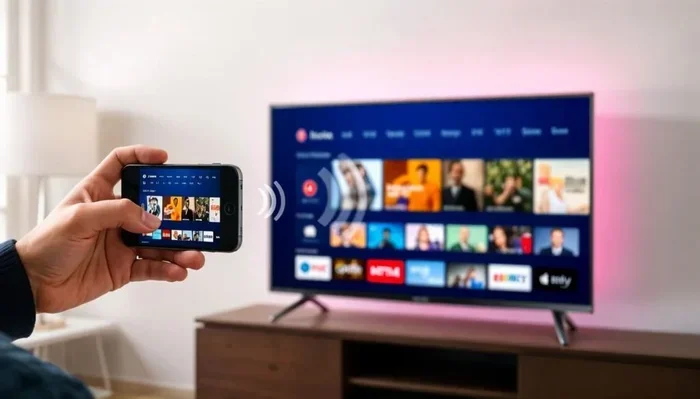
You can connect your iPhone to your TV without an HDMI cable using several wireless methods like AirPlay, wireless display adapters, and smart TV apps. Whether you have an Apple TV, a Chromecast, or a modern Smart TV, streaming your iPhone screen to your TV is easier than you think. This guide covers every practical method so you can pick the best option for your setup.
Want to share photos, watch videos, or play games on a bigger screen? You do not always need an HDMI cable to do it. Connecting your iPhone to your TV without HDMI is totally possible and surprisingly simple. Whether you are at home or traveling, wireless methods give you the freedom to stream anything from your phone to your TV.
Many people assume they need a special cable or expensive equipment. That is not true. Modern iPhones and modern TVs come packed with built-in wireless features. You can use AirPlay, smart TV apps, or a small wireless adapter to get your iPhone content on the big screen. This guide walks you through every option in plain language.
We will cover the most popular wireless methods, compare them side by side, and help you pick the best one for your setup. By the end, you will know exactly how to connect your iPhone to your TV without HDMI in just a few minutes. No technical skills required.
Key Takeaways
- AirPlay is the easiest wireless option if you have an Apple TV or a compatible Smart TV.
- Wireless display adapters like Roku or Chromecast let you cast your iPhone screen without any cables.
- Smart TV apps like Netflix and YouTube can mirror content directly from your iPhone.
- Avoid common mistakes like using outdated firmware or connecting to the wrong Wi-Fi network.
- Bluetooth and Wi-Fi Direct offer alternative paths if HDMI ports are unavailable.
- Check your TV model first to ensure it supports wireless mirroring or screen casting.
📑 Table of Contents
- Why You Might Need to Connect Your iPhone to Your TV Without HDMI
- The Best Wireless Methods to Connect iPhone to TV
- Using AirPlay for Wireless Connection
- Wireless Display Adapters and Dongles
- Using Smart TV Apps and Streaming Services
- Comparing Wireless Methods: Which One Is Right for You?
- Common Mistakes to Avoid When Connecting Wirelessly
- Expert Tips for the Best Wireless Streaming Experience
- Conclusion
Why You Might Need to Connect Your iPhone to Your TV Without HDMI
There are many reasons you might want to go cable-free. Maybe your TV does not have an HDMI port. Perhaps you do not have the right cable handy. Or you simply want a cleaner setup without wires running across the room.
Here are some common situations where wireless connection makes sense:
- Your TV only has older ports like RCA or VGA and no HDMI input.
- You are traveling and want to stream from your iPhone to a hotel TV.
- You want a clutter-free living room without extra cables.
- Your HDMI port is broken or not working properly.
- You want to share photos or videos with a group on a larger screen.
Whatever your reason, wireless connection gives you flexibility. You can also check what it takes to connect your iPhone to HDMI if you ever need a wired backup option.
The Best Wireless Methods to Connect iPhone to TV
Several wireless methods work well for streaming your iPhone to your TV. Each has its own strengths. Let us look at the top options available right now.
AirPlay (Best for Apple Users)
AirPlay is Apple’s built-in wireless streaming technology. It lets you mirror your iPhone screen or stream content directly to a compatible TV or Apple TV. Most Smart TVs made after 2018 support AirPlay natively.
Here is how to use AirPlay:
- Make sure your iPhone and your TV are on the same Wi-Fi network.
- Open the Control Center on your iPhone by swiping down from the top right.
- Tap the Screen Mirroring icon.
- Select your TV from the list of available devices.
- Your iPhone screen will now appear on your TV.
AirPlay works great for photos, videos, games, and presentations. It is fast, easy, and does not require any extra hardware. If you want to learn more about connecting devices wirelessly, you can also explore how to mirror your iPhone to a projector using similar steps.
Chromecast and Roku (Great for Non-Apple TVs)
Not everyone uses Apple TV. Chromecast and Roku are popular alternatives that work with any TV that has an HDMI port. These small devices plug into your TV and let you cast content from your iPhone.
With Chromecast, you open an app on your iPhone that supports casting, like YouTube or Netflix. Then you tap the cast icon and choose your Chromecast device. The content streams directly from the internet to your TV.
Roku works similarly. You use the Roku app on your iPhone to control your TV and cast content. Both options are affordable and very reliable. They are excellent choices if you want a simple wireless setup without buying an Apple TV.
Smart TV Built-In Apps
Many modern Smart TVs have apps built right into them. Apps like Netflix, YouTube, Hulu, and Disney Plus work directly on the TV. You do not need to mirror your entire screen.
Instead, you open the app on your TV and use your iPhone as a remote. Some apps even let you send content from your phone to the TV with a single tap. This method uses less battery and gives you a smoother experience than full screen mirroring.
If your TV supports this, it is often the easiest and most reliable option. You skip the mirroring step entirely and go straight to streaming.
Wireless Display Adapters
If your TV does not support AirPlay or smart apps, a wireless display adapter can help. These small devices plug into your TV and create a wireless receiving point for your iPhone.
Popular options include the Microsoft Wireless Display Adapter and the Belkin Miracast Adapter. They work with most TVs that have an HDMI port. You pair your iPhone with the adapter, and your screen appears on the TV.
These adapters are handy when you are using an older TV or a TV that does not have smart features. They are a great bridge between your iPhone and your existing setup.
Using AirPlay for Wireless Connection
AirPlay deserves a closer look because it is the most seamless option for iPhone users. It is built into iOS and works without downloading any extra apps.
What You Need for AirPlay
- An iPhone running iOS 12 or later.
- A Smart TV that supports AirPlay 2 or an Apple TV device.
- A stable Wi-Fi network that both devices share.
How to Set Up AirPlay Step by Step
Setting up AirPlay takes less than a minute. First, make sure both your iPhone and your TV are connected to the same Wi-Fi network. Then open the Control Center on your iPhone. Tap the Screen Mirroring button and wait for your TV to appear in the list.
Once you select your TV, a code may appear on your TV screen. Enter that code on your iPhone to confirm the connection. After that, everything you do on your iPhone shows up on your TV in real time.
You can also use AirPlay to stream audio only. This is great if you want to listen to music from your iPhone through your TV speakers without showing the screen. Just open the music app, tap the AirPlay icon, and choose your TV.
If you run into issues, make sure both devices are updated to the latest software. Also check that your router is not blocking the connection. Sometimes restarting both devices fixes the problem right away.
Wireless Display Adapters and Dongles
Wireless display adapters are small plug-in devices that turn any TV with an HDMI port into a wireless streaming screen. They are a fantastic option if your TV does not have built-in smart features.
How Wireless Adapters Work
These adapters connect to your TV’s HDMI port and your home Wi-Fi network. Once paired, your iPhone can send its screen to the adapter wirelessly. The adapter then displays the content on your TV.
The process is simple:
- Plug the adapter into your TV’s HDMI port.
- Connect the adapter to your Wi-Fi network using the setup app.
- On your iPhone, open the Screen Mirroring feature.
- Select the adapter from the list.
- Your iPhone screen now shows on your TV.
Popular Wireless Adapter Options
There are several well-known wireless adapters on the market. The Roku Streaming Stick is one of the most popular. It supports screen mirroring from iPhones and works with most TVs. The Google Chromecast is another strong choice. It is compact, affordable, and works well with iOS devices.
The Amazon Fire TV Stick also supports mirroring from iPhones. It comes with Alexa built in, so you can use voice commands to control your streaming. Each option has its pros and cons, but all three deliver solid wireless performance.
Quick Tips for Using Wireless Adapters
- Place the adapter close to your router for the best Wi-Fi signal.
- Use a high-speed HDMI cable between the adapter and your TV for the best picture quality.
- Keep your iPhone and adapter on the same Wi-Fi band (either 2.4 GHz or 5 GHz).
- Restart the adapter if you experience lag or disconnections.
If you are dealing with older cables and ports, you might also want to check out how to go from HDMI to RCA for legacy TV setups.
Using Smart TV Apps and Streaming Services
Most Smart TVs today come with built-in app stores. You can download apps directly onto your TV and use them without ever touching your iPhone. But your iPhone can still play a big role in this setup.
Many streaming apps have a “Cast” or “Send” button built into their iPhone versions. When you tap that button, it sends the content to your TV over Wi-Fi. The TV handles the streaming, not your iPhone. This means your phone can do other things while the video plays on the big screen.
This method is more efficient than full screen mirroring. It uses less battery and delivers better picture quality because the TV pulls the video directly from the internet.
Apps That Support iPhone-to-TV Casting
- YouTube – Tap the cast icon to send videos to your TV.
- Netflix – Stream directly from your iPhone to your TV.
- Spotify – Cast music to your TV speakers wirelessly.
- Plex – Stream your personal media library to your TV.
- Hulu – Watch shows and movies on the big screen.
Not every app supports casting. But the most popular ones do. Look for the cast icon (a small rectangle with Wi-Fi waves in the corner) inside the app. If you see it, your iPhone can talk to your TV.
For a more comprehensive look at Bluetooth options with your TV, you can also check whether you can use a Bluetooth adapter on your TV for audio streaming.
Comparing Wireless Methods: Which One Is Right for You?
Choosing the right method depends on your TV, your iPhone model, and what you want to do. Here is a quick comparison to help you decide.
| Method | Best For | Requires Extra Hardware | Setup Difficulty | Quality |
|---|---|---|---|---|
| AirPlay | Apple TV or AirPlay-compatible Smart TVs | No | Very Easy | Excellent |
| Chromecast | Casting content from apps | Yes (Chromecast device) | Easy | Very Good |
| Roku | Full screen mirroring and streaming | Yes (Roku device) | Easy | Very Good |
| Smart TV Apps | Streaming from supported apps | No | Very Easy | Excellent |
| Wireless Display Adapter | Older TVs without smart features | Yes (adapter) | Moderate | Good |
AirPlay is the simplest option if you are in the Apple ecosystem. If you have a non-Apple TV, Chromecast or Roku gives you great flexibility. Smart TV apps are perfect for everyday streaming without any extra devices.
Wireless adapters are ideal for older TVs. They bring smart features to sets that did not have them originally. Pick the method that matches your gear and your needs.
Common Mistakes to Avoid When Connecting Wirelessly
Wireless connections are convenient, but they can be tricky sometimes. Here are common mistakes that trip people up.
Using Different Wi-Fi Networks
This is the number one reason wireless connections fail. Your iPhone and your TV must be on the same Wi-Fi network. If your phone is on your home network and your TV is on a guest network, they cannot talk to each other.
Ignoring Software Updates
Old software can cause compatibility problems. Always update your iPhone and your TV to the latest firmware before trying to connect. Updates often fix bugs and improve wireless performance.
Trying to Mirror Everything
Full screen mirroring uses a lot of battery and bandwidth. If you only want to watch a video, use the cast feature in the app instead of mirroring your whole screen. It is faster and smoother.
Overlooking Router Limitations
Some older routers struggle with wireless streaming. If you experience lag or poor quality, try moving closer to your router or upgrading to a newer model. A strong Wi-Fi signal makes all the difference.
Forgetting to Turn Off VPNs
VPNs can block local network connections. If your iPhone is running a VPN, turn it off before trying to connect to your TV. This is a small step that solves many connection problems.
Expert Tips for the Best Wireless Streaming Experience
Getting a great wireless connection is about more than just tapping a button. A few small adjustments can make a huge difference in quality and reliability.
First, use a 5 GHz Wi-Fi network whenever possible. It is faster and less crowded than the 2.4 GHz band. Most modern routers support both bands, and your iPhone will automatically connect to the strongest one.
Second, close other apps on your iPhone while streaming. Background apps use bandwidth and can slow down your connection. A clean phone gives you the best streaming performance.
Third, keep your devices close to each other. Walls and furniture can weaken Wi-Fi signals. If your TV and router are in different rooms, consider moving your router closer or using a Wi-Fi extender.
Finally, restart your devices regularly. A quick restart clears temporary glitches and keeps everything running smoothly. This simple habit saves a lot of troubleshooting time.
If you ever need a wired alternative, you might explore options like connecting your phone to an HDMI TV using the right adapter.
Conclusion
Connecting your iPhone to your TV without HDMI is easier than most people think. You have many wireless options at your fingertips. AirPlay works beautifully for Apple users. Chromecast and Roku offer great alternatives for any TV. Smart TV apps let you stream without mirroring. And wireless adapters bring modern features to older TVs.
The key is to match your method to your setup. Check what your TV supports, pick the right tool, and follow the simple steps outlined in this guide. You will be watching your favorite content on the big screen in no time.
Wireless streaming gives you freedom and convenience. No cables, no clutter, no hassle. Try the method that works best for you and enjoy your iPhone content on your TV today.
Frequently Asked Questions
Can I connect my iPhone to any TV wirelessly?
Most modern Smart TVs support wireless connection methods like AirPlay or screen mirroring. If your TV is older and does not have smart features, you can use a wireless display adapter or a streaming device like Chromecast or Roku to add wireless capability.
Do I need an Apple TV to use AirPlay?
No. Many Smart TVs made after 2018 support AirPlay natively. You can use AirPlay directly with these TVs without an Apple TV. Just make sure both your iPhone and your TV are on the same Wi-Fi network.
Does wireless mirroring affect video quality?
Wireless mirroring can sometimes reduce quality slightly compared to a wired HDMI connection. However, using smart TV apps with the cast feature instead of full mirroring usually delivers excellent quality because the TV pulls the video directly from the internet.
Why can’t my iPhone find my TV when I try to mirror?
The most common reason is that both devices are not on the same Wi-Fi network. Check that your iPhone and TV are connected to the same network. Also make sure your TV’s screen mirroring or AirPlay feature is turned on in the settings.
Can I use a Bluetooth connection to connect my iPhone to my TV?
Bluetooth can handle audio streaming, but it is not ideal for video. For video, use AirPlay, Chromecast, Roku, or a wireless display adapter. Bluetooth works well for sending music from your iPhone to your TV speakers or Bluetooth headphones.
Is screen mirroring the same as casting?
No. Screen mirroring shows everything on your iPhone screen on your TV in real time. Casting sends specific content from an app to your TV while you can still use your iPhone for other things. Casting is generally smoother and uses less battery.