Learn How to Add Sony Headphones to Find My Device Today
Adding your Sony headphones to Find My Device is one of the easiest ways to protect your investment and avoid the frustration of a lost pair. Whether you own the WH-1000XM5 or the WF-1000XM5, the process is simple and takes just a few minutes. You will learn how to pair your headphones, use the Sony Headphones Connect app, and set up tracking features that help you locate your gear fast.
Losing your favorite pair of headphones is one of those small frustrations that can ruin your entire day. You have been listening to music, watching a show, or taking calls, and suddenly your Sony headphones are nowhere to be found. The good news is that adding Sony headphones to Find My Device can save you from that stressful search.
Many people do not realize that their Sony Bluetooth headphones can be tracked just like a phone or a tablet. With the right setup, you can see where your headphones were last connected, get alerts, and even play a sound to help you locate them. This guide walks you through everything you need to know, step by step.
Find My Device is a tracking service built into most smartphones and computers. It helps you locate lost or stolen devices by showing their last known location. But here is the thing, not all devices are automatically added to this tracking system. Your Sony headphones need a little extra setup to show up in your tracking list.
The process depends on a few things. First, it depends on what kind of Sony headphones you own. Second, it depends on whether you use an Android phone or an iPhone. And third, it depends on which Sony app you have installed. But do not worry, none of these steps are complicated.
Let us start with the basics and work our way through the whole process.
Key Takeaways
- Easy Setup: Adding Sony headphones to Find My Device takes only a few simple steps and works with most Sony Bluetooth models.
- Use the Sony Headphones Connect App: This free app gives you extra tracking and management tools beyond the basic Find My Device feature.
- Prevent Loss: Keeping your headphones registered and updated in your device list makes them much easier to find if they go missing.
- Works Across Devices: You can track Sony headphones using Android, iPhone, or even through the Sony app ecosystem.
- Troubleshooting Is Simple: Most issues with adding headphones to Find My Device can be fixed with a quick reset or firmware update.
- Pairing Matters: Proper Bluetooth pairing ensures your headphones show up correctly in your device tracking list.
📑 Table of Contents
- What Is Find My Device and Why Does It Matter for Sony Headphones?
- How to Add Sony Headphones to Find My Device
- Using the Sony Headphones Connect App for Extra Tracking
- Tips to Keep Your Sony Headphones Safe and Trackable
- Common Issues When Adding Sony Headphones to Find My Device
- Why Sony Headphones Deserve the Extra Tracking Effort
- Final Thoughts on Adding Sony Headphones to Find My Device
What Is Find My Device and Why Does It Matter for Sony Headphones?
Find My Device is a free service from Google that works on Android phones, tablets, and Chromebooks. Apple has a similar service called Find My, which works on iPhones and Macs. Both services let you track your devices on a map, lock them remotely, or erase them if they are stolen.
Now, here is where it gets interesting for headphone users. Most wireless headphones connect to your phone through Bluetooth. That Bluetooth connection leaves a digital trail. When your Sony headphones connect to your phone, that connection is recorded. Find My Device uses that trail to help you figure out where your headphones might be.
But there is a catch. Your headphones need to be properly registered and connected for this to work. That is exactly why adding them to your tracking list matters so much. Without that connection history, you are basically searching blind.
If you also use Bluetooth headphones with other devices like your TV or car stereo, keeping them tracked on your phone adds an extra layer of security. You can also check out how Bluetooth headphones work with different devices to get the most out of your setup.
How to Add Sony Headphones to Find My Device
Adding your Sony headphones to Find My Device is a straightforward process. Here is exactly what you need to do, step by step.
Step 1: Make Sure Your Sony Headphones Are Charged and Paired
Before anything else, make sure your headphones have enough battery. A dead pair of headphones will not connect to anything, and you will not be able to track them. Charge them fully, or at least to 20 percent or above.
Next, put your headphones into pairing mode. Most Sony models have a dedicated pairing button or a specific sequence you need to follow. Check your user manual if you are not sure how to do this.
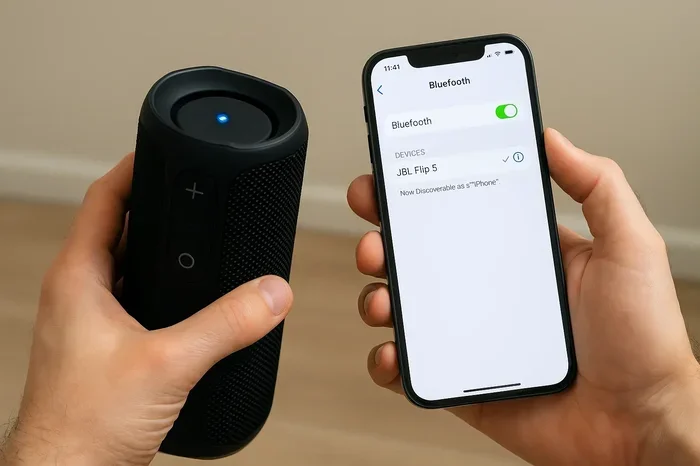
Once your headphones are in pairing mode, open the Bluetooth settings on your phone. Look for your Sony headphones in the list of available devices and tap to connect.
Step 2: Open Find My Device on Your Phone
If you are using an Android phone, open the Find My Device app or go to the website at google.com/android/find. Sign in with your Google account if you have not already.
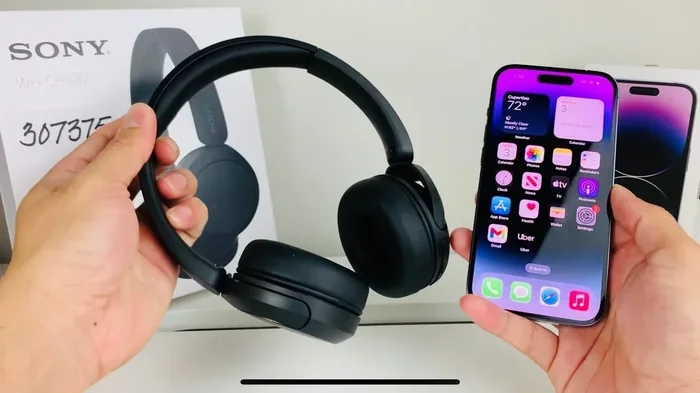
For iPhone users, you will use the Find My app instead. Open it and tap the Devices tab. Your Sony headphones should appear there once they are connected to your phone via Bluetooth.
If your headphones do not show up right away, do not panic. Sometimes it takes a few minutes for the connection to register. Make sure Bluetooth is turned on and your headphones are connected.
Step 3: Check That Your Headphones Show Up in the Device List
Once connected, your Sony headphones should appear in your device list. On Android, you may need to tap the menu and select All Devices to see them. On iPhone, they should appear under the Devices tab in the Find My app.
If you do not see your headphones listed, try disconnecting and reconnecting them. Sometimes a fresh Bluetooth connection forces the phone to register the device properly.
Step 4: Enable Location Services for Accurate Tracking
Tracking works best when location services are turned on. Go to your phone settings and make sure Location is enabled. This allows Find My Device to record where your headphones were last connected.
Without location services, you will only see the last known Bluetooth connection point, which might not be very accurate. With location services on, you get a much better idea of where your headphones might be.
Using the Sony Headphones Connect App for Extra Tracking
The Sony Headphones Connect app is a free app that gives you much more control over your Sony headphones. It is available for both Android and iPhone and works with most Sony wireless models.
While the Find My Device service helps you track your headphones through your phone, the Sony app gives you additional features. You can check battery levels, update firmware, adjust sound settings, and yes, track your headphones too.
To get started, download the Sony Headphones Connect app from the Google Play Store or Apple App Store. Open the app and follow the on-screen instructions to pair your headphones.
Once paired, the app will show you your headphones in your device list. If your headphones go missing, you can use the app to check the last connection point. This works especially well when paired with Find My Device for a one-two punch of tracking power.
The app also lets you customize your listening experience. You can adjust noise cancellation, set equalizer presets, and even create button shortcuts. It is a great tool to have whether or not you ever lose your headphones.
For those who also use Bluetooth headphones with gaming consoles or other devices, pairing your Sony headphones through the official app ensures a smoother connection across all your gear. If you are curious about how Bluetooth headphones work with gaming setups, check out how AirPods pair with the Nintendo Switch for a similar Bluetooth pairing experience.
Tips to Keep Your Sony Headphones Safe and Trackable
Prevention is always better than searching. Here are some practical tips to keep your Sony headphones from getting lost in the first place.
Always Store Them in a Designated Spot
Pick a specific place for your headphones. A charging case, a drawer, or a hook near your desk all work well. The key is to make it a habit. When you finish using them, put them right back in that spot.
Keep the Firmware Updated
Sony regularly releases firmware updates for their headphones. These updates often include improvements to Bluetooth connectivity and tracking features. Open the Sony Headphones Connect app and check for updates at least once a month.
Use a Bluetooth Tracker as a Backup
If you are really worried about losing your headphones, consider attaching a small Bluetooth tracker like an AirTag or Tile to the carrying case. This adds another layer of tracking that works independently of your phone.
Name Your Device Clearly
When your Sony headphones show up in your device list, make sure they are named clearly. Instead of just seeing “Sony Bluetooth,” rename them to something like “Sony WH-1000XM5 Left” or “Sony Noise Cancelling Headphones.” This makes them much easier to identify if you have multiple Bluetooth devices.
Enable Remote Lock and Alert Features
Some tracking services let you remotely lock a device or play a sound. Make sure these features are turned on in your Find My Device settings. If your headphones are ever lost, you can use these tools to help find them quickly.
Common Issues When Adding Sony Headphones to Find My Device
Sometimes things do not go as smoothly as we would like. Here are the most common issues people run into when trying to add Sony headphones to Find My Device, and how to fix them.
Headphones Do Not Show Up in the Device List
This is the most common problem. Usually, it happens because the Bluetooth connection was not fully established. Try turning Bluetooth off and back on. Then disconnect your headphones and reconnect them.
Another reason could be that your phone and headphones are too far apart. Move closer to your headphones and try again. Sometimes restarting both your phone and your headphones solves the problem too.
Location Services Are Disabled
Without location services, Find My Device cannot track where your headphones were last connected. Go to your phone settings, find Location, and make sure it is turned on. Also, make sure the Find My Device app has permission to access your location.
Outdated Firmware or App Version
Old firmware can cause all sorts of Bluetooth issues, including tracking problems. Open the Sony Headphones Connect app and check for any available updates. Update both the app and your headphones firmware to the latest version.
Multiple Devices Connected at Once
If your Sony headphones are connected to multiple devices at the same time, they might not show up properly in Find My Device. Disconnect them from all other devices and connect them only to the phone you use for tracking.
For more Bluetooth troubleshooting tips, you might want to read about connecting your phone to different devices to understand how Bluetooth and wired connections work together.
Why Sony Headphones Deserve the Extra Tracking Effort
Sony headphones are not cheap. A pair of WH-1000XM5 or WF-1000XM5 can cost several hundred dollars. That is a lot of money to lose because you dropped them somewhere and did not notice.
These headphones also come with premium features like industry-leading noise cancellation, excellent sound quality, and comfortable designs for long listening sessions. Losing a pair like that means losing all of that value and enjoyment.
Beyond the financial loss, there is the inconvenience factor. Imagine being on a long flight or a commute and realizing your headphones are gone. Or picture sitting down for a work call and discovering your headphones are missing. Tracking them through Find My Device helps you avoid those situations.
The good news is that Sony has built strong Bluetooth connectivity into their headphones. That means they pair easily with phones, tablets, laptops, and even smart TVs. The same Bluetooth technology that makes them so versatile also makes them trackable through your device ecosystem.
Taking a few extra minutes to set up tracking is a small price to pay for the peace of mind it gives you. You will never have to wonder where your headphones are again.
Final Thoughts on Adding Sony Headphones to Find My Device
Adding Sony headphones to Find My Device is one of the smartest things you can do as a headphone owner. It takes just a few minutes, and it could save you hours of searching or even hundreds of dollars in replacement costs.
Start by following the steps in this guide. Make sure your headphones are charged, paired, and connected to your phone. Download the Sony Headphones Connect app for extra tracking power. And take the preventive steps to keep your headphones safe in the first place.
Remember, technology is here to make our lives easier. Using Find My Device for your Sony headphones is a perfect example of that. You get a powerful tracking tool built right into your phone, and you get peace of mind knowing your favorite headphones are always within reach.
Take a few minutes right now to set this up. You will be glad you did the next time you need to find your headphones quickly and easily.
Frequently Asked Questions
Can I add any Sony headphones to Find My Device?
Most Sony wireless headphones that connect via Bluetooth can be added to Find My Device. This includes popular models like the WH-1000XM5, WH-1000XM4, WF-1000XM5, and WF-1000XM4. Wired Sony headphones without Bluetooth will not show up in the tracking list since they do not connect wirelessly to your phone.
Do I need the Sony Headphones Connect app to track my headphones?
The Sony Headphones Connect app is not strictly required for Find My Device tracking, but it is highly recommended. The app gives you extra features like checking battery levels, updating firmware, and viewing the last connection point. Together with Find My Device, it gives you the best chance of finding your headphones if they go missing.
Can I track my Sony headphones if they are not connected to my phone?
You can only track your headphones through Find My Device if they were recently connected to your phone via Bluetooth. The tracking system relies on that Bluetooth connection history. If your headphones have been disconnected for a long time or are out of battery, they may not show up in the tracking list.
Is Find My Device available for iPhone users with Sony headphones?
Yes, iPhone users can track Sony Bluetooth headphones through the Find My app. When your Sony headphones connect to your iPhone via Bluetooth, they should appear in the Devices tab of the Find My app. Make sure Bluetooth is on and your headphones are connected for the best results.
What should I do if my Sony headphones still do not show up in Find My Device?
First, make sure your headphones are fully charged and in pairing mode. Then check that Bluetooth is turned on and location services are enabled on your phone. Try disconnecting and reconnecting your headphones. If the problem persists, restart both your phone and your headphones, then try again. Updating the Sony Headphones Connect app and your phone software can also help resolve the issue.
Can I use a Bluetooth tracker like an AirTag with my Sony headphones?
Yes, you can attach a small Bluetooth tracker like an AirTag or Tile to your Sony headphones carrying case. This adds an extra layer of tracking that works independently of Find My Device. It is especially useful if you frequently misplace your headphones or want backup tracking options in case the Bluetooth connection drops.