How Do I Connect My 8bitdo Ultimate Controller Bluetooth
The 8bitdo Ultimate Controller is a top-rated wireless gamepad that supports Bluetooth connectivity for PCs, phones, and smart TVs. This guide walks you through every step of the pairing process, from putting the controller into Bluetooth mode to resolving common connection issues. You will also find expert tips to improve your wireless gaming experience and extend controller battery life.
You just got your hands on the 8bitdo Ultimate Controller, and you are ready to start gaming. But before you dive into your favorite titles, you need to get it connected. The good news is that pairing this controller over Bluetooth is simple, fast, and does not require any technical wizardry. Whether you want to connect it to your PC, phone, or smart TV, this guide has you covered.
The 8bitdo Ultimate Bluetooth pairing process works the same way across most devices, but there are a few small differences depending on what you are connecting to. In this article, we will walk you through every step in plain language. You will learn how to put the controller into pairing mode, how to find it on your device, and how to fix the most common issues. By the end, you will be gaming wirelessly with confidence.
Many gamers love the 8bitdo Ultimate Controller because it feels premium in the hand and offers solid wireless performance. The Bluetooth 5.0 connection gives you a reliable range and minimal input delay. But like any wireless device, it sometimes needs a little patience during the setup phase. Do not worry, though. We will make sure you are up and running in no time.
Key Takeaways
- Easy Pairing Process: Connecting your 8bitdo Ultimate Controller via Bluetooth is straightforward and takes just a few minutes.
- Multi-Device Support: The controller can connect to PCs, Android devices, iPhones, and smart TVs wirelessly.
- Firmware Updates Matter: Updating your controller firmware ensures the best Bluetooth performance and compatibility.
- Troubleshooting Is Simple: Most connection problems can be fixed with basic steps like resetting the controller or checking Bluetooth settings.
- Wired Mode Is a Backup: You can always use a USB cable if Bluetooth pairing fails or for zero-latency play.
📑 Table of Contents
- What You Need Before You Start
- Step-by-Step Guide to Connect Your 8bitdo Ultimate Controller
- Connecting to Different Devices
- Updating Your 8bitdo Ultimate Controller Firmware
- Troubleshooting Common Connection Issues
- Tips for the Best Bluetooth Gaming Experience
- Wired Mode vs. Bluetooth Mode
- Common Mistakes to Avoid
- Final Thoughts
What You Need Before You Start
Before you begin the 8bitdo Ultimate Bluetooth pairing process, make sure you have everything ready. Preparation makes the whole process smoother and saves you time. Here is what you need:
- Your 8bitdo Ultimate Controller – fully charged or with fresh batteries installed.
- A device with Bluetooth – this can be a Windows PC, Mac, Android phone, iPhone, or smart TV.
- A USB cable (optional) – this is useful if you want to update firmware or use wired mode as a backup.
- Patience – just in case you need to try the pairing process more than once.
It also helps to know which Bluetooth version your device supports. Most modern devices use Bluetooth 4.0 or higher, which works perfectly with the 8bitdo Ultimate Controller. If your device is older, you may need a Bluetooth adapter to make the connection work. For more on using Bluetooth adapters with different devices, check out our guide on using a Bluetooth adapter on your TV for helpful background on how these adapters work.
Step-by-Step Guide to Connect Your 8bitdo Ultimate Controller
Now that you are prepared, let us get into the actual pairing steps. We will cover the process for the most common devices. The good news is that once you do it once, you will remember the steps easily.
Step 1: Put the Controller Into Bluetooth Mode
First, you need to wake up the controller and set it to pairing mode. Here is how:
- Press and hold the Home button (the Xbox-shaped button in the middle) for about three seconds.
- The LED lights on the controller will start flashing, which means it is ready to be found.
- On some models, you may need to hold the B button and the Home button together for a few seconds.
Once the lights are flashing, your controller is broadcasting its presence. It is now looking for a device to connect to. This is the same process whether you are connecting to a PC, phone, or tablet.
Step 2: Open Bluetooth Settings on Your Device
Next, go to the Bluetooth settings on the device you want to connect. Here is how to do it on different platforms:
- Windows PC: Go to Settings > Bluetooth & Devices and make sure Bluetooth is turned on.
- Mac: Click the Apple menu > System Preferences > Bluetooth.
- Android Phone: Swipe down from the top of the screen and tap the Bluetooth icon, or go to Settings > Connections > Bluetooth.
- iPhone: Go to Settings > Bluetooth and toggle it on.
Make sure your device’s Bluetooth is visible and searchable. Some devices hide themselves from other Bluetooth devices, which can prevent the controller from showing up.
Step 3: Find and Select the Controller
On your device, look for the controller in the list of available devices. It should appear as one of the following:
- 8bitdo Ultimate
- 8BitDo Ultimate Controller
- 8BitDo Ultimate Bluetooth
Tap or click on the name to start the pairing process. Within a few seconds, the flashing lights on the controller should stop, and the connection will be established. You may see a confirmation message on your device.
Step 4: Test the Connection
After pairing, test the controller to make sure everything works. Try moving the joysticks and pressing the buttons. On a PC, you can use the built-in Game Controller settings to check that all inputs register correctly. On a phone, open a game that supports controllers and see if it responds.
If the controller does not respond right away, do not panic. Sometimes the 8bitdo Ultimate Bluetooth connection takes a moment to stabilize. Try moving closer to your device and testing again.
Connecting to Different Devices
The 8bitdo Ultimate Controller is a versatile device that can connect to many different platforms. Here is how the process varies slightly depending on what you are using.
Connecting to a Windows PC
Windows PCs are one of the most common setups for the 8bitdo Ultimate Controller. The controller supports the DirectInput and XInput modes, which means it works with most PC games without extra software. To switch between modes, hold the Home button and press A for XInput or D for DirectInput before pairing.
Some games may need you to configure the controller within the game settings. Popular platforms like Steam also have built-in controller support that makes setup even easier. If you run into any issues with your PC connection, a quick firmware update through the 8bitdo Ultimate Software can often fix them.
Connecting to Android Devices
Android phones and tablets work great with the 8bitdo Ultimate Controller. Most modern Android devices support Bluetooth controller input natively. Simply follow the pairing steps above, and the controller should connect without any additional apps.
Some Android games may need you to enable controller support in the game settings. Cloud gaming services like GeForce Now and Xbox Cloud Gaming also work well with this controller over Bluetooth. Just make sure your phone is running a recent version of Android for the best compatibility.
Connecting to iPhones and iPads
Connecting the 8bitdo Ultimate Controller to an iPhone or iPad follows the same Bluetooth pairing steps. However, iOS devices sometimes have stricter compatibility requirements. Make sure your controller firmware is up to date, as Apple devices can be picky about controller profiles.
If you need to connect your iPhone to another device using a cable, you might find our article on connecting your iPhone to USB helpful for understanding how iOS devices handle wired connections. For most gaming purposes, though, the Bluetooth route works perfectly for iPhones and iPads.
Connecting to Smart TVs
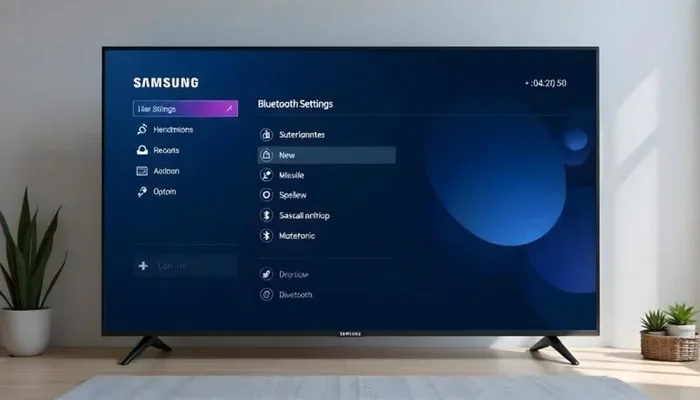
Some smart TVs allow you to connect Bluetooth game controllers for mobile gaming or emulation. The process varies by TV brand, but generally, you go to the TV’s Bluetooth settings and search for new devices. The 8bitdo Ultimate Controller should appear in the list if the TV supports Bluetooth input.
Keep in mind that not all smart TVs support game controllers over Bluetooth. If your TV does not detect the controller, you may need to use a Bluetooth transmitter or connect via USB cable. For more on how Bluetooth connectivity works with TVs, you can read our guide on connecting your phone to an HDMI TV which covers related device connection concepts.
Updating Your 8bitdo Ultimate Controller Firmware
One of the most important steps for a smooth Bluetooth experience is keeping your controller firmware up to date. Firmware updates can fix connection bugs, improve Bluetooth stability, and add new features.
Here is how to update your controller:
- Download the 8bitdo Ultimate Software from the official 8bitdo website.
- Connect the controller to your PC using a USB cable.
- Open the software and check for firmware updates.
- Follow the on-screen instructions to install the update.
- After updating, disconnect the USB cable and test the Bluetooth connection.
Updating firmware is especially important if you are having trouble with the 8bitdo Ultimate Bluetooth pairing process. Many users skip this step and then wonder why their controller will not connect. A simple update can solve the problem in minutes.
Troubleshooting Common Connection Issues
Even with the best devices, connection problems can happen. Here are the most common issues and how to fix them.
Controller Does Not Show Up in Bluetooth List
This is the most common problem, and it usually has a simple fix. Try these steps:
- Make sure the controller is in pairing mode (flashing lights).
- Turn Bluetooth off and back on on your device.
- Move closer to your device. The Bluetooth range for the 8bitdo Ultimate is about 10 meters.
- Remove any other Bluetooth devices that might be interfering.
- Restart your device and try again.
If none of these work, try resetting the controller. You can do this by using a small pin to press the reset button on the back of the controller. After resetting, try the pairing process again from scratch.
Connection Keeps Dropping
A controller that disconnects randomly can be frustrating. This issue is often caused by:
- Low battery – charge the controller fully and try again.
- Wi-Fi interference – Bluetooth and Wi-Fi use the same 2.4 GHz band, which can cause conflicts.
- Distance – stay within range of your device.
- Outdated firmware – update the controller software as described above.
Moving closer to your device and reducing the number of active Bluetooth devices in the area can also help stabilize the connection. If you are using a laptop, try keeping it on your desk rather than in your lap, as your body can sometimes block Bluetooth signals.
Controller Works But Buttons Do Not Respond in Games
Sometimes the controller connects but does not work correctly in games. This is usually a mode or configuration issue:
- Check that the controller is in the correct mode (XInput for most PC games).
- Open your game’s controller settings and make sure the 8bitdo Ultimate is selected as the input device.
- On Steam, go to Settings > Controller and enable PlayStation Controller Support or Generic Controller Support as needed.
Tips for the Best Bluetooth Gaming Experience
Once you have your 8bitdo Ultimate Controller connected, you can take steps to make your wireless gaming experience even better. These small adjustments can make a big difference.
- Keep the controller charged. A low battery can cause lag and disconnections. The 8bitdo Ultimate has a built-in rechargeable battery that lasts for hours of gameplay.
- Stay close to your device. While the Bluetooth range is decent, staying within a few meters of your device ensures the strongest signal.
- Reduce Bluetooth interference. If you have many Bluetooth devices connected at once, some may compete for bandwidth. Disconnect devices you are not using.
- Use the USB cable for competitive gaming. If you need zero input lag, a wired USB connection is always the most reliable option. For more on using USB cables for device connections, check out our guide on connecting USB Type C to USB for helpful tips on USB connectivity.
- Update regularly. Check for firmware updates every few months to keep everything running smoothly.
Another great tip is to remember that the 8bitdo Ultimate Controller supports multi-device connectivity. You can switch between devices without re-pairing each time, which is incredibly convenient if you game on both your phone and PC. Simply disconnect from one device and connect to the other using the same pairing process.
Wired Mode vs. Bluetooth Mode
The 8bitdo Ultimate Controller gives you the flexibility to choose between wired and wireless connections. Both modes have their advantages, and knowing when to use each one can improve your gaming sessions.
| Feature | Bluetooth Mode | Wired (USB) Mode |
|---|---|---|
| Latency | Slightly higher but still great | Near zero latency |
| Mobility | Full freedom of movement | Limited by cable length |
| Battery | Uses rechargeable battery | No battery needed |
| Setup | Pairing required | Plug and play |
| Best For | Casual gaming, couch play | Competitive gaming, tournaments |
For most casual gamers, Bluetooth mode is the way to go. It offers the freedom to play from the couch or across the room without being tethered to your device. Competitive players who need every millisecond advantage may prefer the wired USB connection for its instant response time.
Common Mistakes to Avoid
To save yourself frustration, here are some common mistakes people make when setting up their 8bitdo Ultimate Controller and how to avoid them:
- Skipping firmware updates. This is the number one cause of Bluetooth issues. Always update before pairing.
- Not putting the controller in pairing mode. If the lights are not flashing, the controller is not looking for a connection.
- Pairing with the wrong mode. Make sure you have selected XInput or DirectInput before attempting to connect.
- Ignoring battery levels. A dying battery leads to poor connections. Always charge the controller before a long gaming session.
- Too many connected devices. Having many Bluetooth devices active can interfere with the controller connection.
Final Thoughts
Connecting your 8bitdo Ultimate Controller via Bluetooth is a simple process that opens up a world of wireless gaming possibilities. From PCs to phones to smart TVs, this versatile controller works with a wide range of devices. By following the steps in this guide, you should be able to pair your controller quickly and start playing your favorite games without any wires holding you back.
Remember that a little preparation goes a long way. Keep your firmware updated, charge your controller before sessions, and stay within range of your device for the best experience. If you run into any issues, the troubleshooting tips above should help you get back on track in no time.
Now that you know how to connect your 8bitdo Ultimate Controller over Bluetooth, you are ready to enjoy a clean, clutter-free gaming setup. Grab your controller, fire up your favorite game, and enjoy the freedom of wireless gaming. Happy playing!
Frequently Asked Questions
How long does it take to pair the 8bitdo Ultimate Controller via Bluetooth?
The pairing process usually takes less than two minutes once the controller is in Bluetooth mode. If you have done it before, it can take under a minute. The first time may take a little longer as your device searches for and recognizes the controller.
Can I connect the 8bitdo Ultimate Controller to more than one device at a time?
The controller supports multi-device switching, but it connects to one device at a time over Bluetooth. You can easily disconnect from one device and pair with another. Some users also keep the controller connected via USB to a PC while using Bluetooth for a secondary device.
Why does my 8bitdo Ultimate Controller keep disconnecting during gameplay?
Frequent disconnections are usually caused by low battery, Wi-Fi interference, or being too far from your device. Try charging the controller fully, moving closer to your device, and reducing the number of active Bluetooth devices in the area. Updating the firmware can also resolve this issue.
Do I need to install any software to use the 8bitdo Ultimate Controller on PC?
No, you do not need any special software to use the controller over Bluetooth on most PCs. Windows and Mac both recognize it as a standard gamepad. However, installing the 8bitdo Ultimate Software is recommended for firmware updates and customizing button mappings.
Can I use the 8bitdo Ultimate Controller with a smart TV for Android games?
Yes, many smart TVs support Bluetooth game controllers. Go to your TV’s Bluetooth settings, search for new devices, and select the 8bitdo Ultimate Controller. Keep in mind that not all TV apps support controller input, so check the app settings before you buy the controller for TV gaming.
What should I do if the controller does not appear in my device’s Bluetooth list?
First, make sure the controller is in pairing mode with flashing LED lights. Then, toggle Bluetooth off and back on your device. Move closer to the device and remove any other Bluetooth devices that might be causing interference. If the problem persists, try resetting the controller and updating its firmware before attempting to pair again.
=== CONCLUSION ===
Setting up your 8bitdo Ultimate Controller with Bluetooth is easier than you might think. With just a few simple steps, you can enjoy wireless gaming on your PC, phone, or smart TV. Remember to update your firmware, keep your controller charged, and follow the pairing steps carefully. If you run into any trouble, the troubleshooting tips in this guide will help you get back on track quickly. Now go enjoy your games the wireless way!