How Do I Connect My Bluetooth Headphones To Wifi Easily
Many people wonder how to connect Bluetooth headphones to WiFi, but the truth is that Bluetooth headphones use Bluetooth technology, not WiFi. This guide explains the real difference, shows you how to pair your headphones properly, and covers smart WiFi headphones when they are different. You will learn practical steps, common mistakes, and expert tips to get the best wireless audio experience every time.
You have a brand new pair of Bluetooth headphones, and you are ready to enjoy your favorite music without any wires. But then you wonder, do I need WiFi for this to work? How do I connect my Bluetooth headphones to WiFi? The short answer is that most Bluetooth headphones do not use WiFi at all. They connect through Bluetooth, which is a different kind of wireless technology. But the full story is more interesting than that, and it can save you a lot of frustration if you understand how it all works.
In this guide, we will walk you through everything you need to know about connecting your wireless headphones to your devices. We will clear up the confusion between Bluetooth and WiFi, show you the exact steps to pair your headphones, and share tips to keep your connection strong. Whether you are new to wireless audio or just looking to fix a stubborn connection problem, this article has you covered.
Key Takeaways
- Bluetooth headphones do not connect to WiFi: They use Bluetooth technology to pair with your devices, not a wireless internet connection.
- Smart WiFi headphones are different: Some premium headphones use WiFi for streaming, but most standard wireless headphones rely on Bluetooth.
- Pairing is simple: Putting your headphones in pairing mode and selecting them in your device settings takes just a few minutes.
- Range matters: Bluetooth has a typical range of about 30 feet, so stay close to your source device for the best connection.
- Troubleshooting is easy: Most connection problems can be fixed by resetting your headphones, updating firmware, or moving closer to your device.
- Check compatibility first: Not all devices support the same Bluetooth versions, so verify your device specs before buying headphones.
📑 Table of Contents
- Understanding Bluetooth vs WiFi for Headphones
- How Bluetooth Headphones Actually Connect
- When Do Headphones Use WiFi Instead of Bluetooth
- Step-by-Step Guide to Connecting Your Bluetooth Headphones
- Common Problems When Connecting Bluetooth Headphones
- Tips for Better Wireless Headphone Connectivity
- Quick Comparison: Bluetooth vs WiFi Headphones
- Frequently Asked Questions
- Conclusion
Understanding Bluetooth vs WiFi for Headphones
Before we dive into the how-to steps, it helps to understand the basic difference between Bluetooth and WiFi. Many people use these terms interchangeably, but they are actually two very different technologies. Knowing the difference will make everything else much easier to understand.
What Is Bluetooth?
Bluetooth is a short-range wireless technology designed to connect devices close to each other. It uses radio waves to send audio from your phone, laptop, or TV to your headphones. Bluetooth does not need an internet connection. It creates a direct link between two devices. This is why you can pair your headphones to your phone even when you are on an airplane or in a remote cabin with no WiFi.
Most wireless headphones on the market today use Bluetooth. From budget earbuds to premium noise-canceling models, Bluetooth is the standard way to go wireless. The latest Bluetooth versions offer better range, lower energy use, and improved audio quality compared to older versions.
What Is WiFi?
WiFi is a wireless networking technology that connects devices to the internet. It has a much longer range than Bluetooth and can handle much more data. Some high-end smart headphones actually use WiFi to stream music directly from the internet without needing your phone. These headphones have their own WiFi chip and can connect to your home network on their own.
However, true WiFi headphones are still relatively rare. Most headphones that people call “WiFi headphones” are actually just Bluetooth headphones that they want to connect to a WiFi-enabled device like a smart TV. If you are trying to connect Bluetooth headphones to WiFi, you are likely trying to get them to work with a device that uses WiFi, not that the headphones themselves use WiFi.
How Bluetooth Headphones Actually Connect
Now that you know Bluetooth and WiFi are different, let us talk about how Bluetooth headphones really connect. The process is simple once you understand the basic steps involved.
The Pairing Process
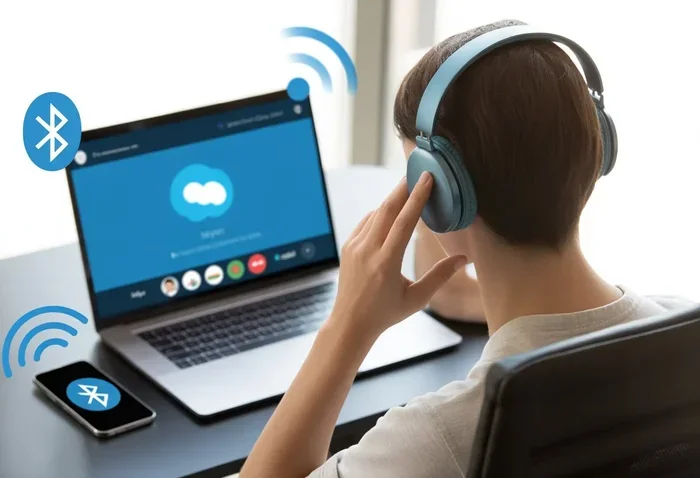
Pairing Bluetooth headphones is the process of creating a trusted connection between your headphones and your device. Here is how it works in simple terms:
- You turn on your headphones and put them into pairing mode.
- Your headphones broadcast a Bluetooth signal that nearby devices can see.
- You go to the Bluetooth settings on your phone, tablet, or computer.
- You select your headphones from the list of available devices.
- The two devices connect, and audio starts flowing.
That is it. No WiFi needed. No internet required. Just two devices talking directly to each other through Bluetooth radio waves.
Devices You Can Pair With
You can pair your Bluetooth headphones with a surprising number of devices. Here are some common ones:
- Smartphones and tablets: Both Android and iPhone support Bluetooth audio. Simply go to your Bluetooth settings and select your headphones.
- Laptops and computers: Most modern laptops have built-in Bluetooth. You can connect your headphones for music, video calls, and more.
- Smart TVs: Many smart TVs support Bluetooth. If yours does, you can pair your headphones directly to watch movies without disturbing anyone.
- Gaming consoles: Some consoles like the PS4 support Bluetooth headphones, though you may need a compatible adapter.
- Smart speakers: Devices like smart speakers can sometimes pair with Bluetooth headphones for private listening.
If you want to learn more about using Bluetooth headphones with your TV, check out our guide on Can I Use Any Bluetooth Headphones With My Tv for helpful compatibility tips.
When Do Headphones Use WiFi Instead of Bluetooth
While most wireless headphones use Bluetooth, there are situations where WiFi plays a role in wireless audio. Understanding these scenarios can help you get the best experience.
Smart WiFi Headphones
A small category of premium headphones uses WiFi for streaming. These headphones have their own WiFi connection and can stream music directly from services like Spotify or Apple Music without your phone. They work more like a smart speaker you wear on your head. Brands like Bose and Sony have released models that support WiFi streaming for higher quality audio.
These headphones are different from standard Bluetooth models. They connect to your WiFi network just like your phone or laptop does. If you own a pair of these, you will need to use the headphone manufacturer’s app to connect them to your WiFi network.
Connecting Bluetooth Headphones to WiFi-Enabled Devices
More commonly, people want to use their Bluetooth headphones with devices that happen to have WiFi. For example, you might want to use Bluetooth headphones with your smart TV while the TV is connected to WiFi for streaming. In this case, the TV handles the WiFi connection for internet content, and the Bluetooth headphones handle the audio output. The two technologies work together but do not replace each other.
If you are trying to get your Bluetooth headphones working with your smart TV, you might want to read our article on Can I Make My Tv Bluetooth With An Adapter for helpful guidance on adding Bluetooth capability to your TV.
Step-by-Step Guide to Connecting Your Bluetooth Headphones
Now let us get into the practical part. Here is a clear, step-by-step guide to connecting your Bluetooth headphones to your device. Follow these steps and you should be listening to your favorite audio in no time.
Step 1: Charge Your Headphones
Before you start, make sure your headphones have enough battery. Most headphones will not enter pairing mode if the battery is too low. A full or at least half-charged battery ensures a smooth pairing process.
Step 2: Put Your Headphones in Pairing Mode
Every pair of Bluetooth headphones has a way to enter pairing mode. Usually, you hold down a specific button for a few seconds until you see a flashing LED light or hear a voice prompt. Check your headphone manual if you are not sure how to do this. The flashing light is your signal that the headphones are ready to be found.
Step 3: Turn on Bluetooth on Your Device
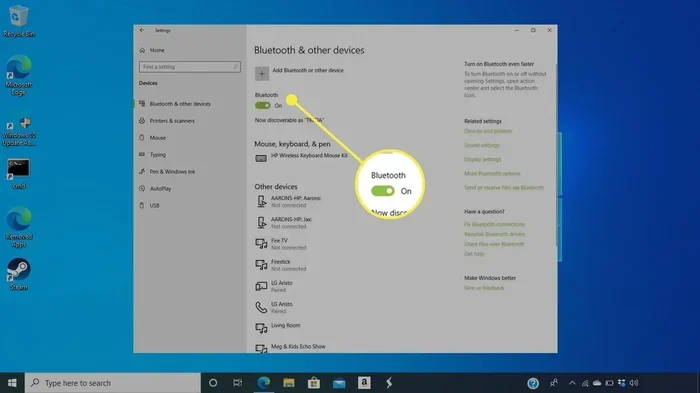
Go to the settings on your phone, tablet, or computer and turn on Bluetooth. On most devices, you can swipe down from the top of your screen to access quick settings and tap the Bluetooth icon. On a computer, you will need to go into the Settings menu and find the Bluetooth section.
Step 4: Find and Select Your Headphones
Once Bluetooth is on, your device will scan for nearby Bluetooth devices. Your headphones should appear in the list of available devices. Tap or click on them to start the pairing process. You may need to enter a PIN like 0000 or 1234 for some devices.
Step 5: Test the Connection
After pairing, play some audio to test the connection. Try a song or a video. If you hear sound through your headphones, you are all set. If not, try moving closer to your device or restarting the pairing process.
For phone calls and voice chat, you may want to check out our guide on Can I Talk On The Phone With Bluetooth Headphones to learn more about using your headphones for calls.
Common Problems When Connecting Bluetooth Headphones
Even though Bluetooth is simple, things can go wrong sometimes. Here are the most common issues people face and how to fix them.
Headphones Not Showing Up in Device List
If your headphones do not appear in the Bluetooth list, try these fixes:
- Make sure your headphones are in pairing mode with the light flashing.
- Turn Bluetooth off and back on on your device.
- Move closer to your device. Bluetooth range is about 30 feet.
- Remove the headphones from the paired devices list and try again.
- Restart both your headphones and your device.
Audio Keeps Cutting Out
Intermittent audio is frustrating but common. It usually happens because of interference or distance. Other WiFi devices, microwaves, and even USB 3.0 ports can interfere with Bluetooth signals. Try moving away from other wireless devices and staying within range of your source device.
Paired but No Sound
Sometimes your headphones connect but you hear nothing. This is often a simple settings issue. Check that your device is routing audio to the Bluetooth headphones and not the built-in speakers. On most phones, you can pull down the notification shade and select the headphones as the audio output.
Connection Drops Frequently
If your headphones keep disconnecting, the Bluetooth version might be the issue. Older Bluetooth versions are less stable than newer ones. Also, if you are using a Bluetooth adapter with a device that does not have built-in Bluetooth, the adapter quality matters a lot. Cheap adapters can cause frequent drops and poor audio quality.
If you are dealing with TV connection issues, our article on Can I Use A Bluetooth Adapter On My Tv has detailed solutions for improving your TV Bluetooth experience.
Tips for Better Wireless Headphone Connectivity
Getting your Bluetooth headphones connected is only half the battle. Keeping a strong and stable connection makes all the difference in your listening experience. Here are some proven tips to help you get the best performance from your wireless headphones.
Keep Your Headphones and Device Close
Bluetooth works best at short distances. Stay within about 30 feet of your source device for the best connection. Walls, furniture, and other obstacles can weaken the signal. If you are in another room, expect some quality loss or connection drops.
Update Your Device Firmware
Both your headphones and your source device benefit from firmware updates. These updates often fix bugs, improve Bluetooth stability, and enhance audio quality. Check the manufacturer’s app for your headphones regularly. For your phone or computer, keep your operating system up to date.
Reduce Wireless Interference
WiFi networks, other Bluetooth devices, and even USB 3.0 cables can all interfere with Bluetooth signals. If you notice connection problems, try turning off other nearby wireless devices temporarily. Moving away from your WiFi router can also help stabilize your Bluetooth connection.
Clear Old Pairings
Over time, your headphones may remember many old paired devices. This can slow down the pairing process and cause confusion. Go into your headphone settings and clear old pairings regularly. On your phone, delete the headphones from your Bluetooth list and pair them fresh when you notice connection issues.
Use the Right Bluetooth Version
Newer Bluetooth versions offer better performance. Bluetooth 5.0 and above provide longer range, faster connections, and lower power use. When buying new headphones, check the Bluetooth version. If your phone or TV only supports older Bluetooth versions, you may not get the full benefit of newer headphones.
Charge Regularly
Low battery can cause all kinds of connection problems. Make a habit of charging your headphones regularly. Most Bluetooth headphones show battery level on your phone when connected, so you can keep an eye on it. A fully charged pair gives you the most stable and strongest connection.
For more tips on using wireless headphones with your devices, check out our guide on Can I Connect My Powerbeats To My Laptop for specific pairing advice that applies to many Bluetooth headphone brands.
Quick Comparison: Bluetooth vs WiFi Headphones
To help you understand the differences clearly, here is a quick comparison of Bluetooth headphones and WiFi headphones.
| Feature | Bluetooth Headphones | WiFi Headphones |
|---|---|---|
| Connection Type | Short-range radio waves | WiFi network |
| Internet Required | No | Yes (for streaming) |
| Range | About 30 feet | Depends on WiFi range |
| Battery Life | Long (20-40 hours typical) | Shorter (WiFi uses more power) |
| Pricing | Wide range, affordable options | Generally more expensive |
| Common Use | Most wireless headphones | Premium smart headphones |
| Setup Complexity | Simple pairing process | Requires WiFi network setup |
As you can see, Bluetooth headphones are the go-to choice for most people. They are affordable, easy to use, and do not need an internet connection. WiFi headphones are a niche option for people who want standalone streaming without a phone. For the vast majority of users, Bluetooth headphones are the best choice for wireless audio.
Frequently Asked Questions
Do Bluetooth headphones need WiFi to work?
No, Bluetooth headphones do not need WiFi at all. They connect directly to your device using Bluetooth radio waves. You can use them anywhere, even without an internet connection. WiFi is only needed for smart WiFi headphones that stream music directly from the internet.
Can I connect Bluetooth headphones to a smart TV that has WiFi?
Yes, you can connect Bluetooth headphones to a smart TV that also has WiFi. The TV uses WiFi for internet content, and the Bluetooth connection handles the audio output to your headphones. These two technologies work together and do not interfere with each other.
Why do my Bluetooth headphones keep disconnecting?
Frequent disconnections usually happen because of distance, interference, or low battery. Try moving closer to your device, turning off other nearby wireless devices, and making sure your headphones are fully charged. Updating firmware on both your headphones and your source device can also help.
Can I use Bluetooth headphones with multiple devices?
Yes, many modern Bluetooth headphones support multi-device pairing. This means you can connect your headphones to two devices at the same time, like your phone and your laptop. You can switch between them seamlessly without having to re-pair each time.
What is the difference between Bluetooth and wireless headphones?
In most cases, Bluetooth headphones and wireless headphones are the same thing. “Wireless” is just a general term that means no wires. Bluetooth is the specific technology used to make the wireless connection. Almost all wireless headphones you buy today use Bluetooth.
How far can Bluetooth headphones be from my device?
Most Bluetooth headphones work well within about 30 feet of your source device. Newer Bluetooth versions like 5.0 can reach farther, but walls and obstacles reduce the effective range. For the best experience, keep your headphones within a reasonable distance of your device.
Conclusion
Understanding how to connect Bluetooth headphones to WiFi starts with knowing that Bluetooth and WiFi are two different technologies. Your Bluetooth headphones do not need WiFi to work. They pair directly with your devices using Bluetooth, which is simpler and more reliable than you might think. Once you know the steps, connecting your headphones becomes quick and easy.
Whether you are pairing headphones to your phone, TV, or laptop, the process follows the same basic steps. Charge your headphones, put them in pairing mode, turn on Bluetooth on your device, and select your headphones from the list. A few minutes of setup gives you hours of wireless listening pleasure.
Remember the tips we shared about keeping your devices close, reducing interference, and updating firmware. These small habits make a big difference in your daily listening experience. With the right knowledge and a little patience, you can enjoy your wireless headphones to the fullest. Now go ahead, pair up your headphones, and enjoy your music without any wires holding you back.