Learn How To Connect Your Iphone To A Projector Via Usb
Connecting your iPhone to a projector via USB is easier than you think. This guide walks you through every method, adapter, and troubleshooting tip you need. Whether you want to share photos, present slides, or watch movies, iPhone projector connection via USB gives you a reliable wired option. We cover Lightning to USB, USB-C adapters, and common pitfalls to avoid.
Key Takeaways
- Multiple Methods Exist: You can connect your iPhone to a projector via USB using adapters, digital AV adapters, or direct USB-C connections depending on your devices.
- Adapter Compatibility Matters: Choosing the right cable adapter is critical for a successful iPhone projector connection via USB.
- Wired Projection Has Benefits: A USB connection offers stability, low latency, and no need for wireless mirroring setup.
- Troubleshooting Is Straightforward: Most issues with connecting your iPhone to a projector via USB come from adapter mismatches or cable quality.
- You Can Charge While Projecting: Using the right setup lets you charge your iPhone while displaying content on a projector.
- Alternative Options Exist: If USB doesn’t work, HDMI adapters and wireless mirroring offer backup solutions for your mobile presentation needs.
📑 Table of Contents
- How Do I Connect My Iphone To My Projector Via Usb
- Understanding Your iPhone Connection Options
- Step-by-Step Guide To Connecting Your Iphone To A Projector Via Usb
- Why Choose USB Over Wireless For Iphone Projection
- Common Problems And How To Fix Them
- Best Adapters For Connecting Iphone To Projector Via Usb
- Tips For A Smooth Iphone Projector Setup
- When USB Does Not Work: Alternative Connection Methods
- Expert Insights On Usb Iphone Projector Setup
- Conclusion
How Do I Connect My Iphone To My Projector Via Usb
Have you ever wanted to show something on a big screen straight from your iPhone? Maybe you are at a meeting, a classroom, or just hanging out with friends. The idea of connecting your iPhone to a projector via USB sounds simple. But in real life, it can feel confusing. There are cables, adapters, and compatibility issues to think about.
The good news is that this guide makes it easy. You will learn every method that works. You will also find out which adapters you need. And if something goes wrong, we have troubleshooting tips too. By the end, you will feel confident setting up your iPhone projector connection without any stress.
Let us start with the basics. Not all projectors accept USB input the same way. Some projectors have USB-A ports. Others use USB-C. And your iPhone may have a Lightning port or a USB-C port depending on the model. This means your setup depends on three things. What kind of iPhone you have. What kind of projector you own. And which cable adapter bridges the gap between them.
Before we dive in, let us clarify something important. A USB connection to a projector does not always mean you just plug one cable in. Most of the time, you need an adapter in the middle. Think of it as a translator. Your iPhone speaks one language. The projector speaks another. The adapter helps them understand each other.
Understanding Your iPhone Connection Options
Your iPhone has evolved over the years. Older models use the Lightning connector. Newer models from iPhone 15 onward use USB-C. This difference changes how you connect to a projector. Let us break it down.
Lightning Port iPhones
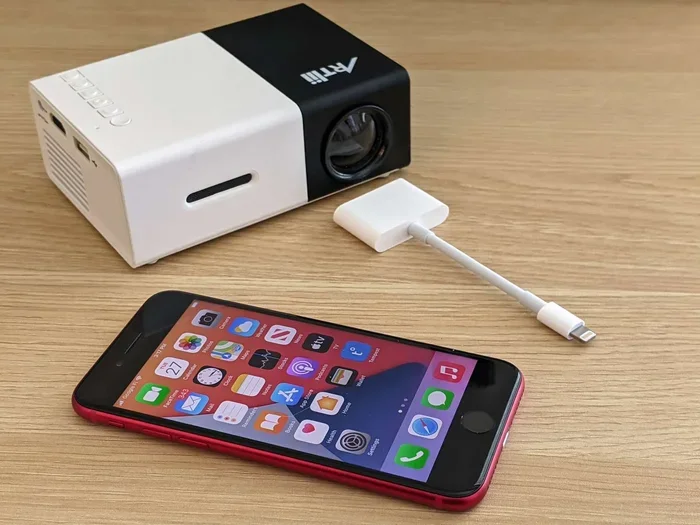
If you own an iPhone 14 or older, you have a Lightning port. To connect this to a projector via USB, you need a special adapter. The most common option is a Lightning to USB camera adapter. Apple makes one, and third-party options work too. You plug the Lightning end into your iPhone. Then you connect a USB cable from the adapter to the projector.
But here is the catch. Most projectors do not natively support video input through USB-A. They use USB for power or reading files from a flash drive. So a direct USB connection from Lightning to projector USB-A will not carry video. You need a digital AV adapter instead. This adapter converts the Lightning signal to HDMI. You then plug an HDMI cable from the adapter into the projector.
That said, some modern projectors with USB-C input can accept video over USB. In that case, a Lightning to USB-C cable might work if the projector supports DisplayPort over USB-C. Always check your projector manual first.
USB-C Port iPhones
If you have an iPhone 15 or newer, you have a USB-C port. This makes things much simpler. Many modern projectors also have USB-C ports. A USB-C to USB-C cable can sometimes carry video directly. This is especially true if the projector supports USB-C DisplayPort Alt Mode.
You can also use a USB-C to HDMI adapter. Plug the USB-C end into your iPhone. Connect an HDMI cable to the adapter. Then plug the HDMI cable into the projector. This is the most reliable method for USB-C iPhones. It gives you a clean, stable connection with great picture quality.
Another option is a USB-C to VGA adapter. Older projectors sometimes only have VGA inputs. These adapters are less common now but still useful in certain settings like schools or conference rooms.
Step-by-Step Guide To Connecting Your Iphone To A Projector Via Usb
Now let us get into the actual setup process. Follow these steps carefully for the best results.
Step 1: Check Your Projector Inputs
Look at the back or side of your projector. What ports does it have? Most projectors have HDMI as the primary input. Some also have USB-A, USB-C, or VGA. Write down what you see. This tells you which adapter you need.
If your projector only has HDMI, you cannot connect directly via USB. You need an adapter that converts to HDMI. If it has USB-C with video support, you have more options. And if it only has USB-A, you will need a different approach entirely.
Step 2: Gather Your Cables and Adapters
Based on your projector inputs and iPhone model, collect the right gear. Here is a quick list of common setups:
- iPhone 15+ to HDMI projector: USB-C to HDMI adapter + HDMI cable
- iPhone 14 or older to HDMI projector: Lightning to Digital AV Adapter + HDMI cable
- iPhone 15+ to USB-C projector: USB-C to USB-C cable (if supported)
- iPhone to VGA projector: Lightning or USB-C to VGA adapter + VGA cable
Make sure your cables are high quality. Cheap cables can cause signal drops or no signal at all. A reliable USB connection depends on good hardware.
Step 3: Connect Everything in the Right Order
Start by plugging the adapter into your iPhone. Then connect the appropriate cable from the adapter to the projector. If you are using a USB-C to HDMI setup, plug the USB-C end into the iPhone first. Then connect the HDMI cable from the adapter to the projector.
Power on the projector. Switch the projector input to the correct source. Use the projector remote or buttons to select HDMI or USB input. Your iPhone screen should now appear on the projector.
Step 4: Adjust Display Settings
Sometimes the image does not look right at first. The screen might be cut off or blurry. Go to your iPhone settings and look for Display Brightness. Turn on Mirroring if it is not already active. On newer iPhones, you can access this from the Control Center by tapping the Screen Mirroring icon.
You may also need to adjust the projector settings. Match the projector resolution to your iPhone output. Most projectors work best at 1080p or 1080i. This ensures a clear, sharp image on the big screen.
Why Choose USB Over Wireless For Iphone Projection
You might wonder why bother with USB at all. Wireless options like AirPlay or wireless mirroring exist. They are convenient. But a USB wired connection has real advantages.
First, a wired projection setup has zero latency. There is no delay between your iPhone and the projector. This matters for presentations, live demos, or anything where timing counts. Second, wired connections are more stable. You do not have to worry about Wi-Fi interference or signal drops.
Third, a USB connection can sometimes charge your iPhone at the same time. If you are giving a long presentation, running down your battery is the last thing you want. A good adapter setup keeps your phone powered while it projects.
Fourth, wired connections are more secure. No one can intercept a wireless signal. If you are sharing sensitive content, a USB connection is safer.
That said, wireless has its place too. For casual movie nights or quick sharing, wireless mirroring is simpler. But for professional or reliable setups, USB wins every time.
Common Problems And How To Fix Them
Even with the right setup, things can go wrong. Here are the most common issues and how to solve them.
No Signal on the Projector
If the projector shows nothing, check a few things first. Make sure all cables are firmly plugged in. A loose connection is the most common culprit. Try unplugging everything and plugging it back in.
Next, check that the projector input matches your connection type. If you plugged into HDMI 1, make sure the projector is set to HDMI 1. Also, try unlocking your iPhone. Some iPhones will not output a video signal when the screen is locked.
If none of that works, try a different cable or adapter. Faulty hardware is more common than you think. A bad cable adapter can ruin an otherwise perfect setup.
Black Screen or Flickering
A black screen or flickering usually means a compatibility issue. Your adapter might not support the resolution your iPhone is trying to output. Try lowering the resolution in your iPhone settings. Go to Settings Display Brightness and adjust accordingly.
Flickering can also come from a weak USB power connection. Make sure your adapter is properly powered. Some adapters need their own power source. If yours does, plug it into a wall charger or power bank.
Audio Is Not Working
Sometimes the video shows but there is no sound. This happens often with adapters. Check that your iPhone is not muted. Also check the projector volume. Some projectors have separate audio settings that need to be adjusted.
If you are using an HDMI connection, audio should travel through the HDMI cable automatically. But if you are using a VGA adapter, audio might need a separate cable. Look for a 3.5mm audio output on your adapter and connect it to the projector or external speakers.
Best Adapters For Connecting Iphone To Projector Via Usb
Not all adapters are created equal. Here are some reliable options to consider.
| Adapter Type | Best For | Price Range |
|---|---|---|
| Apple Lightning to Digital AV Adapter | iPhone 14 and older to HDMI projectors | $30-$50 |
| USB-C to HDMI Adapter | iPhone 15+ to HDMI projectors | $15-$35 |
| Lightning to USB-C Cable | iPhone 14 to USB-C projectors | $10-$20 |
| USB-C to VGA Adapter | Older VGA-only projectors | $15-$30 |
| Belkin USB-C to HDMI | Premium reliable connection | $35-$50 |
When buying adapters, stick with trusted brands. Apple, Belkin, and Anker are solid choices. Cheap no-name adapters can cause connection issues and may even damage your device. Adapter compatibility is worth investing in.
Tips For A Smooth Iphone Projector Setup
Here are some quick tips to make your mobile presentation or movie experience better.
- Test everything before the event. Set up your connection at least 30 minutes before you need it. This gives you time to fix any issues.
- Use a high-quality HDMI cable. The cable matters as much as the adapter. A certified HDMI cable ensures the best signal.
- Turn off auto-lock on your iPhone. Go to Settings Display Brightness Auto-Lock and set it to Never during your presentation. This prevents your screen from going dark.
- Keep your iPhone cool. Prolonged screen mirroring can heat up your phone. Remove the case if needed and keep it in a well-ventilated spot.
- Close background apps. This frees up processing power and helps the mirroring run smoothly without lag.
- Bring backup cables. Always carry a spare cable and adapter. You never know when something will fail.
When USB Does Not Work: Alternative Connection Methods
Sometimes a USB connection simply will not work. Maybe your projector does not support video over USB. Or your adapter is incompatible. Do not worry. You have other options.
If your projector has HDMI and your iPhone has Lightning, you can use a Lightning to HDMI adapter. This bypasses USB entirely and gives you a direct digital signal. It is one of the most reliable methods for iPhone connectivity to projectors.
For iPhone 15 and newer, a direct USB-C to HDMI setup works beautifully. The USB-C port on these iPhones supports video output natively. Just add the right adapter and you are good to go.
Another option is wireless mirroring. If your projector supports AirPlay or has a built-in wireless receiver, you can mirror your iPhone screen without any cables. This is great for quick setups where you do not want to fumble with adapters. Some smart projectors even have native AirPlay support built in.
You can also consider a streaming device like a Chromecast or Apple TV connected to the projector. These devices plug into the projector HDMI port and let you cast content from your iPhone wirelessly. It adds a small extra step but solves most compatibility issues.
Expert Insights On Usb Iphone Projector Setup
Industry professionals who regularly present with mobile devices agree on a few key points. The USB route is excellent for stability and reliability. But it requires the right gear. A digital AV adapter or a proper USB-C to HDMI solution is essential.
Experts also recommend always having a backup plan. Wireless mirroring or a second cable can save the day if your primary setup fails. For mobile presentation professionals, carrying multiple adapter options is standard practice.
One thing many people overlook is projector firmware. Some projectors need firmware updates to support newer connection standards. Check the manufacturer website for updates before your event. This small step can prevent big headaches.
Finally, pay attention to cable length. Longer cables can degrade the signal. Keep your USB and HDMI cables as short as practical without creating tension. A six-foot USB-C cable and a six-foot HDMI cable cover most room setups perfectly.
Conclusion
Connecting your iPhone to a projector via USB is a practical skill that comes in handy in many situations. Whether you are giving a work presentation, teaching a class, or setting up a movie night, knowing how to make this connection saves time and stress. The key is understanding your devices and having the right cable adapter for the job.
Start by identifying your iPhone port type and your projector inputs. Choose the appropriate adapter. Follow the setup steps carefully. And if something goes wrong, use the troubleshooting tips we covered. With the right approach, your iPhone projector connection via USB will work reliably every time.
Remember, USB is not your only option. Wireless mirroring and HDMI adapters provide great alternatives when needed. But for a stable, low-latency, secure connection, nothing beats a good wired USB setup. Now you have all the knowledge to make it work. Go ahead and try it out.
For more tips on connecting your phone to different devices, check out our guides on how to mirror your iPhone to a projector and how to connect your phone to a projector with a USB cable. You will find additional setup tips and compatibility info there.
Frequently Asked Questions
Can I connect any iPhone to any projector using a USB cable?
Not every combination works directly. Your iPhone model and the projector input type determine what you need. Older iPhones with Lightning ports usually require a digital AV adapter to connect to HDMI projectors. Newer iPhones with USB-C can connect directly to USB-C projectors that support video input. Always check both devices before buying cables.
Do I need a special adapter to connect my iPhone to a projector via USB?
Yes, in most cases you do. A standard USB cable alone will not carry video from your iPhone to a projector. You need either a Lightning to Digital AV Adapter or a USB-C to HDMI adapter depending on your iPhone model. These adapters convert the signal so the projector can display it.
Will my iPhone charge while connected to a projector via USB?
It depends on your setup. Some adapters pass through power while also carrying video. If your adapter supports charging and your USB connection provides power, your iPhone can charge during use. However, this is not guaranteed with every adapter. Check the adapter specifications to confirm.
Why is there no sound when I connect my iPhone to a projector via USB?
Audio issues usually happen with VGA adapters or certain USB setups. HDMI connections should carry audio automatically. If sound is missing, check your iPhone volume, the projector volume, and make sure the audio output is set correctly in your iPhone settings. For VGA setups, you may need a separate audio cable.
Can I use a USB hub to connect my iPhone to a projector and other devices at the same time?
It is possible but not always reliable. USB hubs can sometimes cause signal conflicts or power issues. If you need to connect multiple devices, use a powered USB hub with its own power supply. Even then, test the setup beforehand to make sure video output works consistently.
Is a USB connection better than wireless mirroring for projecting from my iPhone?
For reliability and zero latency, yes. A wired USB connection delivers a stable signal with no interference. Wireless mirroring is more convenient for quick setups but can suffer from lag or dropouts. For professional presentations, a USB wired setup is the better choice. For casual use, wireless works just fine.