Do I Need a Realtek Bluetooth Driver for Windows 10
A Realtek Bluetooth driver is essential for Windows 10 users who want seamless wireless connectivity. Without the right driver, your Bluetooth devices may fail to connect, experience lag, or stop working altogether. This guide walks you through everything you need to know about the Realtek Bluetooth driver, from installation to troubleshooting common issues.
If you have ever looked at your Windows 10 taskbar and seen that little Bluetooth icon with a yellow warning triangle, you know how frustrating wireless connectivity issues can be. The question Do I Need a Realtek Bluetooth Driver for Windows 10 comes up more often than you might think. Many users install a new PC or update their operating system only to find that their Bluetooth devices suddenly stop working.
The short answer is yes, you almost certainly need a Realtek Bluetooth driver if your computer uses Realtek hardware. But the full picture is a bit more nuanced. Whether you are trying to connect wireless headphones, a Bluetooth mouse, or a speaker to your Windows 10 laptop, the driver plays a critical role in making everything work smoothly.
In this article, we will cover everything you need to know about the Realtek Bluetooth driver. We will walk through how to check if you have one, how to install or update it, and how to fix the most common Bluetooth problems on Windows 10. By the end, you will have a clear understanding of what the driver does and why it matters for your daily wireless experience.
Key Takeaways
- You likely need a Realtek Bluetooth driver: Most Windows 10 PCs with Realtek hardware require a dedicated driver for Bluetooth to function properly.
- Windows Update can auto-install drivers: In many cases, Windows 10 will download and install the correct Realtek Bluetooth driver automatically.
- Manual installation is straightforward: You can download the driver directly from Realtek’s website or your PC manufacturer’s support page.
- Common issues are fixable: Bluetooth connectivity problems often stem from outdated or missing drivers, which are easy to resolve.
- Uninstalling Bluetooth is possible but risky: Removing the Realtek Bluetooth driver can cause wireless devices to stop working until it is reinstalled.
- Compatibility matters: Not all Realtek Bluetooth drivers work with every version of Windows 10, so always check compatibility first.
📑 Table of Contents
- What Is a Realtek Bluetooth Driver?
- Do You Really Need the Realtek Bluetooth Driver?
- How to Check If You Have a Realtek Bluetooth Driver
- How to Install or Update the Realtek Bluetooth Driver
- Common Realtek Bluetooth Driver Problems and Fixes
- Can You Uninstall the Realtek Bluetooth Driver?
- Do I Need to Download Bluetooth Separately for Windows 10?
- Realtek Bluetooth Driver vs. Generic Windows Bluetooth Driver
- Expert Tips for Maintaining Your Realtek Bluetooth Driver
- Final Thoughts on Realtek Bluetooth Drivers for Windows 10
What Is a Realtek Bluetooth Driver?
A driver is a small piece of software that acts as a translator between your computer and its hardware. Think of it as a bridge. Without the right driver, your Windows 10 PC cannot communicate with the Bluetooth chip on your motherboard or adapter. The Realtek Bluetooth driver is specifically designed for computers that use Realtek wireless chips.
Realtek is one of the most common chip manufacturers in the world. You will find their hardware in millions of laptops, desktops, and motherboards. When your PC has a Realtek Bluetooth adapter, the driver tells Windows 10 how to send and receive wireless signals. It handles everything from discovering nearby devices to maintaining a stable connection.
How Does the Realtek Bluetooth Driver Work?
When you turn on Bluetooth on your PC, the driver springs into action. It scans for nearby devices, creates a secure pairing connection, and manages the data transfer between your computer and the peripheral. Without the Realtek Bluetooth driver, this entire process breaks down.
Here is a simple breakdown of what the driver does:
- Device Discovery: It helps your PC find Bluetooth devices nearby.
- Pairing Management: It handles the secure connection process between devices.
- Data Transfer: It manages the flow of audio, files, and commands between devices.
- Signal Stability: It keeps the connection strong and reduces dropouts.
- Power Management: It helps conserve battery life on both your PC and connected devices.
So when someone asks, Do I Need a Realtek Bluetooth Driver for Windows 10, the answer is really about whether they want their wireless devices to work at all. The driver is not optional if you have Realtek Bluetooth hardware.
Do You Really Need the Realtek Bluetooth Driver?
This is the question most users want answered, and the answer depends on your specific setup. If your PC has a Realtek Bluetooth chip, then yes, you need the driver. But what if Windows 10 already has a generic driver built in? Let us break this down.
When You Definitely Need It
You need the Realtek Bluetooth driver if any of these situations apply to you:
- Your PC came with a Realtek wireless card or adapter.
- Windows 10 shows a Bluetooth error in Device Manager.
- Your Bluetooth devices connect but then randomly disconnect.
- You cannot find any Bluetooth devices during a scan.
- Your Bluetooth icon is missing from the taskbar entirely.
- You recently upgraded from Windows 7 or 8 to Windows 10.
In each of these cases, installing the correct Realtek driver usually solves the problem. Windows 10 includes generic Bluetooth drivers, but they often lack the features and stability that come with the manufacturer-specific version.
When Windows 10 Might Handle It Automatically
Sometimes Windows 10 will install a working Bluetooth driver on its own. This happens through Windows Update. If your PC is connected to the internet and you have not made any recent hardware changes, Windows may have already pulled the right driver.
However, even when Windows installs a driver automatically, it may not be the latest version. The generic driver might also lack support for certain features like Bluetooth 5.0 speeds or specific power-saving modes. For the best experience, installing the official Realtek Bluetooth driver is always recommended.
What Happens If You Do Not Install It?
Without the proper driver, your Bluetooth functionality will be limited or completely non-functional. You might notice that your Bluetooth headphones will not pair, or your wireless mouse keeps losing connection. Some users try to ignore the problem, but it rarely fixes itself over time.
In fact, outdated drivers can cause more problems than missing ones. They can lead to system crashes, slow performance, and conflicts with other hardware. Keeping your Realtek Bluetooth driver up to date is one of the simplest ways to maintain a healthy Windows 10 system.
How to Check If You Have a Realtek Bluetooth Driver
Before you download anything, it is smart to check what you already have. Windows 10 makes this process easy, and it only takes a couple of minutes.
Using Device Manager
Device Manager is the built-in tool that shows all the hardware and drivers on your PC. Here is how to use it:
- Right-click the Start button and select Device Manager.
- Look for a section called Bluetooth or Network Adapters.
- Expand the Bluetooth section.
- Look for any entry that says Realtek, Intel, or another brand name.
If you see a Realtek entry under Bluetooth, you have Realtek Bluetooth hardware. Right-clicking on it and selecting Properties will show you the driver version and date. If the driver date is more than a year old, it is probably time for an update.
Checking Through Settings
You can also check your Bluetooth status through the Settings app:
- Open Settings and go to Devices.
- Click on Bluetooth and other devices.
- Toggle Bluetooth on and see if your PC detects nearby devices.
If Bluetooth is grayed out or you see an error message, the driver is likely missing or corrupted. This is a strong sign that you need to install or reinstall the Realtek Bluetooth driver.
How to Install or Update the Realtek Bluetooth Driver
Installing the Realtek Bluetooth driver is a straightforward process. You have a few different options, and each has its own advantages. Let us walk through them one by one.
Option 1: Use Windows Update
The easiest method is to let Windows handle it. Windows Update regularly downloads driver updates, including those for Realtek Bluetooth hardware.
- Open Settings and go to Update and Security.
- Click on Windows Update.
- Click Check for Updates.
- Look for optional driver updates under the link at the bottom.
- Install any Realtek Bluetooth driver updates that appear.
This method is simple and safe. However, Windows Update does not always carry the latest version. If you need the most recent driver, you may want to try a different method.
Option 2: Download from Realtek’s Website
You can visit the Realtek website and download the driver directly. Here is how:
- Go to the Realtek download center.
- Search for your specific chip model or select Bluetooth.
- Choose the Windows 10 version.
- Download the driver and run the installer.
Make sure you know your hardware model before downloading. Using the wrong driver can cause compatibility issues. If you are unsure, check your PC manufacturer’s website for the recommended driver.
Option 3: Use Your PC Manufacturer’s Support Page
Many laptop and desktop brands like Dell, HP, and Lenovo provide their own customized drivers. These drivers are tested specifically for your model and often work better than the generic Realtek version.
- Visit your PC manufacturer’s support website.
- Enter your model number.
- Look for the Drivers and Downloads section.
- Find the Bluetooth or Realtek driver and download it.
This is often the safest and most reliable method. The driver is guaranteed to work with your specific hardware configuration.
Option 4: Use a Third-Party Driver Update Tool
There are several tools available that can scan your system and automatically find the right driver. These tools can save time, but use them carefully. Stick to reputable software and avoid tools that bundle unwanted programs.
For most users, we recommend sticking with Windows Update or the manufacturer’s website. These methods are free, safe, and reliable.
Common Realtek Bluetooth Driver Problems and Fixes
Even with the right driver, you may run into issues from time to time. Bluetooth problems on Windows 10 are incredibly common, and most of them are easy to fix. Let us look at the most frequent problems and their solutions.
Bluetooth Devices Won’t Pair
This is the most common complaint. You put your device in pairing mode, but Windows 10 cannot find it. The first thing to check is whether your Realtek Bluetooth driver is up to date. An outdated driver often causes discovery failures.
Try these steps:
- Turn Bluetooth off and back on from Settings.
- Remove the device from your Bluetooth list and try pairing again.
- Restart your PC and the Bluetooth device.
- Make sure the device is within range and not connected to another device.
If none of these work, uninstall the driver through Device Manager and reinstall it from scratch. This often resolves hidden conflicts.
Bluetooth Keeps Disconnecting
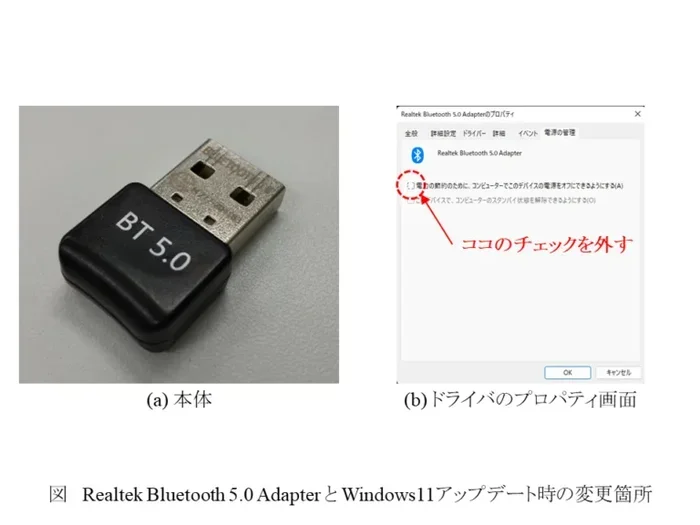
If your Bluetooth connection drops frequently, the driver may be the culprit. Power management settings sometimes turn off Bluetooth to save energy, which causes disconnections.
To fix this:
- Open Device Manager and find your Bluetooth adapter.
- Right-click and select Properties.
- Go to the Power Management tab.
- Uncheck Allow the computer to turn off this device to save power.
This simple change can make a huge difference in connection stability. Many users never realize this setting is causing their problems.
Bluetooth Icon Missing from Taskbar
Sometimes the Bluetooth icon simply disappears. This usually happens after a Windows update or when the driver becomes corrupted. Reinstalling the Realtek Bluetooth driver almost always brings the icon back.
You can also check your notification area settings to make sure Bluetooth is enabled in the taskbar. Go to Settings, then Personalization, then Taskbar, and look for the notification area settings.
Bluetooth Works but Audio Quality Is Poor
If your Bluetooth headphones connect but the sound quality is bad, the driver version may not support the audio codec your headphones use. Updating to the latest Realtek Bluetooth driver often improves audio quality significantly. Look for drivers that support aptX or AAC codecs if your headphones do.
Can You Uninstall the Realtek Bluetooth Driver?
Some users wonder if they can remove the Realtek Bluetooth driver entirely. The answer is yes, you can uninstall it, but you should only do so if you have a specific reason.
For example, if you are troubleshooting a Bluetooth issue and want to start fresh, uninstalling the driver can help. You can do this through Device Manager by right-clicking the Bluetooth adapter and selecting Uninstall device.
However, keep in mind that uninstalling the driver will disable Bluetooth on your PC until you reinstall it. This can be inconvenient if you rely on wireless devices daily. If you are considering removing the driver, make sure you have a backup plan.
Also, if you are wondering about removing Bluetooth entirely from your system, you might want to read about whether you can uninstall Bluetooth on your Windows 10 PC. It covers the broader topic of Bluetooth removal and what it means for your system.
Do I Need to Download Bluetooth Separately for Windows 10?
Many users confuse the Realtek Bluetooth driver with a separate Bluetooth download. The truth is, Bluetooth is built into Windows 10 at a basic level. However, the full functionality comes from the manufacturer-specific driver.
If you visit the question can I download Bluetooth on my PC, you will find that most users need the specific driver for their hardware rather than a standalone Bluetooth application. The same principle applies to Realtek hardware.
Think of it this way. Windows 10 gives you a basic Bluetooth radio, but the Realtek driver gives you the full-featured experience with better range, faster speeds, and more stable connections.
Realtek Bluetooth Driver vs. Generic Windows Bluetooth Driver
Not sure whether to use the Realtek-specific driver or stick with the generic Windows one? Here is a quick comparison.
| Feature | Realtek Driver | Generic Windows Driver |
|---|---|---|
| Connection Stability | High | Moderate |
| Device Discovery Speed | Fast | Average |
| Codec Support | Full support for aptX, AAC | Basic SBC only |
| Power Management | Optimized | Basic |
| Update Frequency | Regular from Realtek | Through Windows Update |
| Compatibility | Best for Realtek hardware | Works with most adapters |
As you can see, the Realtek driver offers clear advantages. If you have Realtek hardware on your PC, using the official driver is almost always the better choice. The generic driver may work for basic tasks, but it will not give you the same level of performance or reliability.
Expert Tips for Maintaining Your Realtek Bluetooth Driver
Keeping your Bluetooth running smoothly does not require a lot of effort. A few simple habits can prevent most problems before they start.
- Update regularly: Check for driver updates once a month. Realtek releases updates that improve stability and add new features.
- Avoid driver cleaner tools: These tools can remove drivers that Windows needs. Stick to manual uninstallation if you need to remove a driver.
- Keep Windows 10 updated: Many driver updates come through Windows Update itself. Staying current helps your system stay compatible.
- Restart after updates: Always restart your PC after installing a new driver. This ensures all changes take effect properly.
- Check for conflicts: If Bluetooth stops working after installing new software, check for driver conflicts in Device Manager.
These tips apply whether you are using a desktop or a laptop. Bluetooth drivers need regular maintenance just like any other software on your system.
Final Thoughts on Realtek Bluetooth Drivers for Windows 10
The Realtek Bluetooth driver is a small but essential piece of software that keeps your wireless devices connected and working properly. Whether you are using Bluetooth headphones, a wireless mouse, a keyboard, or a speaker, the driver is what makes it all possible.
If you have ever asked yourself Do I Need a Realtek Bluetooth Driver for Windows 10, hopefully this guide has given you a clear answer. The driver is necessary for anyone with Realtek Bluetooth hardware, and keeping it updated is one of the easiest ways to avoid connectivity headaches.
Take a few minutes today to check your driver status. If it is outdated or missing, a quick installation can transform your Bluetooth experience. Your wireless devices will connect faster, stay connected longer, and perform better overall.
For more Bluetooth-related guides, check out our article on using any Bluetooth headphones with your TV or learn about Bluetooth on Apple Watch without iPhone. These resources will help you get the most out of your wireless devices.
Frequently Asked Questions
What does the Realtek Bluetooth driver do?
The Realtek Bluetooth driver enables communication between your Windows 10 PC and Bluetooth devices. It handles device discovery, pairing, data transfer, and connection stability. Without it, your Bluetooth hardware cannot function properly.
Can I use Windows 10 without installing the Realtek Bluetooth driver?
Windows 10 includes a generic Bluetooth driver, but it lacks the features and optimization of the Realtek-specific version. You may experience connectivity issues, poor audio quality, or frequent disconnections without the proper driver installed.
How often should I update my Realtek Bluetooth driver?
You should check for updates at least once a month. Realtek releases driver updates that improve performance, fix bugs, and add support for new Bluetooth codecs. Keeping your driver current ensures the best wireless experience.
What should I do if my Bluetooth stops working after a Windows update?
Windows updates can sometimes overwrite or conflict with your Bluetooth driver. Try reinstalling the Realtek Bluetooth driver from your PC manufacturer’s website or from Realtek’s official download center. Restarting your PC after the reinstall usually resolves the issue.
Is the Realtek Bluetooth driver free to download?
Yes, the Realtek Bluetooth driver is completely free. You can download it directly from the Realtek website or from your PC manufacturer’s support page. Avoid third-party sites that charge for driver downloads.
Can I use Bluetooth headphones without the Realtek driver?
You may be able to connect Bluetooth headphones with a generic Windows driver, but the experience will be limited. You might encounter audio lag, lower quality, or frequent disconnections. Installing the proper Realtek driver ensures the best performance for your Bluetooth headphones.