Can You Print With A USB Cable And Get It Working Now
Yes, you can print with a USB cable, and it is one of the most reliable ways to connect your printer to a computer. USB printing offers fast data transfer, simple setup, and stable connections without relying on Wi-Fi. Whether you are using a Windows PC, Mac, or Linux machine, this guide walks you through every step to connect printer with USB and start printing right away.
You plug in the cable. You hit print. But nothing happens. Sound familiar? Can you print with a USB cable and actually get it working? The short answer is yes. But the full answer involves a few simple steps, the right cable, and a little patience. USB printing remains one of the most popular and dependable ways to connect a printer to a computer. Unlike wireless printing, which depends on Wi-Fi signals and network settings, a USB cable connection gives you a direct line between your device and your printer.
Whether you are setting up a new printer, troubleshooting an old one, or just curious about how cable printing works, this guide covers everything you need. We will walk through the setup process, discuss the different cable types, solve common problems, and share tips to make your USB printer connection as smooth as possible. Let us get your printer working.
Key Takeaways
- USB printing is simple and reliable: A USB cable provides a direct, stable connection between your printer and computer without needing a network.
- Most modern printers support USB: Nearly all printers made in the last 15 years include a USB port for easy cable printing setup.
- Driver installation is the key step: Without the correct printer USB drivers, your computer will not recognize the printer even with a physical connection.
- USB printing is faster than wireless: For large documents or high-quality photos, a USB to printer cable delivers consistent, fast print speeds.
- Troubleshooting is straightforward: Most USB printing problems come from cable issues, outdated drivers, or incorrect port settings.
- USB cables have different types: USB-A to USB-B is the most common, but USB-C printers are becoming more popular.
- You can print from multiple devices: With the right setup, USB printing works with laptops, desktops, and even some tablets.
📑 Table of Contents
- What Is USB Printing and How Does It Work
- Types of USB Cables for Printers
- How to Set Up USB Printing Step by Step
- Common USB Printing Problems and How to Fix Them
- USB Printing vs Wireless Printing
- Quick Tips for the Best USB Printing Experience
- Expert Insights on USB Printing
- Key Takeaways
- Conclusion
What Is USB Printing and How Does It Work
USB printing means sending print jobs from your computer to your printer through a USB cable. The cable carries data directly from your computer’s USB port to the printer’s USB port. There is no router involved. No network needed. No wireless signal to worry about. Just a direct, wired connection that transfers your print data quickly and reliably.
The process works like this. Your computer sends the document or image data through the USB cable. The printer receives that data and processes it. Then the printer puts ink or toner on paper. That is it. No middleman, no delays, no dropped connections.
Why USB Printing Still Matters
You might wonder why anyone would use a cable in a world of wireless printing. USB printing has several clear advantages. First, it is fast. Data transfers through a USB cable are significantly quicker than wireless transfers. Second, it is stable. You never lose a connection mid-print job. Third, it is secure. A USB cable does not broadcast your data over a network, which matters for sensitive documents. Fourth, it works almost everywhere. You do not need a Wi-Fi network or Bluetooth compatibility.
However, USB printing also has limits. The cable length matters. You usually need to be within about six feet of your printer. And you can only print from one computer at a time unless you use a USB switch box. Despite these limits, millions of people still prefer direct USB printing for its simplicity and reliability.
Types of USB Cables for Printers
Not all USB cables are the same. Using the wrong cable can cause frustration and slow printing. Here are the most common printer cable types you will encounter.
USB-A to USB-B Cable
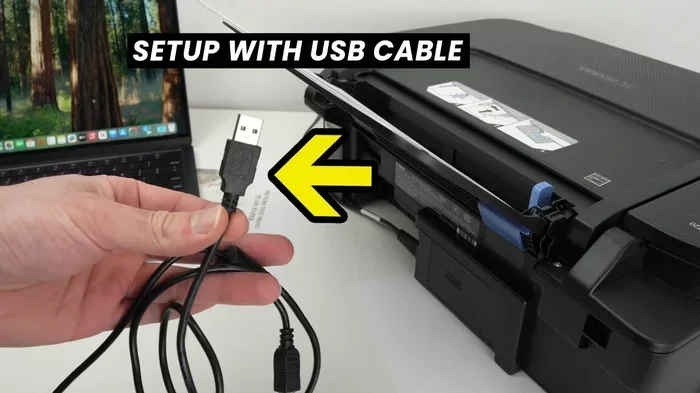
This is the classic printer cable. One end is a standard USB-A plug that goes into your computer. The other end is a square-shaped USB-B plug that connects to the printer. This cable type has been the standard for decades and works with most desktop printers. If you are unsure which cable to buy, this is the one to get.
USB-C to USB-B Cable
Newer printers and laptops are starting to use USB-C. This smaller, reversible connector is faster and more durable than the older USB-A. If your computer has USB-C ports and your printer supports USB-C, you can use a direct USB-C to USB-B cable. Some modern printers even come with USB-C ports on the back, making USB cable printing even easier.
USB-A to USB-C Cable
This cable is useful when your computer has USB-A ports but your printer has a USB-C port. It is less common but still worth knowing about. Check your printer’s manual to confirm which port type it uses before buying a cable.
USB Mini and Micro B
Some older or compact printers use USB Mini-B or Micro-B connectors. These are less common today but you may still find them on older models. Make sure you match the cable to your printer’s port to avoid damage.
How to Set Up USB Printing Step by Step
Setting up USB printing is easier than most people think. Follow these steps and you will be printing in minutes.
Step 1: Gather Your Equipment
Before you start, make sure you have everything you need. You need your printer, your computer, and the correct USB cable. Most printers come with a cable in the box, but not all of them. Check the box or the manual. If you do not have a cable, buy one that matches your printer’s port type.
Step 2: Connect the Cable
Plug one end of the USB cable into your printer. Plug the other end into your computer. Most computers have USB-A ports on the front or back of the tower. Laptops usually have USB ports on the sides. Once plugged in, your computer should recognize the printer within a few seconds.
Step 3: Install the Printer Driver
This is the most important step. Your computer needs the right printer USB drivers to communicate with the printer. Here is how to do it. Go to your operating system’s settings. On Windows, go to Settings > Devices > Printers and Scanners. Click Add a printer. Your computer should detect the USB-connected printer. Follow the on-screen prompts to install the driver. On a Mac, go to System Settings > Printers and Scanners. Click the Add button. Your Mac should find the printer automatically.
If your computer does not find the printer, visit the printer manufacturer’s website. Download the latest driver for your specific model. Install it and restart your computer. Then try connecting the cable again.
Step 4: Print a Test Page
Once the driver is installed, print a test page. On Windows, go to your printer settings and click Print Test Page. On a Mac, open a document and choose Print. Check the output. If the test page looks good, you are all set. Can you print with a USB cable and get great results? Absolutely.
Common USB Printing Problems and How to Fix Them
Even with a simple setup, things can go wrong. Here are the most common USB printing problems and how to solve them.
Computer Does Not Recognize the Printer
This is the number one issue people face. Try these fixes. Unplug the USB cable and plug it back in. Try a different USB port on your computer. Use a shorter cable if possible. Make sure the cable is not damaged. If you are using a USB hub, connect the printer directly to the computer instead.
Driver Installation Fails
Sometimes the driver will not install properly. This often happens when the driver version is outdated or incompatible. Go to the manufacturer’s website and download the latest driver. Before installing, uninstall any old or partial driver versions. Then restart your computer and try again. Note: if you are running a proprietary operating system, driver support may be limited. Check our guide on advantages and disadvantages of a proprietary operating system to understand how OS choice affects printer compatibility and driver availability.
Print Jobs Stuck in the Queue
A stuck print queue can block new jobs. On Windows, open the Print Queue. Click Printer > Cancel All Documents. Then try printing again. On a Mac, open the Print Queue from the printer menu and clear any pending jobs. Restarting the print spooler service can also help clear stubborn queues.
Print Quality Issues
If your prints come out faded, streaky, or misaligned, the USB cable is probably not the issue. Check your ink or toner levels. Run a printer alignment or cleaning cycle. Make sure you are using the right paper type and print settings. The USB cable only carries data, so it does not affect print quality directly.
Cable Keeps Disconnecting
A loose connection can interrupt your print jobs. Try a different USB cable. Avoid using extension cords or adapters. Make sure the USB plug is fully inserted into both the computer and the printer. If the port on the printer feels loose, the port itself may need to be replaced.
USB Printing vs Wireless Printing
So how does USB printing compare to wireless printing? Both methods have pros and cons. Here is a quick comparison to help you decide which is right for you.
| Feature | USB Printing | Wireless Printing |
|---|---|---|
| Connection Type | Wired cable | Wi-Fi or Bluetooth |
| Speed | Fast and consistent | Depends on signal strength |
| Setup Difficulty | Very simple | Moderate |
| Distance Flexibility | Limited (cable length) | Flexible (anywhere in range) |
| Multiple Device Support | One computer at a time | Multiple devices simultaneously |
| Reliability | Very high | Can be affected by interference |
| Security | High (no network exposure) | Moderate (network-dependent) |
| Cable Needed | Yes | No |
USB printing wins for reliability, speed, and simplicity. Wireless printing wins for convenience and multi-device access. Many home users keep both options available. You can use USB for important or large print jobs and wireless for everyday printing from phones or tablets.
It is also worth noting that some people set up a value-added network to enable shared printing across multiple devices while still using a wired connection. Check our article on advantages and disadvantages of using a value-added network for more insights on network-based printing solutions.
Quick Tips for the Best USB Printing Experience
Want to get the most out of your USB cable printer setup? Follow these quick tips.
- Use a short cable: Keep the cable under six feet for the best signal quality. Longer cables can cause data loss or slow transfer speeds.
- Buy certified cables: Look for USB-IF certified cables. These meet quality standards and are less likely to cause connection issues.
- Update your drivers regularly: Check the manufacturer’s website every few months for driver updates. Updated drivers fix bugs and improve performance.
- Avoid USB hubs when possible: Connect the printer directly to your computer for the most stable connection.
- Keep your cable in good condition: Avoid bending the cable sharply or running it under heavy furniture. Damaged cables cause intermittent connection problems.
- Restart both devices when stuck: A simple restart of both your computer and printer can resolve many connection issues. Turn them off, wait 30 seconds, and turn them back on.
- Check your printer’s manual: Every printer is slightly different. The manual will tell you exactly which cable type and port to use.
Expert Insights on USB Printing
USB printing has evolved a lot over the years. Early USB printers were slow and finicky. Today, USB 3.0 and USB-C connections offer blazing fast transfer speeds. A modern USB 3.0 cable can transfer data at up to 5 Gbps, which is more than enough for even the largest print jobs.
One thing many people overlook is the importance of the USB port version. If your computer has USB 2.0 ports and your printer supports USB 3.0, the connection will default to USB 2.0 speeds. This means slower data transfer and potentially longer wait times for large documents. If you want the best performance, make sure both your computer and printer support the same USB version.
Another expert tip is to always use the cable that comes with the printer when possible. Third-party cables may not meet the same quality standards. They might not support the full data transfer rate or could introduce connection instability. A good quality cable is a small investment that pays off in reliable printing.
Also, keep in mind that some operating systems handle USB printer connections better than others. Windows has built-in driver support for most printers, which makes setup very easy. macOS also supports most printers natively but may require a manual driver download for older models. Linux users may need to install additional driver packages, but most modern distributions include broad printer support out of the box.
Key Takeaways
- USB printing is simple and reliable: A USB cable provides a direct, stable connection between your printer and computer without needing a network.
- Most modern printers support USB: Nearly all printers made in the last 15 years include a USB port for easy cable printing setup.
- Driver installation is the key step: Without the correct printer USB drivers, your computer will not recognize the printer even with a physical connection.
- USB printing is faster than wireless: For large documents or high-quality photos, a USB to printer cable delivers consistent, fast print speeds.
- Troubleshooting is straightforward: Most USB printing problems come from cable issues, outdated drivers, or incorrect port settings.
- USB cables have different types: USB-A to USB-B is the most common, but USB-C printers are becoming more popular.
- You can print from multiple devices: With the right setup, USB printing works with laptops, desktops, and even some tablets.
Conclusion
Can you print with a USB cable and get it working now? Yes, you absolutely can. USB printing is one of the easiest, fastest, and most reliable ways to connect your printer to your computer. Whether you are a beginner or a seasoned user, the steps are straightforward. Plug in the cable, install the driver, and print.
The key to success is using the right cable, installing the correct drivers, and knowing how to troubleshoot common issues. With the tips and guidance in this article, you should be able to set up USB cable printing in under 15 minutes. No network required. No complicated settings. Just a simple cable and a working printer.
Take a few minutes today to check your cable, update your drivers, and test your connection. Once you experience the speed and stability of a direct USB printer connection, you may never go back to wireless printing for your important documents. Happy printing.
Frequently Asked Questions
Can I use any USB cable to connect my printer to my computer?
Not just any USB cable will work. You need a cable that matches your printer’s port type. Most printers use a USB-A to USB-B cable. Newer printers may use USB-C. Check your printer’s manual or look at the port on the back of the printer to find the right cable.
Why does my computer not recognize my printer when I plug in the USB cable?
The most common reason is a missing or outdated driver. Try unplugging the cable, restarting your computer, and plugging the cable back in. If that does not work, visit the printer manufacturer’s website and download the latest driver for your model. Also try a different USB port on your computer.
Is USB printing faster than wireless printing?
Yes, USB printing is generally faster and more stable than wireless printing. A USB cable provides a direct data connection without interference from Wi-Fi signals or network congestion. For large documents or high-resolution photos, USB printing delivers noticeably faster results.
Can I print from a laptop using a USB cable?
Absolutely. Laptops work great with USB printers. Just plug the cable into your laptop’s USB port, install the driver, and you can print. This is especially useful when you are working away from your home Wi-Fi network or when the wireless connection is unstable.
How long can my USB cable be for printing?
For best results, keep your USB cable under six feet long. Longer cables can cause signal degradation and slower data transfer. If you need more distance, consider a USB extender or a powered USB hub to maintain a strong connection.
Do I need to install software before connecting my printer via USB?
It depends on your operating system. Windows and macOS often can install the driver automatically when you connect the printer. However, downloading the latest driver from the manufacturer’s website before connecting ensures you get the most up-to-date version with the best compatibility and features.