How Can I Change My Home Wifi Password for Better Security
Changing your home wifi password is one of the simplest yet most effective ways to protect your network. You can access your router settings through a web browser, update your network key, and choose a stronger encryption type like WPA3. This guide walks you through every step, from finding your router IP to testing your new password and troubleshooting common issues.
Your home wifi network is the gateway to all your connected devices. From smart TVs to laptops, everything flows through that wireless connection. If someone gains access to your network, they can see your browsing activity, steal personal data, or even use your internet for illegal activities. That is exactly why changing your home wifi password is so important.
Many people never change their router’s default settings. They set up their wifi once and forget about it. But default passwords are easy to guess, and outdated security settings leave your network vulnerable. The good news is that updating your wifi password takes just a few minutes. You do not need to be a tech expert to do it.
In this guide, we will walk you through the entire process. You will learn how to access your router settings, create a strong password, choose the right encryption type, and avoid common mistakes. Whether you use a basic router or a mesh system, these steps apply to almost all home networks. Let us get started.
Key Takeaways
- Regular password changes: Updating your wifi password every few months greatly reduces the risk of unauthorized access to your home network.
- Router admin access is key: You need your router’s IP address, admin username, and password to make changes to your network settings.
- Strong passwords matter: A mix of letters, numbers, and symbols creates a password that is much harder to crack than common defaults.
- WPA3 is the best choice: Choosing the latest encryption type ensures your wireless network uses the most current security protocol available.
- Update all connected devices: After changing your password, every device that uses your wifi network will need the new credentials to reconnect.
📑 Table of Contents
- Why Changing Your Wifi Password Matters for Network Security
- How to Find Your Router Settings and Admin Access
- How to Change Your Home Wifi Password Step by Step
- How to Make Your Wifi Password Stronger and Harder to Crack
- Troubleshooting Common Problems After Changing Your Wifi Password
- Extra Steps to Boost Your Home Network Security
- Common Mistakes People Make When Changing Their Wifi Password
- Expert Insights on Home Network Protection
- Key Takeaways
Why Changing Your Wifi Password Matters for Network Security
Your wifi password is the first line of defense for your home network. A weak or old password makes it easy for strangers to connect to your wireless network without your permission. Once they are in, they can slow down your internet speed, access shared files, or even use your connection to download illegal content.
Hackers use automated tools to scan for open networks with weak passwords. These tools can guess common passwords in seconds. If your password is something simple like “password123” or your street address, you are an easy target. Changing your password regularly makes it much harder for cybercriminals to gain access.
There is another reason to update your password. Over time, you may have shared your wifi with guests, housemates, or former roommates. If you have not changed the password in a while, people you no longer trust might still have access. A fresh password ensures only the people you choose can connect to your home network.
The Risks of Keeping a Default Password
Most routers come with a default admin password printed on a sticker or in the manual. Many users never change this. That is a huge security risk. Anyone who knows the router brand and model can look up the default login online. Once they are in your router settings, they can change your dns settings, redirect your traffic, or lock you out of your own network.
Changing your wifi password alone is not enough. You should also change your router admin password. These are two different things. Your wifi password lets devices connect to your wireless network. Your admin password lets you access the router settings page. Both should be strong and unique.
How to Find Your Router Settings and Admin Access
Before you can change your wifi password, you need to log into your router. Every router has a settings page that you access through a web browser. The process is the same whether you use a Linksys, Netgear, TP-Link, or any other brand. Here is how to find your way in.
Step 1: Find Your Router IP Address
Your router has an IP address that acts like its home base on your network. You need this address to open the settings page. On most computers, you can find it quickly:
- Windows: Open the command prompt and type
ipconfig. Look for the Default Gateway number. - Mac: Go to System Settings, then Network, then Wi-Fi. Your router address appears next to Router.
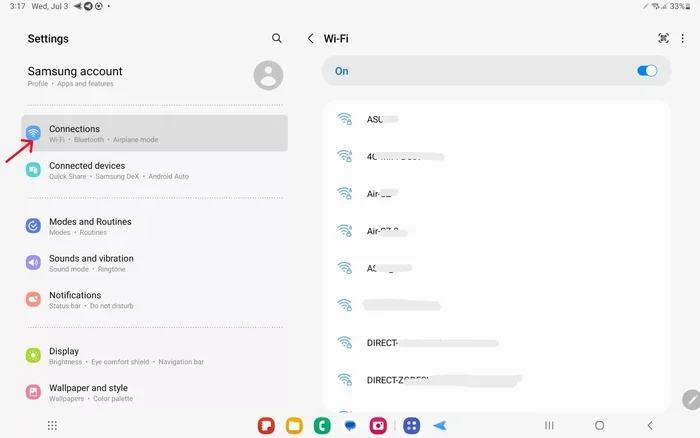
- Phone: Go to your wifi settings and tap on your connected network. The router address is listed there.
Most routers use common addresses like 192.168.1.1 or 192.168.0.1. Try one of those if you cannot find the exact address.
Step 2: Log Into Your Router
Open any web browser and type your router IP address into the address bar. Press Enter. You will see a login page. Enter your admin username and password. If you never changed these, the defaults are usually “admin” for both fields, or “admin” for the username and “password” for the password.
Check the sticker on the back of your router if you are unsure. It often lists the default login details. If you have already changed the admin password but forgot it, you can reset your router by holding the reset button for 10 seconds. This will restore factory settings, so use that as a last resort.
Some modern routers now offer a mobile app for easy management. Brands like TP-Link, Netgear, and Google Nest all have free apps that let you change settings from your phone. This can be much easier than using a web browser. You can also check if your router supports this by visiting the manufacturer’s website.
How to Change Your Home Wifi Password Step by Step
Now that you are logged in, it is time to change your password. The exact steps vary slightly depending on your router brand, but the general process is the same. Look for a section called “Wireless Settings,” “Wifi Settings,” or “Security.”
Step 1: Locate the Wireless Security Section
Once inside your router settings, find the wireless or wifi section. This is where you manage your network name (SSID) and password. If you are unsure where to look, check for a menu item labeled “Wireless,” “Wi-Fi,” or “Network Settings.”
Inside this section, you will see your current network name and password. You may also see the encryption type your network is using. Take note of this before you make any changes.
Step 2: Enter Your New Password
Look for a field labeled “Password,” “Passphrase,” “Network Key,” or “Pre-Shared Key.” Delete the old password and type in your new one. Make it long and strong. A good wifi password should be at least 12 characters and include a mix of uppercase letters, lowercase letters, numbers, and symbols.
Here are some quick tips for creating a strong password:
- Use a phrase that is easy for you to remember but hard for others to guess.
- Avoid common words like “admin,” “password,” or your family names.
- Do not use personal information like birthdays or addresses.
- Consider using a password manager to generate and store your new password safely.
Step 3: Choose the Right Encryption Type
Encryption is what keeps your wifi traffic secure. Most modern routers offer several options. The best choice today is WPA3. If your devices do not support WPA3, WPA2 is the next best option. Avoid using WEP or TKIP, as these are outdated and easily broken.
If you are unsure which encryption type to pick, WPA2/WPA3 mixed mode is a safe choice. It works with almost all devices while still providing strong security.
Step 4: Save Your Changes
After entering your new password and selecting the encryption type, click Save or Apply. Your router may restart for a moment. Once it comes back online, your new password is active. Every device that was previously connected will be disconnected and will need the new password to reconnect.
If you also want to change your network name, this is the place to do it. The network name field is usually called “SSID.” Pick a name that does not reveal personal information like your name or address. A unique name also makes it easier to identify your network in a list of available connections.
Keep in mind that changing your SSID may require you to reconnect all your devices with the new network name. This is a small inconvenience for a big security boost. For more tips on managing your router settings, check out our guide on how to change the SSID on your router.
How to Make Your Wifi Password Stronger and Harder to Crack
Changing your password is only half the battle. You also need to make sure the new password is strong enough to resist attacks. A weak password defeats the purpose of changing it in the first place.
What Makes a Password Strong?
A strong wifi password has several qualities. It is long, complex, and unique. Here is a quick comparison of weak versus strong passwords:
| Weak Password | Strong Password |
|---|---|
| password123 | Blue$Tiger!Run42 |
| 12345678 | Sunshine#Maple89 |
| homewifi | Rocket*Sky!77Go |
As you can see, a strong password is much harder to guess. It uses a mix of character types and is at least 12 characters long. The longer and more random it is, the better protected your network will be.
How Often Should You Change Your Password?
Security experts recommend changing your wifi password every three to six months. You should also change it immediately if you suspect someone has gained unauthorized access. Other situations that call for a password change include:
- You no longer live with someone who had the password.
- You had a houseguest who used your network and you want to revoke access.
- You noticed slow internet speeds or unknown devices on your network.
- You changed your internet provider or got a new router.
Some people worry that changing the password too often is inconvenient. The truth is that most modern devices remember passwords and reconnect automatically. You only need to enter the new password once per device. After that, everything works as normal.
Troubleshooting Common Problems After Changing Your Wifi Password
Changing your wifi password sometimes causes temporary connection issues. Do not panic if your devices stop connecting right away. This is normal and easy to fix. Here are the most common problems and how to solve them.
Devices That Will Not Reconnect
If a device refuses to connect with your new password, first double-check that you typed it correctly. Passwords are case-sensitive, so make sure caps lock is off. If you are still having trouble, try “forgetting” the network on your device and then reconnecting with the new password.
On most phones and computers, you can go to your wifi settings, find your network, and select “Forget.” Then search for the network again and enter the new password. This clears any saved old credentials that might be causing the problem.
Slow Internet After the Change
A slow connection after a password change is usually not caused by the password itself. It is more likely a temporary issue while your router restarts or while devices reconnect. Wait a few minutes and see if the speed improves.
If your internet is still slow, try restarting your router and modem. Unplug both from power, wait 30 seconds, and plug them back in. This simple step fixes most connection issues. You can also check if any devices are using a lot of bandwidth, like a streaming service or a large download.
Devices That Keep Dropping Connection
Older devices sometimes struggle with newer encryption types like WPA3. If your smart home gadgets or older phones keep disconnecting, try switching your encryption to WPA2 only. This sacrifices a small amount of security for better compatibility with older devices.
For more help with extending your wifi range after making these changes, you might want to explore options like a wifi booster to improve coverage throughout your home.
Extra Steps to Boost Your Home Network Security
Changing your wifi password is a great start, but there are other steps you can take to make your home network even more secure. These small changes add up to a big improvement in your overall protection.
Update Your Router Firmware
Router manufacturers release firmware updates that fix security holes and improve performance. Check your router settings for a “Firmware Update” section. If an update is available, install it right away. Some newer routers update automatically, but it is always worth checking manually.
Disable WPS (Wi-Fi Protected Setup)
WPS is a feature that lets you connect devices by pressing a button or entering a PIN. While convenient, WPS has known security vulnerabilities. Hackers can exploit it to gain access to your network. Go to your router settings and turn WPS off. You can always connect devices manually using your password.
Enable Network Encryption
Make sure your network encryption is turned on and set to the highest level your devices support. Encryption scrambles the data sent over your wireless network so that only authorized devices can read it. Without encryption, anyone within range can see what you are doing online.
For more tips on getting the most out of your home network setup, check out our article on how to get a Wi-Fi extension to improve coverage while keeping your network secure.
Set Up a Guest Network
Most modern routers let you create a separate guest network. This gives visitors internet access without letting them see your main network or connected devices. Set a different password for your guest network and change it whenever you want. It is a simple way to keep your primary network private.
Common Mistakes People Make When Changing Their Wifi Password
Even with the best intentions, people often make mistakes when updating their wifi password. Avoiding these pitfalls will save you time and frustration.
- Using a password that is too short: Short passwords are easy to crack. Always aim for at least 12 characters.
- Reusing old passwords: If your old password was weak, do not just swap out a few characters and call it new. Create a completely different password.
- Forgetting to update all devices: Smart home devices, streaming sticks, and gaming consoles all need the new password. Make a list and update them one by one.
- Writing the password on a sticky note: It might be convenient, but it is also a security risk. Use a password manager instead.
- Not saving changes: It sounds obvious, but many people forget to click Save or Apply before leaving the settings page.
By avoiding these common mistakes, you ensure that your password change actually improves your security rather than creating new problems.
Expert Insights on Home Network Protection
Cybersecurity professionals agree that regular password changes are one of the simplest and most effective ways to protect your home network. “Most home network breaches happen because of weak or unchanged passwords,” says network security expert Mark Chen. “A strong, unique password changed every few months can block the vast majority of automated attacks.”
Experts also recommend enabling two-factor authentication on your router admin account if your router supports it. This adds an extra layer of protection beyond just the password. Even if someone guesses your admin password, they still cannot access your settings without the second factor.
Another tip from the pros is to keep a record of your network settings in a secure place. Write down your router IP, admin username, and wifi password in a safe location. This way, if you ever need to troubleshoot or make changes again, you will not have to hunt for the information.
It is also worth noting that your home network security extends beyond just your password. The physical placement of your router matters too. Keep it in a central location in your home and away from windows. This limits the range of your wireless signal and makes it harder for someone outside your home to intercept it.
Key Takeaways
- Regular password changes: Updating your wifi password every few months greatly reduces the risk of unauthorized access to your home network.
- Router admin access is key: You need your router’s IP address, admin username, and password to make changes to your network settings.
- Strong passwords matter: A mix of letters, numbers, and symbols creates a password that is much harder to crack than common defaults.
- WPA3 is the best choice: Choosing the latest encryption type ensures your wireless network uses the most current security protocol available.
- Update all connected devices: After changing your password, every device that uses your wifi network will need the new credentials to reconnect.
Changing your home wifi password is one of the easiest things you can do to protect your family’s digital life. It takes just a few minutes, and the peace of mind it gives you is well worth the effort. You now know how to access your router settings, create a strong password, choose the right encryption, and troubleshoot any issues that come up.
Do not wait until something goes wrong. Make the change today. Your network, your data, and your connected devices will all be safer for it. Start with these steps now and build a habit of updating your password regularly. A little effort goes a long way when it comes to network security.
Frequently Asked Questions
How do I find my current wifi password?
You can find your current wifi password by logging into your router settings page. Look for the wireless or security section where your network name and password are displayed. You can also check the password on most devices that are already connected to your network in their wifi settings.
What should I do if I forget my new wifi password?
If you forget your new password, you can reset your router to factory settings by holding the reset button for 10 seconds. This will restore the default password, but you will also lose any custom settings. Write down your new password and store it safely to avoid this situation.
Can I change my wifi password from my phone?
Yes, many modern routers allow you to change your wifi password through a mobile app. You can also access your router settings through your phone’s web browser by entering your router IP address. The process is the same as using a computer.
Will changing my wifi password disconnect all my devices?
Yes, changing your wifi password will temporarily disconnect all devices. You will need to reconnect each device using the new password. This includes phones, laptops, smart TVs, and any other device that uses your wireless network.
What is the difference between WPA2 and WPA3 encryption?
WPA3 is the newest and most secure encryption type available. It offers better protection against brute-force attacks compared to WPA2. If your devices support WPA3, it is the best choice for your home network. WPA2 is still very secure and works with almost all devices if WPA3 is not available.
How long should my wifi password be?
Your wifi password should be at least 12 characters long. Longer passwords are even better. A 16-character password is considered very strong. The key is to use a mix of uppercase letters, lowercase letters, numbers, and special characters to make it difficult to guess or crack.