Does ATT Internet Provide A Router for Your Home Setup
AT&T internet does provide a router, typically in the form of a gateway device, but you can also use your own equipment. Whether you have AT&T Fiber, DSL, or fixed wireless, understanding your router options helps you get the best home network setup. This guide covers every AT&T router option, setup steps, and whether bringing your own device makes sense.
Does AT&T internet provide a router? The short answer is yes, but the full story is more interesting than you might think. When you sign up for an AT&T internet plan, you typically get a gateway device that handles both your modem and router functions. But what if you want more control, better speed, or stronger Wi-Fi coverage? That is where things get fun.
Understanding what AT&T includes in your internet package helps you make smart decisions about your home network setup. Whether you are a casual browser or a streamer who needs rock-solid connections, knowing your options matters. This guide walks you through everything you need to know about AT&T routers, gateways, and whether you should stick with the provided equipment or bring your own.
We will cover the different types of AT&T internet services, the gateway devices they provide, how to set up and customize your router, and when it makes sense to use your own gear. By the end, you will have a clear picture of exactly what you need for your home internet setup.
Key Takeaways
- AT&T provides a gateway router: Most AT&T internet plans include a gateway device that combines a modem and router.
- You can use your own router: AT&T allows you to bring your own equipment, which can save money and improve performance.
- Wi-Fi extenders help with coverage: If your signal is weak, adding an extension or booster can make a big difference.
- Router setup is straightforward: You can change your SSID, Wi-Fi password, and settings through the AT&T interface.
- AT&T customer support is available: They can help with troubleshooting, setup, and equipment swaps.
📑 Table of Contents
What AT&T Internet Includes by Default
When you sign up for AT&T internet service, the company includes certain equipment as part of your plan. Understanding what comes in the box saves you time and confusion. Most AT&T internet plans ship a gateway device that serves two purposes at once.
The AT&T Gateway Device
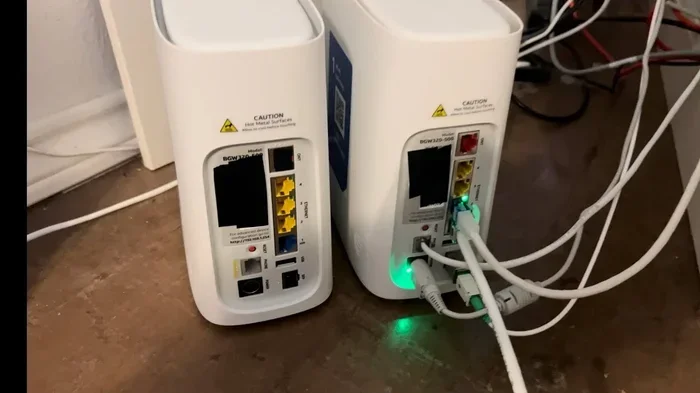
The AT&T gateway is a modem router combo. It connects to your phone line, fiber line, or fixed wireless antenna, depending on your service type. Then it broadcasts a Wi-Fi signal throughout your home. This all-in-one device handles the job of two separate pieces of equipment.
AT&T offers a few different gateway models. The choice depends on your internet speed tier and the type of connection you have. Here is a quick look at what you might receive:
- AT&T BGW210: A common gateway for DSL and fiber connections. It supports dual-band Wi-Fi and works well for most households.
- AT&T BGW320: A newer model with improved Wi-Fi 6 support. It offers better range and faster speeds for heavy users.
- AT&T CW802G: Used with fixed wireless internet. This gateway handles the wireless backhaul connection and distributes Wi-Fi indoors.
Each gateway comes pre-configured with a default Wi-Fi name and password. You will find these labels on the bottom or back of the device. While this works fine for getting started, you will likely want to customize your settings for better security and performance.
Types of AT&T Internet Services and Router Needs
AT&T offers several types of internet service, and each has different router requirements. Your connection type determines what equipment you need and how your gateway performs.
AT&T Fiber Internet
AT&T Fiber delivers internet through fiber-optic cables. It offers some of the fastest speeds available, often reaching 1 Gbps or higher. The gateway provided with Fiber plans handles these speeds well, but your home network setup still depends on your router placement and Wi-Fi environment.
If you live in a larger home, the default gateway might not reach every room. In that case, you may want to add a Wi-Fi extender or use your own router for better Wi-Fi coverage. Adding a Wi-Fi extension can solve dead zones without replacing your entire gateway.
AT&T DSL Internet
DSL internet uses traditional phone lines to deliver broadband. Speeds are typically lower than Fiber, ranging from 10 Mbps to 100 Mbps. The AT&T gateway for DSL connections works well for basic browsing, streaming, and video calls.
Because DSL speeds are more modest, the included gateway rarely becomes a bottleneck. Most users find the default equipment perfectly adequate for their needs. However, if you have multiple devices connected at once, upgrading your router can improve performance.
AT&T Fixed Wireless Internet
Fixed wireless internet connects to a tower outside your home. A small antenna on your roof or window receives the signal, and the gateway distributes it as Wi-Fi. This service is common in rural areas where other options are limited.
The gateway for fixed wireless includes a built-in router. However, signal strength can vary based on your location and the number of obstacles between your home and the tower. Placing your gateway in a central location helps maximize your Wi-Fi signal strength throughout the house.
Can You Use Your Own Router with AT&T?
Yes, you absolutely can use your own router with AT&T internet. Many people prefer to bring their own equipment for better performance, more features, or to avoid monthly rental fees. AT&T supports this option, and setting it up is straightforward.
Setting Up a Third-Party Router
To use your own router, you need to put the AT&T gateway into bridge mode. This turns off the gateway’s router functions and lets your router handle all the Wi-Fi duties. Here is how the process generally works:
- Log into your AT&T gateway settings using the admin credentials.
- Navigate to the network settings or gateway settings page.
- Enable bridge mode or disable the Wi-Fi router function.
- Connect your own router to one of the gateway’s LAN ports using an Ethernet cable.
- Configure your new router with your preferred SSID, password, and settings.
Once bridge mode is active, your AT&T gateway simply passes the internet signal to your router. Your router then creates the Wi-Fi network for your home. This setup often results in better speeds and more reliable connections, especially if you invest in a quality router.
Benefits of Using Your Own Router
Bringing your own router comes with several advantages. First, you avoid the monthly rental fee that AT&T charges for their gateway. Over a year or two, those savings add up. Second, you get access to newer Wi-Fi standards and better hardware that the default gateway may lack.
Many modern routers offer advanced features like mesh networking, parental controls, and improved device management. If you want to build a strong home network setup, using your own router gives you far more flexibility. You can also easily change your SSID and Wi-Fi settings without being tied to AT&T’s interface.
AT&T Router Setup and Customization
Whether you use the AT&T gateway or your own router, customizing your settings is an important step. Default settings rarely give you the best performance or security. Taking a few minutes to tweak your configuration makes a real difference.
Changing Your Wi-Fi Name and Password
The first thing you should do after setup is change the default Wi-Fi name and password. The default SSID often reveals your internet provider and makes your network an easy target. A strong, unique password keeps your network security tight.
You can change these settings through the AT&T gateway interface or your third-party router’s admin panel. Use a password that is at least 12 characters long and includes a mix of letters, numbers, and symbols.
Optimizing Wi-Fi Channel Settings
Wi-Fi channels can become crowded in neighborhoods with many networks. Your gateway or router automatically selects a channel, but manually choosing a less congested one can improve your speeds. You can use a free Wi-Fi analyzer app to find the best channel for your area.
For dual-band routers, consider using different channels for the 2.4 GHz and 5 GHz bands. The 2.4 GHz band reaches farther but is more prone to interference. The 5 GHz band offers faster speeds but has a shorter range. Balancing both gives you the best of both worlds.
Updating Router Firmware
Firmware updates fix security vulnerabilities and improve performance. AT&T gateways usually update automatically, but it is worth checking periodically. If you use your own router, check the manufacturer’s app or admin panel for available updates. Keeping your network equipment up to date is one of the simplest things you can do.
Boosting Your AT&T Wi-Fi Coverage
Even the best gateway has limits when it comes to covering a large home. Walls, floors, and distance all weaken your Wi-Fi signal. Fortunately, there are several ways to boost your coverage without replacing your equipment.
AT&T Wi-Fi Extenders
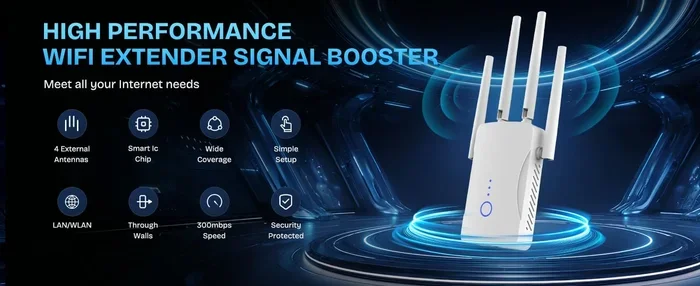
AT&T sells Wi-Fi extenders that work with their gateways. These devices plug into a wall outlet and rebroadcast your Wi-Fi signal to areas with weak coverage. They are easy to set up and affordable, making them a popular choice for homes with dead zones.
While extenders work, they do cut your bandwidth in half because they use the same radio to receive and transmit. For better results, consider a mesh Wi-Fi system or a dedicated range extender from a third-party manufacturer.
Using a Wi-Fi Booster
A Wi-Fi booster works similarly to an extender but often provides better performance. Wi-Fi boosters amplify your existing signal and push it further into your home. They are especially useful for large houses or buildings with thick walls.
Place your booster halfway between your gateway and the area with weak signal. This positioning ensures the booster receives a strong enough signal to amplify effectively.
Adding an External Antenna
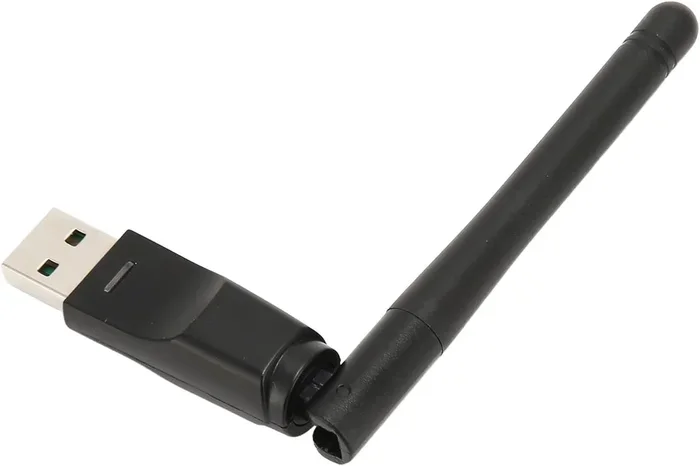
Some AT&T gateways support external antennas. Adding a high-gain antenna can significantly improve your Wi-Fi range and signal quality. This option works well for fixed wireless connections where the indoor antenna may struggle to receive a strong signal.
Adding an antenna to your Wi-Fi router is a simple upgrade that costs very little but delivers noticeably better coverage. Check your gateway’s specifications to confirm antenna compatibility before purchasing.
Troubleshooting Common AT&T Router Issues
Like any networking equipment, AT&T gateways can experience issues from time to time. Most problems have simple fixes that do not require calling customer support. Here are the most common issues and how to resolve them.
Slow Internet Speeds
Slow speeds are the number one complaint among internet users. Before contacting AT&T, try these steps:
- Restart your gateway by unplugging it for 30 seconds and plugging it back in.
- Run an internet speed test to see if your speeds match your plan.
- Move closer to the gateway to check if distance is causing the slowdown.
- Check for firmware updates on your gateway or router.
- Reduce the number of connected devices temporarily to isolate the issue.
Wi-Fi Connectivity Drops
If your Wi-Fi connection keeps dropping, the issue could be interference or outdated firmware. Interference from microwaves, baby monitors, and neighboring networks can all cause disruptions. Switching to a less crowded Wi-Fi channel often fixes the problem.
You should also check the physical location of your gateway. Placing it in a central, elevated position away from walls and electronics improves stability. If you still experience drops, consider switching to your own router for a more reliable connection.
Gateway Not Responding
A gateway that does not respond can be frustrating. Start by checking all cable connections. A loose Ethernet or coaxial cable can cause the device to become unresponsive. If the cables are secure, try a factory reset by holding the reset button on the back of the gateway for 10 seconds.
After a reset, you will need to reconfigure your settings. Have your AT&T account information handy before starting the reset process. If the problem persists, contact AT&T customer service for further assistance.
AT&T Internet Equipment Fees and Savings
AT&T charges a monthly fee for their gateway equipment. This fee varies by plan but typically ranges from $10 to $15 per month. Over the course of a year, that adds up to $120 to $180 in rental costs.
Buying your own router can save you money in the long run. A quality router costs between $100 and $200 upfront. After 8 to 12 months, you break even compared to the rental fee. Beyond that point, you save money every month. Plus, you get better hardware and more features than the default gateway provides.
Keep in mind that if you use your own router, AT&T still requires you to keep the gateway for the initial broadband connection. You simply put it in bridge mode and let your router handle the Wi-Fi. This means you still need the gateway, but you do not need to pay the rental fee if you already own one from a previous plan.
Final Thoughts
So, does AT&T internet provide a router? Yes, it does. Every AT&T internet plan includes a gateway device that handles both modem and router functions. This gateway works well for most households, especially smaller homes with moderate internet usage.
However, you are not stuck with the provided equipment. AT&T allows you to use your own router, and doing so can improve your speeds, coverage, and overall experience. Whether you choose to stick with the default gateway or invest in your own gear, the key is understanding your options and making the choice that fits your needs.
Take the time to customize your settings, optimize your Wi-Fi channels, and consider a booster or extender if your coverage needs it. A little effort goes a long way in creating a fast, reliable home network. And if you ever run into issues, remember that simple troubleshooting steps like restarting your gateway can resolve most problems quickly.
Your internet connection powers everything from streaming movies to working from home. Making sure you have the right router setup is one of the best investments you can make for your daily life. With AT&T internet, you have the flexibility to build a network that works exactly the way you want it to.
Frequently Asked Questions
Does AT&T charge a fee for their router?
Yes, AT&T charges a monthly rental fee for their gateway device. The fee typically ranges from $10 to $15 per month, depending on your internet plan. You can avoid this fee by using your own router and putting the AT&T gateway into bridge mode.
Can I use any router with AT&T internet?
Most routers work with AT&T internet as long as you put the AT&T gateway into bridge mode first. This disables the gateway’s router functions and allows your third-party router to take over. Check your router’s compatibility with AT&T’s connection types before purchasing.
How do I put my AT&T gateway into bridge mode?
Log into your AT&T gateway settings using the admin credentials found on the device label. Navigate to the network settings and enable bridge mode. Once activated, connect your own router to one of the gateway’s LAN ports using an Ethernet cable.
What is the difference between AT&T’s gateway and a regular router?
AT&T’s gateway is a modem router combo that handles both the internet connection and Wi-Fi broadcasting. A regular router only handles Wi-Fi and needs a separate modem to connect to the internet. Gateways save space and simplify setup, but standalone routers offer more features and better performance.
How can I improve my AT&T Wi-Fi signal strength?
Place your gateway in a central, elevated location away from walls and electronics. You can also add a Wi-Fi extender or booster to reach dead zones. Changing your Wi-Fi channel to a less congested one can also improve signal quality throughout your home.
Does AT&T provide mesh Wi-Fi systems?
AT&T does not officially sell mesh Wi-Fi systems, but their gateways work well with third-party mesh systems. You can put the AT&T gateway in bridge mode and connect a mesh router system for whole-home coverage. This setup gives you the best of both worlds and eliminates dead zones effectively.
=== CONCLUSION ===
AT&T internet does provide a router in the form of a gateway device, giving you everything you need to get online right out of the box. Whether you keep the default equipment or bring your own router depends on your budget, home size, and internet usage habits. The flexibility AT&T offers lets you customize your setup to match your needs perfectly.
Take control of your home network today. Explore your options, optimize your settings, and enjoy a fast, reliable internet connection that works for every room in your house.