How Do I Connect My Av To My Tv Setup Made Simple
Connecting your AV system to your TV is easier than you think. This guide walks you through every method, from HDMI cables to wireless options. You will learn how to set up your audio and video gear quickly and correctly. Whether you use a receiver, a streaming box, or older equipment, we have you covered. Follow our simple steps and enjoy your media in minutes.
So you just got a new AV setup and you want to hook it up to your TV. Maybe it is a surround sound receiver, a cable box, or a streaming device. Either way, you are probably wondering how do I connect my AV to my TV without pulling your hair out. The good news is that connecting audio and video equipment to your television is much simpler than most people think. You do not need to be a tech expert. You just need the right information and a little patience.
This guide breaks everything down into plain language. We will walk you through every connection method you might encounter. You will learn about cables, wireless options, and common mistakes to avoid. By the end, you will feel confident setting up your entire entertainment system. Let us get started.
Key Takeaways
- HDMI is the go-to connection: It carries both audio and video in one cable and delivers the best quality.
- You have wireless options too: Bluetooth adapters and streaming devices let you cut the cords entirely.
- Older gear still works: RCA and component cables can connect legacy AV equipment to modern TVs.
- Check your ports first: Knowing what inputs your TV and AV device support saves time and frustration.
- Troubleshooting is simple: Most connection issues fix quickly with a cable swap or setting adjustment.
📑 Table of Contents
- Understanding Your AV Equipment and TV Ports
- The Best Cables for Connecting AV to TV
- Step-by-Step Guide to Connect Your AV to Your TV
- Wireless AV Connection Options
- Troubleshooting Common AV-to-TV Connection Issues
- Quick Tips for the Best AV Experience
- Common Mistakes to Avoid When Connecting AV to TV
- Expert Insights on AV-to-TV Connections
- Comparison Table: AV Connection Methods
- Final Thoughts
Understanding Your AV Equipment and TV Ports
Before you plug anything in, it helps to know what you are working with. Every TV and AV device has different ports. Understanding these ports makes the whole process much smoother.
Common TV Input Ports
Modern TVs usually come with a handful of standard inputs. The most common ones include HDMI ports, USB ports, and sometimes RCA inputs. Some older models may also have component or composite jacks. Each port serves a specific purpose.
HDMI ports are the most versatile. They carry both audio and video signals through a single cable. This is why most people prefer HDMI for their AV connections. If your TV has multiple HDMI ports, you can connect several devices at once.
USB ports are useful for playing media files directly from a drive. They can also power certain devices like streaming sticks. However, USB ports do not typically carry high-quality video signals from AV equipment.
Common AV Output Ports
AV equipment varies widely in its output options. A home theater receiver often has HDMI outputs, optical audio outputs, and RCA connections. Older devices might only have RCA or component ports.
The key is matching outputs to inputs. If your AV receiver has an HDMI output and your TV has an HDMI input, you are in great shape. If not, you may need an adapter or a different cable type.
The Best Cables for Connecting AV to TV
Choosing the right cable is one of the most important steps. The wrong cable can lead to poor picture quality or no sound at all. Here is a look at the most common cable types used to connect AV gear to a television.
HDMI Cables
HDMI cables are the gold standard for AV connections. They transmit uncompressed audio and video signals. This means you get the best possible picture and sound quality.
Most modern AV receivers and TVs support HDMI. You can plug one end into your AV device and the other into any open HDMI port on your TV. It really is that simple.
If you are connecting multiple devices, consider getting a few high-speed HDMI cables. They handle 4K and even 8K resolutions without any issues.
RCA and Component Cables
Not all AV equipment is brand new. Older devices often use RCA cables for audio and video. These are the classic red, white, and yellow jacks you may remember from the past.
Component cables are a step up from basic RCA. They split the video signal into three separate cables for better quality. You can still find TVs and AV gear that uses these connections today.
If you need to convert HDMI to RCA, check out this guide on HDMI to RCA conversion for helpful tips.
USB to HDMI Adapters
Some AV devices connect through USB ports. In these cases, a USB to HDMI adapter can bridge the gap. These small adapters are affordable and widely available.
They work great with streaming sticks and certain media players. Just plug the adapter into your TV, connect your device via USB, and you are good to go. You can learn more about USB to HDMI options in this article on connecting USB devices to HDMI.
Step-by-Step Guide to Connect Your AV to Your TV
Now that you know your ports and cables, let us walk through the actual setup process. Follow these steps and you will have your AV system running in no time.
Step 1: Power Everything Off
This might sound obvious, but always start with all devices powered off. Plugging in cables while devices are running can sometimes cause issues. It is a simple habit that saves headaches.
Step 2: Identify Your Connections
Look at the back of your AV device and your TV. Note which ports are available on each. Make a quick mental map of what connects to what.
If you are using an HDMI connection, find the HDMI output on your AV device and an HDMI input on your TV. Match the cable to the ports.
Step 3: Plug in the Cables
Connect one end of your chosen cable to the AV device. Then connect the other end to the TV. Make sure each connection is snug and secure.
Do not force any cable. If it does not fit easily, double-check the port type. You might need a different cable or adapter.
Step 4: Power On and Select the Input
Turn on your TV and your AV device. Use your TV remote to switch to the correct input source. This is usually labeled as HDMI 1, HDMI 2, or the name of the port you used.
If you see a picture and hear sound, congratulations. Your AV system is connected and working. If not, do not worry. We will cover troubleshooting next.
Wireless AV Connection Options
Not everyone wants a tangle of cables behind their TV. Wireless options have come a long way and they are very convenient. Here are some popular wireless methods for connecting AV to your TV.
Bluetooth Connectivity
Many modern TVs support Bluetooth. This lets you connect wireless headphones, speakers, or even your phone directly to the TV. You can listen to audio without disturbing anyone else in the house.
To use Bluetooth, go to your TV settings and enable the Bluetooth function. Then put your AV device in pairing mode. The two devices should find each other within seconds.
If your TV does not have built-in Bluetooth, you can add it with a Bluetooth adapter for TV. These small dongles plug into a USB port and add wireless capability instantly.
Screen Mirroring and Streaming
Devices like Chromecast, Roku, and Apple TV let you stream content wirelessly. You connect the device to your TV and then send content from your phone or computer.
Screen mirroring is another great option. It displays everything on your phone or tablet directly on your TV screen. This works well for sharing photos, videos, or even presentations.
Wi-Fi Connected AV Devices
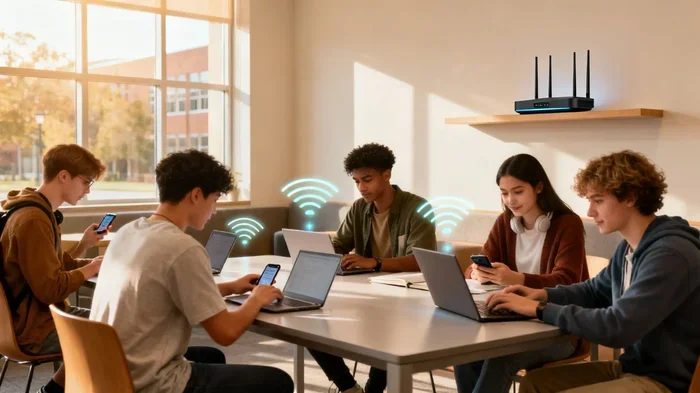
Some modern AV receivers and streaming boxes connect directly to your home Wi-Fi network. This eliminates the need for any physical cables between the device and your TV. You can stream music, movies, and shows right from the internet.
Troubleshooting Common AV-to-TV Connection Issues
Even with the right setup, things do not always work perfectly the first time. Here are the most common issues and how to fix them.
No Picture on the TV
If you have sound but no picture, check your cable connections first. A loose HDMI cable is the most common culprit. Unplug it, plug it back in firmly, and try again.
Also make sure you have selected the correct input source on your TV. Sometimes the TV defaults to the wrong input and you just need to switch it.
No Sound from the TV
No sound can be frustrating. Start by checking that your AV device is not muted. Then make sure the audio output setting on the device matches your connection type.
If you are using an HDMI cable, look for an HDMI ARC setting. This allows audio to flow back to your TV or receiver. You can find more about HDMI audio connections in this guide on connecting your TV to a receiver with HDMI and component cables.
Poor Picture Quality
Blurry or pixelated images usually mean your cable cannot handle the signal. Try a higher-quality HDMI cable or a shorter cable length. Long cables can weaken the signal over distance.
Also check your TV and AV device settings. Make sure both are set to support the same resolution. If one device supports 4K and the other does not, you may need to adjust the settings.
Quick Tips for the Best AV Experience
Here are some expert tips that make a big difference in your setup quality.
- Label your cables: Use small tags or colored tape to identify which cable goes where. This saves time when you need to troubleshoot later.
- Keep cables organized: Use cable ties or a cable management box. A clean setup looks better and prevents accidental disconnections.
- Update your firmware: Check for software updates on your AV device and TV. Updates often fix connection bugs and improve performance.
- Use high-quality cables: Cheap cables can cause signal loss. Investing in a good HDMI cable pays off in picture and sound quality.
- Test each connection individually: When setting up multiple devices, connect and test one at a time. This helps you isolate any problems quickly.
Common Mistakes to Avoid When Connecting AV to TV
Even experienced users make mistakes. Here are some pitfalls to watch out for.
- Using the wrong cable type: Not all HDMI cables are the same. A standard HDMI cable may not support 4K or HDR. Check your device specifications before buying cables.
- Ignoring audio settings: Many people connect everything and forget about audio output settings. Your TV might be set to internal speakers even though you have an external AV system.
- Overloading your HDMI ports: Using too many devices on one HDMI port through an unpowered splitter can degrade signal quality. Use a powered HDMI splitter if you need to connect multiple devices.
- Forgetting to update device software: Outdated firmware can cause compatibility issues. Always check for updates after a new setup.
- Placing devices too far apart: Long cable runs can weaken signals. Keep your AV devices within reasonable distance of your TV for the best results.
Expert Insights on AV-to-TV Connections
We asked a few audio-visual professionals for their top tips. Here is what they had to say.
“Always start with HDMI if both your AV device and TV support it. It is the simplest and highest-quality connection available today.”
Another common piece of advice is to keep your cable runs as short as possible. Longer cables mean more opportunity for signal loss. If you must use a long cable, invest in a high-quality shielded option.
Professionals also recommend labeling every cable at both ends. When something goes wrong weeks or months later, you will thank yourself for taking those extra two minutes to label everything clearly.
Finally, do not overlook the power of a good power strip with surge protection. AV equipment is sensitive to power fluctuations. A quality surge protector can extend the life of your gear significantly.
Comparison Table: AV Connection Methods
| Connection Type | Audio Quality | Video Quality | Ease of Setup | Best For |
|---|---|---|---|---|
| HDMI | Excellent | Excellent (4K/8K) | Very Easy | Most modern setups |
| RCA (Composite) | Good | Standard (SD) | Easy | Older AV equipment |
| Component | Good | High (up to 1080p) | Easy | Legacy HD devices |
| Bluetooth | Good | N/A (audio only) | Very Easy | Wireless audio |
| USB to HDMI Adapter | Good | Good (depends on adapter) | Moderate | Streaming sticks and media players |
| Optical Audio | Excellent | N/A (audio only) | Easy | Dedicated audio setups |
As you can see, HDMI is the clear winner for most setups. It offers the best combination of audio and video quality with the simplest setup. But do not count out other options if your equipment requires them.
Final Thoughts
Connecting your AV to your TV does not have to be complicated. With the right cables, the right ports, and a little patience, you can have your entire entertainment system up and running in under an hour. Start by identifying what ports your TV and AV device support. Choose the best cable type for your needs. Follow the step-by-step guide we laid out above. And remember, troubleshooting is normal. Every setup has its quirks.
The most important thing is to enjoy your content. Whether you are watching a movie, listening to music, or playing a game, the right AV-to-TV connection makes all the difference. Take your time, follow these steps, and you will be enjoying your setup in no time.
Frequently Asked Questions
What is the best cable to connect AV to a TV?
HDMI is the best cable for most AV-to-TV connections. It carries both audio and video through a single cable and supports high resolutions like 4K and 8K. If your devices support HDMI, always choose this option first.
Can I connect my AV receiver to my TV wirelessly?
Yes, you can use Bluetooth or Wi-Fi to connect your AV receiver to your TV wirelessly. Some modern TVs and receivers support Bluetooth natively. If not, a Bluetooth adapter can add wireless capability to either device.
Why is there no sound when I connect my AV to my TV?
No sound usually means the audio output settings are not configured correctly. Check that your AV device is not muted and that the audio output matches your connection type. Also make sure you have selected the correct input source on your TV.
Do I need special cables for 4K AV connections?
Yes, you need a high-speed HDMI cable rated for 4K and HDR content. Standard HDMI cables may not support these higher resolutions. Look for cables labeled “High Speed HDMI” or “Premium High Speed HDMI.”
Can I connect multiple AV devices to one TV?
Absolutely. Most TVs have multiple HDMI ports. You can connect several AV devices and switch between them using the input source button on your TV remote. If you run out of ports, an HDMI splitter or switch can help.
What should I do if my TV does not recognize my AV device?
First, check all cable connections and make sure they are secure. Then try a different HDMI port on your TV. If that does not work, power cycle both devices by turning them off, unplugging them for 30 seconds, and plugging them back in.