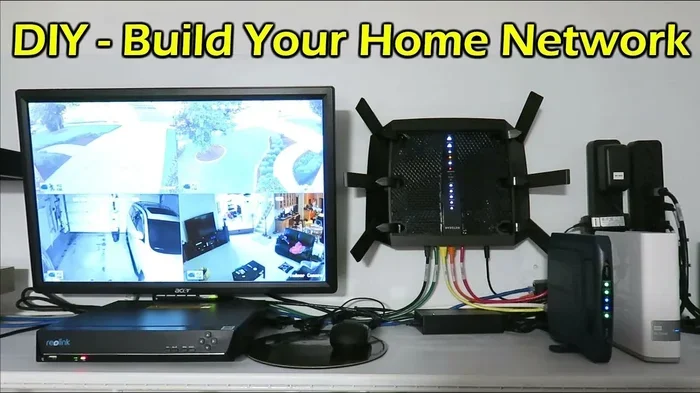
Can I Make Wifi Myself Here Is Everything You Need To Know
Can I make wifi myself? The answer is a clear yes. With the right equipment and a simple setup process, you can build your own wireless network at home or anywhere you need internet access. This guide covers everything from choosing the right wireless router to boosting your wifi signal and keeping your network secure.
Have you ever wondered, can I make wifi myself? Maybe you moved into a new place, or your current setup is just not working well. Perhaps you want more control over your internet connection without relying on someone else to set it up for you.
The good news is that creating your own wireless network is something anyone can do. You do not need to be a tech expert. You do not need a computer science degree. With a few pieces of equipment and some basic knowledge, you can have a fully functioning wifi network up and running in no time.
This guide walks you through every single step. From understanding what equipment you need to setting up your wireless router, boosting your wifi signal, and keeping your network safe. By the end, you will feel confident enough to build your own internet connection from scratch.
Let us dive right in and answer the big question: can I make wifi myself? The short answer is yes. The longer answer is even more exciting because you will learn exactly how to do it right.
Key Takeaways
- You absolutely can make your own wifi: All you need is a modem, a wireless router, and an internet service provider.
- Setting up a wireless network is easier than most people think: With step-by-step guidance, anyone can do it in under an hour.
- Equipment choice matters a lot: The right router and modem make a huge difference in your connection speed and coverage.
- Signal strength can be improved: Placement, frequency bands, and extenders all play a role in better wifi performance.
- Security should never be ignored: Setting a strong wifi password and enabling encryption protects your network from threats.
- Common mistakes are easy to avoid: Simple fixes like proper router placement and firmware updates solve most problems.
📑 Table of Contents
What Does It Mean to Make Your Own WiFi?
When people ask, can I make wifi myself, they usually mean one of two things. Either they want to create a wireless network from scratch using their own equipment, or they want to understand how wifi actually works so they can troubleshoot problems on their own.
A wireless network is simply a way for your devices to connect to the internet without using cables. Instead of plugging your laptop or phone directly into a wall, you use radio waves to send and receive data. This is what makes wifi so convenient. You can move around your home or office and stay connected.
To make your own wifi network, you need three essential things. An internet service provider (ISP) that delivers internet to your home. A modem that receives that internet signal. And a wireless router that spreads the signal through the air so your devices can connect.
Some devices combine the modem and router into one unit. These are often called gateway devices or modem-router combos. They save space and simplify setup. But many people prefer separate devices because they offer more control and better performance.
How WiFi Actually Works
Understanding the basics of how wifi works helps you appreciate what you are building. Your wireless router takes the internet signal from your modem and converts it into radio waves. These waves travel through the air and are picked up by the wireless adapter in your phone, laptop, or tablet.
The router assigns each device a local address on your network. It also manages traffic so that multiple devices can browse, stream, and download at the same time without slowing each other down. The network name, also called the SSID, is how your network identifies itself to nearby devices.
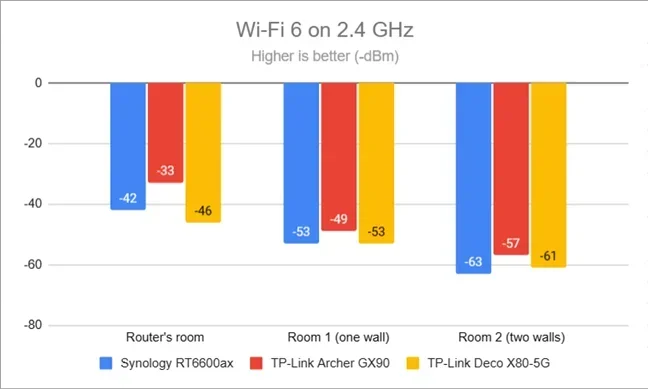
Wifi operates on specific frequency bands. Most modern routers use either 2.4 GHz or 5 GHz bands. Some even support both at the same time, which is called dual-band. The 2.4 GHz band covers a wider area but is slower. The 5 GHz band is faster but has a shorter range. Knowing this helps you optimize your connection speed and signal strength.
What You Need to Create Your Own WiFi Network
Before you start asking, can I make wifi myself, let us talk about what you actually need. The good news is that the equipment list is short and affordable. You do not need anything fancy to get started.
Essential Equipment
- A modem: This device connects your home to your ISP. It receives the internet signal and passes it along to your router. Many ISPs provide a modem when you sign up for service.
- A wireless router: This is the device that creates your wifi network. It takes the signal from the modem and broadcasts it wirelessly so your devices can connect.
- An ethernet cable: You need at least one ethernet cable to connect the modem to the router. These cables are cheap and widely available.
- A device to configure the router: You can use a laptop, tablet, or even your smartphone to set up the router through its admin panel.
Optional but Helpful Equipment
- A wifi extender or mesh system: If your home is large or has thick walls, these devices boost your wifi signal and extend coverage to every room.
- A surge protector: Power surges can damage your networking equipment. A simple surge protector adds a layer of protection.
- Cable ties and a cable organizer: Keeping your cables tidy makes troubleshooting easier and keeps your setup looking clean.
Choosing the Right Wireless Router
Not all routers are created equal. When choosing a wireless router, look at the wifi standard it supports. The latest standard is called Wi-Fi 6 (also known as 802.11ax). It offers faster speeds, better efficiency, and improved performance in homes with many connected devices.
If you have a small apartment, a basic router will work just fine. But if you live in a larger home with multiple floors, consider a mesh network system. Mesh systems use multiple units placed around your home to create seamless wifi coverage without dead zones.
Also check the number of antennas and the router’s processor speed. More antennas generally mean better signal strength and range. A faster processor handles more devices without slowing down. These are important factors when you are building your own wireless network.
Step-by-Step Guide to Setting Up Your WiFi
Now that you have your equipment, let us walk through the actual setup process. This is where the real magic happens. Following these steps carefully ensures your wifi network works smoothly from day one.
Step 1: Connect Your Modem
Start by plugging your modem into the wall outlet where your ISP’s service enters your home. This is usually a coaxial cable or a phone jack. Connect the modem to a power source and wait for it to fully boot up. The lights on the modem will stabilize when it is ready.
Step 2: Connect the Router to the Modem
Take your ethernet cable and plug one end into the modem’s output port. Plug the other end into the router’s WAN or internet port. This port is usually a different color from the others, often blue or yellow. This connection is how your router receives the internet signal.
Step 3: Power On the Router
Plug in your wireless router and turn it on. Wait about two minutes for it to fully start. The lights on the router will blink during startup and then settle into a steady pattern. This means the router is ready to be configured.
Step 4: Access the Router Admin Panel
Open a web browser on your laptop or phone. Type the router’s default IP address into the address bar. This is usually something like 192.168.0.1 or 192.168.1.1. You can find this information in the router’s manual or on a sticker on the bottom of the device.
Log in using the default username and password. These are also printed on the router or in the manual. Common defaults are “admin” for both the username and password, but this varies by brand.
Step 5: Configure Your Network Name and Password
Once you are in the admin panel, look for the wireless settings section. Here you will set your network name, which is also called the SSID. Choose a name that is unique and easy for you to recognize. Avoid using personal information in the name.
Next, set your wifi password. Make it strong and unique. Use a mix of uppercase letters, lowercase letters, numbers, and symbols. A strong wifi password is your first line of defense against unauthorized access to your network security.
Step 6: Choose Your Security Protocol
In the wireless security settings, select WPA3 if your router supports it. WPA3 is the latest and most secure encryption standard. If WPA3 is not available, choose WPA2. Never use WEP or leave your network open. These options leave your wireless network vulnerable to intruders.
Step 7: Save and Test Your Connection
After saving your settings, disconnect from the router’s default network and search for your new network name on your devices. Enter the wifi password you just created. Once connected, open a browser and visit a website to confirm everything is working.
How to Boost Your WiFi Signal
Setting up your wireless network is only half the battle. Many people struggle with weak wifi signal in certain parts of their home. The good news is there are several effective ways to improve your connection speed and coverage.
Optimize Router Placement
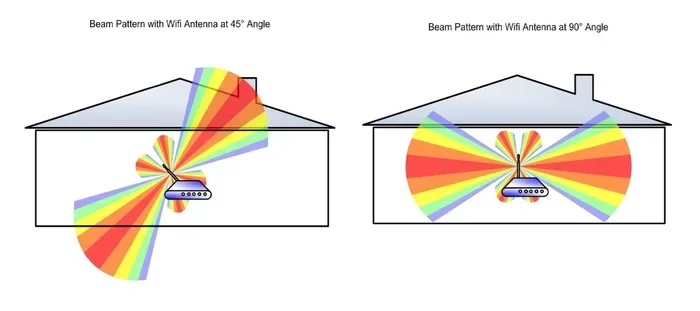
Where you place your router has a huge impact on signal strength. The best spot is usually in the center of your home, elevated off the floor, and away from walls and obstacles. Avoid placing the router in a closet, behind a TV, or near large metal objects. These things block and weaken the radio waves.
Keep the router in an open area where air can circulate around it. Routers can overheat if they are crammed into tight spaces, and heat reduces performance. A simple change in placement can dramatically improve your wifi coverage.
Switch Between Frequency Bands
Remember those two frequency bands we talked about earlier? The 2.4 GHz band and the 5 GHz band each have strengths and weaknesses. If you need coverage across a large area, the 2.4 GHz band works better because it penetrates walls more easily.
If you need fast speeds for streaming or gaming, the 5 GHz band is your best bet. Many modern routers let you assign different names to each band, so you can choose which one to connect to based on your needs. This simple trick can make a big difference in your daily internet experience.
Use a WiFi Extender or Mesh System
If your home is large or has multiple floors, a single router might not be enough. A wifi extender picks up your existing signal and rebroadcasts it to areas with weak coverage. Extenders are affordable and easy to set up.
A mesh network system takes this a step further. It uses multiple nodes placed around your home to create a seamless, whole-home wifi network. Mesh systems are more expensive but they offer superior coverage and performance. They are especially useful for homes with smart home devices, multiple users, and heavy internet usage.
Update Your Router’s Firmware
Router manufacturers regularly release firmware updates that improve performance, fix bugs, and patch security vulnerabilities. Check your router’s admin panel for updates regularly. Keeping your firmware current is one of the easiest ways to maintain strong network security and optimal connection speed.
Reduce Interference
Other electronic devices can interfere with your wifi signal. Microwaves, baby monitors, cordless phones, and even Bluetooth devices can cause disruptions. If you notice weak signal in certain areas, try moving these devices away from your router.
You can also change your router’s wireless channel. Most routers default to channel 6 on the 2.4 GHz band, which means many neighboring networks might be using the same channel. Switching to a less crowded channel can reduce interference and improve your bandwidth.
Common Mistakes People Make When Setting Up WiFi
Even with the best intentions, many people make avoidable mistakes when setting up their wireless network. Knowing what these mistakes are helps you steer clear and get the best possible performance from your wifi setup.
Using the Default Admin Password
One of the biggest mistakes is leaving the router’s admin password unchanged. Default passwords are publicly known and easy to find online. Anyone on your network could access your router settings and change your configuration. Always change the admin password to something strong and unique during setup.
Placing the Router in a Bad Location
We mentioned this in the signal boosting section, but it is worth repeating. Hiding your router in a basement, closet, or behind furniture severely limits your wifi signal. The center of your home, on a shelf or table, is the ideal spot.
Ignoring Network Security
Some people set up their wireless network without enabling encryption or use weak passwords. This leaves your network open to neighbors and strangers who can use your internet, slow down your connection, and potentially access your personal devices. Always use WPA2 or WPA3 encryption and a strong wifi password.
Not Updating Firmware
Outdated firmware can cause slow speeds, connection drops, and security vulnerabilities. Make it a habit to check for firmware updates every few months. Most modern routers have an auto-update feature that you can enable for peace of mind.
Overloading the Router
Every router has a limit on how many devices it can handle smoothly. If you have 20 smart home devices, multiple phones, laptops, and tablets all connected at once, your router might struggle. Consider upgrading to a more powerful router or a mesh system if you experience slowdowns with many connected devices.
Expert Tips for a Better WiFi Experience
Building your own wireless network is just the beginning. To get the most out of your internet connection, consider these expert tips that experienced network users swear by.
Restart Your Router Regularly
Just like any electronic device, routers benefit from regular restarts. Restarting your router once a week clears its memory and refreshes connections. Many modern routers have a scheduled restart feature that you can set and forget.
Use Quality of Service Settings
Most routers have a Quality of Service (QoS) feature. This lets you prioritize certain types of traffic. For example, you can give video calls and streaming higher priority over background downloads. This ensures your most important activities get the bandwidth they need.
Monitor Connected Devices
Your router’s admin panel usually shows a list of all connected devices. Check this list regularly to make sure no unauthorized devices are using your network. If you spot something unfamiliar, change your wifi password immediately and check your network security settings.
Consider Your Internet Plan
Even the best wireless router cannot deliver speeds your ISP plan does not support. If you are constantly experiencing slow speeds, it might be time to upgrade your internet plan. Contact your ISP and ask about faster options in your area.
Keep Your Equipment Cool
Routers generate heat during operation. Overheating can cause slowdowns and even hardware failure. Keep your router in a well-ventilated area and avoid stacking other electronics on top of it. A small fan nearby can also help during hot weather.
Conclusion
So, can I make wifi myself? Absolutely yes. You now have all the knowledge you need to build your own wireless network from the ground up. You understand what equipment you need, how to set everything up step by step, and how to keep your network running smoothly.
Remember that creating your own wifi network gives you control. You choose the equipment, you set the security, and you decide how your network performs. This level of control is incredibly valuable in today’s connected world.
Start with the basics. Get a good modem and wireless router. Follow the setup steps carefully. Place your router in the best possible location. Set a strong wifi password and enable proper encryption. Then fine-tune your setup by boosting your signal and avoiding common mistakes.
Your internet connection is the backbone of your digital life. Taking the time to set it up properly pays off every single day. You will enjoy faster speeds, better coverage, and the peace of mind that comes with a secure wireless network. Now go ahead and build your own wifi network with confidence.
Frequently Asked Questions
Do I need a special device to make my own WiFi?
You need a modem and a wireless router. Many ISPs provide a modem when you sign up for service. You can buy a wireless router separately or get a modem-router combo unit. Both options work perfectly fine for creating your own wifi network at home.
Can I make WiFi without an internet service provider?
You can create a local wireless network without an ISP, but it will not connect to the internet. A router creates a wifi network that lets devices communicate with each other. To access the internet, you need an ISP to deliver the connection to your modem.
How long does it take to set up my own WiFi?
Most people can set up a basic wireless network in 30 to 60 minutes. The process involves connecting the modem and router, accessing the admin panel, and configuring your network name and wifi password. More complex setups like mesh networks may take a bit longer.
Is it safe to make my own WiFi network?
Yes, as long as you follow proper security practices. Always use WPA2 or WPA3 encryption, set a strong wifi password, and change the default admin credentials. Keeping your router firmware updated also protects your network security from known vulnerabilities.
What is the difference between a modem and a router?
A modem connects your home to the internet through your ISP. A router takes that connection and creates a wireless network so your devices can connect without cables. Some devices combine both functions into one unit, but many people prefer separate devices for better performance and control.
Can I expand my WiFi coverage if my router is not strong enough?
Yes, you have several options. A wifi extender rebroadcasts your existing signal to reach farther areas. A mesh network system uses multiple units to create seamless whole-home coverage. You can also add an access point connected by ethernet cable to boost signal in specific rooms.