How Can I Connect Bluetooth To My Smart Tv Quickly
Connecting Bluetooth to your smart TV is easier than you think. Whether you want to pair wireless headphones, speakers, or soundbars, this guide walks you through every step. You will learn how to connect Bluetooth to your smart TV quickly, fix common problems, and choose the right devices for your setup.
Want to ditch the cables and go wireless with your TV audio? Connecting Bluetooth to your smart TV is one of the simplest upgrades you can make. Whether you are streaming movies, playing games, or just watching the news, wireless audio adds a whole new level of convenience. In this guide, we will show you exactly how to do it, step by step, no matter what kind of TV you own.
The process is straightforward for most modern smart TVs. But even if your TV is older or does not have Bluetooth built in, there is a simple fix. We will cover everything from built-in Bluetooth pairing to using an adapter. By the end of this article, you will know exactly how to connect Bluetooth to your smart TV and enjoy crystal-clear wireless sound.
Key Takeaways
- Most smart TVs have built-in Bluetooth: You can pair devices directly from your TV settings menu without extra equipment.
- An adapter can add Bluetooth to older TVs: If your TV lacks Bluetooth, a USB Bluetooth dongle or transmitter solves the problem fast.
- Pairing takes under two minutes: The process is simple and works the same way across most brands like Samsung, LG, and Sony.
- Audio lag is a common issue: Adjusting settings or using a low-latency Bluetooth transmitter can fix sync problems.
- Not all Bluetooth headphones work with TVs: Check compatibility before buying to avoid frustration.
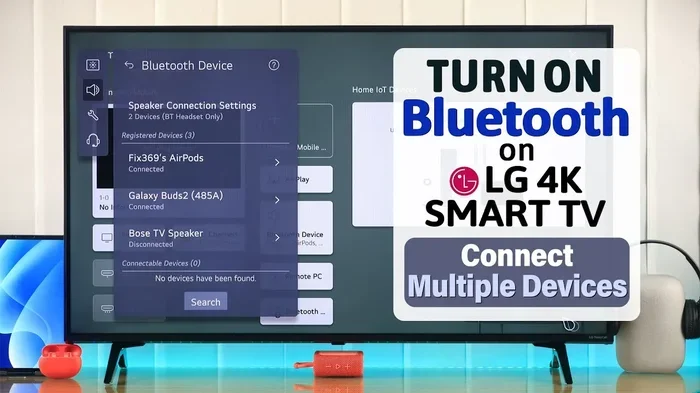
- Multiple devices can connect: Many smart TVs support pairing several Bluetooth devices at once.
📑 Table of Contents
- What Is Bluetooth And Why Use It With Your Smart TV?
- How To Connect Bluetooth To Your Smart TV Step By Step
- How To Connect Bluetooth To Your Smart TV When It Does Not Have Built-In Bluetooth
- Best Bluetooth Devices For Smart TVs
- Common Bluetooth Connection Problems And How To Fix Them
- Tips For The Best Bluetooth Audio Experience On Your Smart TV
- Can You Connect Multiple Bluetooth Devices To A Smart TV?
- Final Thoughts
What Is Bluetooth And Why Use It With Your Smart TV?
Bluetooth is a wireless technology that lets devices talk to each other over short distances. It uses radio waves to send data like audio and video between gadgets. You probably already use Bluetooth every day with your phone, earbuds, or car stereo.
Using Bluetooth with your smart TV means no more tangled cables. You can move freely around the room without worrying about cords. Bluetooth audio streaming lets you listen through wireless headphones, portable speakers, or even a soundbar. This is especially helpful late at night when you do not want to wake anyone up.
How Bluetooth Works With TVs
Your smart TV acts as a Bluetooth source. It sends audio signals to a paired device like headphones or speakers. The connection is encrypted and secure. Most TVs use Bluetooth version 4.0 or higher, which gives you a range of about 30 feet. Newer TVs with Bluetooth 5.0 offer an even stronger and more stable connection.
The great thing about wireless TV audio is that it works with almost any Bluetooth-enabled device. You are not limited to one brand or one type of speaker. As long as your device supports Bluetooth, you can pair it with your TV.
How To Connect Bluetooth To Your Smart TV Step By Step
Connecting Bluetooth to your smart TV is a quick process. The exact steps may vary slightly depending on your TV brand, but the general process is the same. Below, we walk you through the standard method that works for most smart TVs.
Step 1: Turn On Bluetooth On Your TV
Start by going to your TV home screen. Look for the Settings icon, which usually looks like a gear. Click on it to open the settings menu. Then find the section labeled Sound, Audio, or Connections. Inside that section, look for Bluetooth. Toggle it on to make your TV discoverable.
Some TVs call this “Pairing Mode” or “Bluetooth Search.” Once Bluetooth is on, your TV will start looking for nearby devices. This is the same process whether you own a Samsung, LG, Sony, or Vizio TV.
Step 2: Put Your Device In Pairing Mode
Now take your Bluetooth device. This could be wireless headphones, a speaker, or a soundbar. Put it into pairing mode. Most devices have a dedicated Bluetooth button or a button that flashes when you hold it down. Check the manual if you are not sure how to do this.
Once your device is in pairing mode, it will appear on your TV screen as a searchable device. You should see its name pop up in the list of available devices on your TV.
Step 3: Select And Pair The Device
On your TV, select the name of your Bluetooth device from the list. Your TV will now try to connect. This usually takes just a few seconds. You may see a confirmation message or hear a short sound when the pairing is successful.
Once paired, your TV audio will automatically route to the Bluetooth device. You can now enjoy wireless sound. The next time you turn on both devices, they should connect automatically because they are now paired.
Step 4: Adjust The Audio Settings
After pairing, go back to your TV sound settings. Make sure the audio output is set to Bluetooth. Some TVs let you adjust the volume from the TV remote even when the sound is going to a Bluetooth device. If your TV does not support this, you will need to adjust the volume directly on the Bluetooth device.
How To Connect Bluetooth To Your Smart TV When It Does Not Have Built-In Bluetooth
Not every smart TV has Bluetooth built in. Older models and some budget TVs may lack this feature. But do not worry. You can still add Bluetooth to your TV with a simple accessory. Can I make my TV Bluetooth with an adapter? Yes, absolutely. Here is how.
Option 1: Use A Bluetooth Transmitter
A Bluetooth transmitter is a small device that plugs into your TV. It connects to your TV using an audio cable or optical port. The transmitter then sends the audio signal wirelessly to your Bluetooth headphones or speakers. This is the most popular and reliable option.
You can find a Bluetooth transmitter for under $20 online. Just plug it in, pair it with your Bluetooth device, and you are good to go. Look for a transmitter that supports aptX or aptX Low Latency for the best audio quality. These codecs reduce the annoying delay between video and audio.
Option 2: Use A USB Bluetooth Dongle
If your TV has a USB port, you can use a USB Bluetooth dongle. This is a tiny adapter that plugs right into the USB port. It adds Bluetooth capability to your TV instantly. Can I use a USB Bluetooth dongle on my TV? Yes, most smart TVs support USB Bluetooth adapters. Just plug it in, go to your TV settings, and pair your device.
USB Bluetooth dongles are very affordable and easy to use. They work great with wireless headphones and speakers. The only limitation is that some TVs may not support all Bluetooth dongles. Check your TV manual or look for a compatible dongle online.
Option 3: Use A Bluetooth Audio Receiver
A Bluetooth audio receiver works similarly to a transmitter but in the opposite direction. You connect it to your TV using an aux cable or RCA cables. It receives the Bluetooth signal from your phone or tablet and plays it through your TV speakers. This option is useful if you want to stream audio from your phone to your TV.
This method is less common for TV audio but works well for certain setups. If you want to know more about using a Bluetooth adapter with your TV, check out our guide on Can I Use A Bluetooth Adapter On My Tv for detailed instructions.
Best Bluetooth Devices For Smart TVs
Not all Bluetooth devices work equally well with TVs. Some are designed specifically for TV use, while others are better suited for phones. Here are the best options for connecting to your smart TV.
Bluetooth Headphones For TV
Wireless headphones are the most popular choice for TV Bluetooth connections. They let you watch TV late at night without disturbing anyone. Can I use any Bluetooth headphones with my TV? Most Bluetooth headphones will work, but some are better than others. Look for headphones that support the AVRCP (Audio/Video Remote Control Profile). This lets you control volume and playback from your headphones.
Over-ear headphones tend to offer better sound quality for TV watching. In-ear options are more comfortable for long sessions. If you own a Samsung TV, you might be interested in our guide on Can I Listen To My Samsung Tv With Bluetooth Headphones for brand-specific tips.
Bluetooth Speakers For TV
Bluetooth speakers are a great way to improve your TV sound without spending a lot of money. Portable Bluetooth speakers are compact and easy to place anywhere in the room. Look for speakers with good battery life and clear mid-range sound for dialogue.
Some smart TVs support connecting multiple Bluetooth speakers at once. This lets you create a stereo effect or fill a large room with sound. Just keep in mind that audio latency may be slightly higher with speakers compared to headphones.
Bluetooth Soundbars
A Bluetooth soundbar is the best upgrade for TV audio. It connects wirelessly to your TV and delivers rich, immersive sound. Soundbars also improve dialogue clarity, which is helpful for shows with fast speech or accents. Many modern soundbars support both Bluetooth and Wi-Fi for even more streaming options.
When choosing a soundbar, look for one with low latency mode. This reduces the audio delay and keeps your sound perfectly synced with the video. A good Bluetooth soundbar can transform your entire viewing experience.
Common Bluetooth Connection Problems And How To Fix Them
Even though Bluetooth is simple to use, you may run into issues now and then. Here are the most common problems and how to solve them.
Audio Lag Or Delay
Audio lag happens when the sound does not match the video. You see lips move but hear the sound a second or two later. This is one of the most frustrating Bluetooth TV issues. The main cause is Bluetooth latency, which is the time it takes for audio to travel from the TV to the device.
To fix audio lag, try these steps:
- Turn on low-latency mode on your Bluetooth device if it has one.
- Use a Bluetooth transmitter that supports aptX Low Latency.
- Move closer to your TV to strengthen the Bluetooth signal.
- Reduce interference by keeping other wireless devices away.
Device Not Showing Up In The Bluetooth List
If your Bluetooth device does not appear on your TV screen, try these fixes:
- Make sure your device is in pairing mode.
- Turn Bluetooth off and on again on both devices.
- Restart your TV and the Bluetooth device.
- Remove the device from the Bluetooth memory list and try pairing again.
- Check that your device is not already connected to another gadget nearby.
Paired But No Sound
Sometimes your TV connects to a Bluetooth device but you hear nothing. This usually happens because the audio output is not set correctly. Go to your TV sound settings and make sure the audio output is set to Bluetooth. Also check the volume on both the TV and the Bluetooth device. Some devices mute themselves after pairing and need to be unmuted manually.
Connection Keeps Dropping
If your Bluetooth connection keeps cutting out, the distance between your TV and device may be too far. Stay within 30 feet of your TV for the best signal. Walls and other electronics can also weaken the Bluetooth signal. Try moving your TV or Bluetooth device to a different location to improve the connection.
Tips For The Best Bluetooth Audio Experience On Your Smart TV
Once you have successfully connected Bluetooth to your smart TV, a few simple tips can make the experience even better. These small adjustments can significantly improve sound quality and reliability.
Keep Your Devices Close
Bluetooth works best at close range. Try to keep your TV and Bluetooth device within the same room. If you have a large living room, consider placing your Bluetooth speaker or transmitter closer to the TV. Walls and furniture can weaken the signal and cause dropouts.
Update Your TV Firmware
TV manufacturers regularly release firmware updates that improve Bluetooth performance. Check your TV settings for a software update option. Keeping your TV updated ensures you have the latest Bluetooth drivers and bug fixes. This alone can solve many connection issues.
Use The Right Audio Codec
Audio codecs determine how your Bluetooth audio is compressed and transmitted. Some codecs offer better quality than others. If your TV and Bluetooth device support aptX or AAC codecs, enable them in the settings. These codecs provide clearer, more detailed sound compared to the standard SBC codec.
Limit Interference From Other Devices
Bluetooth uses the 2.4 GHz frequency band, which is shared by Wi-Fi routers, microwaves, and other wireless devices. Too many devices on the same frequency can cause interference. Try turning off nearby devices or moving your router away from your TV to improve Bluetooth stability.
Charge Your Devices Fully
Low battery can cause Bluetooth devices to disconnect or perform poorly. Make sure your headphones, speakers, or soundbar are fully charged before a movie night. Some devices also reduce Bluetooth range when the battery is low to conserve power.
Can You Connect Multiple Bluetooth Devices To A Smart TV?
Many modern smart TVs allow you to connect more than one Bluetooth device at the same time. This is great if you want to use both a soundbar and wireless headphones, or if multiple people want to listen on different devices. However, not all TVs support this feature.
Check your TV manual or settings menu for a multi-device pairing option. Some TVs let you connect up to two or three Bluetooth devices simultaneously. Keep in mind that connecting multiple devices may slightly increase audio latency. For the best experience, connect only the devices you need at any given time.
It is also worth noting that Bluetooth 5.0 handles multiple connections better than older versions. If you are shopping for a new TV, look for one with Bluetooth 5.0 or higher for the most flexibility.
Final Thoughts
Connecting Bluetooth to your smart TV is one of the easiest ways to upgrade your home entertainment setup. Whether you use built-in Bluetooth or add an adapter, the process is simple and takes just a few minutes. You can enjoy wireless headphones for late-night viewing, a Bluetooth speaker for casual listening, or a premium soundbar for a theater-like experience.
Remember to keep your devices updated, stay within range, and choose compatible Bluetooth devices for the best results. If you run into issues, the troubleshooting tips above should help you get back on track quickly. Now that you know how to connect Bluetooth to your smart TV, you can sit back, relax, and enjoy your favorite shows without any wires holding you back.
Wireless audio is the future of home entertainment. Once you make the switch, you will never want to go back to cables. So grab your Bluetooth device, follow the steps in this guide, and start enjoying your smart TV the way it was meant to be enjoyed.
Frequently Asked Questions
Can I connect any Bluetooth device to my smart TV?
Most Bluetooth devices will work with your smart TV, but compatibility depends on the Bluetooth version and audio profiles supported. Devices that support AVRCP and A2DP profiles will connect without issues. Always check the device specifications before purchasing to ensure it works with TVs.
Why is there a delay between the video and audio when using Bluetooth?
Audio delay, also called latency, happens because Bluetooth compresses and transmits audio data wirelessly. This process takes a small amount of time. You can reduce the delay by using a Bluetooth transmitter with aptX Low Latency support or by keeping your devices close together for a stronger signal.
Can I use Bluetooth headphones with my TV and still hear the TV speakers?
Most smart TVs do not allow simultaneous audio output to both Bluetooth and built-in speakers. However, some newer models support dual audio output. Check your TV settings under Sound or Audio Output to see if this feature is available on your specific model.
How far can my Bluetooth device be from my TV?
Bluetooth has a typical range of about 30 feet in open spaces. Walls, furniture, and other electronics can reduce this range. For the best connection, keep your Bluetooth device within the same room as your TV and avoid placing it behind large metal objects.
Do I need any extra equipment if my TV does not have Bluetooth?
Yes, you will need either a Bluetooth transmitter, a USB Bluetooth dongle, or a Bluetooth audio receiver. A Bluetooth transmitter is the most popular option because it connects to your TV using an audio cable or optical port and sends the signal wirelessly to your Bluetooth device. These adapters are affordable and easy to set up.
Is Bluetooth audio quality good enough for watching TV?
Yes, modern Bluetooth audio is more than good enough for TV watching. Bluetooth 5.0 and codecs like aptX and AAC deliver clear, high-quality sound. For the best experience, choose headphones or speakers that support these codecs. Most people will not notice any difference from wired audio when using quality Bluetooth devices.
=== CONCLUSION ===
Connecting Bluetooth to your smart TV opens up a world of wireless convenience and flexibility. You now know how to pair devices directly, add Bluetooth to older TVs with an adapter, troubleshoot common issues, and choose the best Bluetooth devices for your setup. The process is quick, affordable, and makes a huge difference in your daily viewing experience.
Start with the built-in Bluetooth method if your TV supports it. If not, grab a Bluetooth transmitter or dongle and you will be up and running in minutes. Follow the tips in this guide for the best sound quality and the most reliable connection. Enjoy your wireless TV audio and never look back at tangled cables again.