How Can I Increase My WiFi Bandwidth at Home Right Now
You can increase WiFi bandwidth at home by adjusting router settings, updating firmware, changing wireless channels, and repositioning your equipment. These practical steps help reduce network congestion and improve wireless signal strength. Whether you stream movies, game online, or work from home, a bandwidth boost makes everything faster and smoother.
Slow WiFi is frustrating. You are trying to stream your favorite show, join a video call, or finish work, and the internet crawls. The problem often comes down to bandwidth. Bandwidth is the amount of data your connection can handle at one time. When it gets maxed out, everything slows down.
The good news is you do not need to be a tech expert to fix this. There are many simple ways to increase WiFi bandwidth right now. You can tweak settings on your router, move your equipment, or add a small device to boost your signal. Most of these changes take just a few minutes and cost nothing.
In this guide, we walk you through every method that actually works. We cover router settings, placement tips, device management, and hardware upgrades. By the end, you will know exactly how to make your wireless connection faster and more reliable. Let us get started.
Key Takeaways
- Router placement matters: Central positioning reduces dead zones and improves bandwidth across your home.
- Update firmware regularly: Keeping your router software current boosts performance and security.
- Switch to the 5GHz band: Less congestion means faster speeds for compatible devices.
- Change your wireless channel: Avoiding crowded channels reduces interference and improves speed.
- Use QoS settings: Prioritizing traffic ensures critical apps get the bandwidth they need.
- Consider a WiFi extender or booster: These devices expand coverage and improve bandwidth in weak areas.
- Limit connected devices: Fewer devices on the network means more bandwidth per device.
📑 Table of Contents
- Understanding WiFi Bandwidth and Why It Matters
- Optimize Your Router Settings for Better Bandwidth
- Position Your Router for Maximum Coverage
- Upgrade Your Hardware for a Bandwidth Boost
- Reduce Network Congestion and Interference
- Advanced Tips to Maximize WiFi Bandwidth
- Common Mistakes That Reduce WiFi Bandwidth
- Conclusion
Understanding WiFi Bandwidth and Why It Matters
Before you fix a problem, you need to understand what is causing it. WiFi bandwidth is the maximum data transfer rate your wireless network can support. Think of it like a highway. More lanes mean more cars can travel at once. More bandwidth means more devices can use the internet without slowing down.
Several factors affect your wireless bandwidth. Your internet plan sets the ceiling. Your router determines how well that speed reaches your devices. And the environment around your router can either help or hurt your signal. Understanding these pieces helps you make smarter choices about improvements.
What Affects WiFi Bandwidth?
Many things influence how much bandwidth you actually get. Here are the most common culprits:
- Router age and model: Older routers may not support modern speeds.
- Distance from the router: The farther you are, the weaker the signal and the lower the bandwidth.
- Wall thickness and building materials: Concrete, brick, and metal block wireless signals.
- Number of connected devices: Each device shares the available bandwidth.
- Network congestion: Neighbors on the same wireless channel can slow you down.
- Interference from other electronics: Microwaves, baby monitors, and Bluetooth devices can disrupt your signal.
Once you identify what is limiting your bandwidth, you can target that specific issue. Most homes have more than one factor at play, so a combination of fixes works best.
Optimize Your Router Settings for Better Bandwidth
Your router has built-in settings that can significantly impact your wireless performance. A few small changes in the router admin panel can make a big difference. Most routers use a web interface you can access through your browser.
Change Your Wireless Channel
Wireless channels are like lanes on a highway. If too many networks use the same channel, traffic backs up. This is called channel congestion. You can use a free WiFi analyzer app to see which channels are least crowded in your area.
Log into your router settings and look for the wireless channel option. Switch to a less crowded channel. For 2.4GHz networks, channels 1, 6, and 11 are the best choices because they do not overlap. For 5GHz networks, there are many more channels available, so congestion is less of a problem.
If you are unsure which channel to pick, set your router to “Auto.” The router will scan for the best channel and switch automatically. This alone can boost your WiFi speed noticeably in dense neighborhoods.
Update Your Router Firmware
Router manufacturers release firmware updates to fix bugs, improve performance, and patch security holes. An outdated router may not deliver the bandwidth it is capable of. Check your router admin panel for a firmware update option. Some modern routers update automatically, but many require manual checks.
After updating, restart your router. The reboot applies the new settings and often resolves minor performance issues. Make a habit of checking for updates every few months to keep your network running smoothly.
Adjust QoS (Quality of Service) Settings
Most modern routers include a QoS feature. This lets you prioritize certain types of traffic over others. For example, you can tell your router to give more bandwidth to video calls or gaming while limiting bandwidth for background downloads.
To set this up, find the QoS section in your router settings. You can usually prioritize by device or by application type. This is especially helpful in households where multiple people share the same network and compete for bandwidth.
Position Your Router for Maximum Coverage
Where you place your router has a huge impact on wireless signal strength and bandwidth. Many people hide their router in a closet or behind furniture. This blocks the signal and reduces performance in every room.
Best Practices for Router Placement
Follow these simple placement tips to improve your network:
- Place the router in a central location: This ensures even coverage throughout your home.
- Keep it elevated: Put the router on a shelf or mount it on a wall. Signals travel downward better than upward.
- Avoid walls and metal objects: Keep the router away from thick walls, mirrors, and metal appliances.
- Stay away from other electronics: Microwaves, cordless phones, and baby monitors create interference.
- Do not hide it in a cabinet: Enclosed spaces block signal and reduce bandwidth.
Even moving your router a few feet can make a difference. Try different spots and run a speed test to find the best location. The goal is to have the router as close to the center of your home as possible, with no major obstacles in the way.
Upgrade Your Hardware for a Bandwidth Boost
Sometimes software changes are not enough. Your router or equipment may simply be too old or too weak for your needs. Upgrading hardware is one of the most effective ways to increase WiFi bandwidth permanently.
Invest in a WiFi Booster or Extender
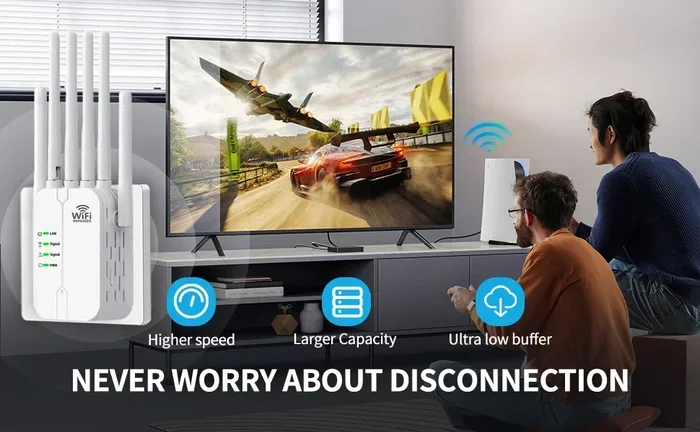
A WiFi booster or extender picks up your existing signal and rebroadcasts it to areas with weak coverage. This is ideal for larger homes or buildings with multiple floors. Extenders are affordable and easy to set up.
Look for a dual-band extender that supports both 2.4GHz and 5GHz frequencies. This gives you flexibility to extend the faster band where possible. You can also check if Can I Buy A WiFi Booster for more guidance on choosing the right device.
Consider a Mesh WiFi System
A mesh system replaces your single router with multiple nodes placed around your home. Each node acts as a signal hub, creating a seamless network with strong coverage everywhere. Mesh systems are especially effective for homes larger than 2,000 square feet.
Popular mesh brands include Google Nest WiFi, Eero, and TP-Link Deco. These systems are easy to manage through a smartphone app and automatically route traffic to the strongest node. They eliminate dead zones and provide consistent WiFi bandwidth in every room.
Add an Antenna to Your Router
If your router has detachable antennas, you can upgrade them for better performance. High-gain antennas focus the signal in a specific direction, which increases range and strength. This is a simple and inexpensive upgrade that can significantly improve your connection.
Check if your router supports external antennas before buying replacements. You can also read more about this option in our guide on Can I Add An Antenna To My WiFi Router.
Reduce Network Congestion and Interference
Even the best router struggles when too many devices compete for the same bandwidth. Network congestion is one of the leading causes of slow WiFi. Managing your connected devices can free up significant bandwidth for the devices that need it most.
Disconnect Unused Devices
Every device connected to your network uses a portion of your bandwidth. Smart home gadgets, tablets, phones, laptops, and streaming boxes all add up. Go through your connected devices and disconnect anything you are not actively using.
Most routers let you view all connected devices in the admin panel. You can also set up a guest network for visitors. This keeps their devices separate from your main network and prevents them from slowing down your WiFi speed.
Switch Between 2.4GHz and 5GHz Bands
Dual-band routers broadcast on two frequencies: 2.4GHz and 5GHz. The 2.4GHz band has a longer range but slower speeds. The 5GHz band offers faster speeds but a shorter range. If you are close to your router, the 5GHz band will give you much better bandwidth.
You can learn more about switching between these bands in our article Can I Change My WiFi From 5Ghz To 2 4 Ghz. For most homes, connecting speed-critical devices to the 5GHz band is one of the easiest bandwidth improvements you can make.
Limit Background Data Usage
Many apps and devices use bandwidth in the background without you realizing it. Software updates, cloud backups, and automatic syncing all consume data. Check your devices for settings that control background data and turn off what you do not need.
On Windows, you can set your connection as a metered network to limit background activity. On smartphones, look for data saver or background data restrictions in your settings. These small changes can free up a surprising amount of bandwidth for the tasks that matter.
Advanced Tips to Maximize WiFi Bandwidth
Once you have covered the basics, these advanced tips can push your network performance even further. These techniques are especially useful for power users and households with heavy internet demands.
Use WiFi Range Extenders Strategically
If your home has areas with weak signal, a range extender placed halfway between your router and the dead zone can help. The key is positioning. Place the extender where it still gets a strong signal from the router, not in the weak area itself.
For more details on extending your network, check out our guide on Can I Get A Extension On My Wi Fi. Extenders are not perfect, but when placed correctly, they can significantly improve coverage and bandwidth in problem areas.
Run a WiFi Speed Test Regularly
You cannot improve what you do not measure. Use free tools like Speedtest.net or Fast.com to check your WiFi bandwidth regularly. Run tests in different rooms and at different times of day to identify patterns.
If you notice slow speeds at certain times, it could be due to network congestion from neighbors. If the slowness is consistent in one area, it is likely a placement or interference issue. Tracking your speeds over time helps you pinpoint problems and measure the impact of your fixes.
Secure Your Network from Unauthorized Users
An open or poorly secured WiFi network lets neighbors and strangers use your bandwidth. This slows down your connection and creates security risks. Always use WPA3 or WPA2 encryption on your router.
Change your default WiFi password to something strong and unique. You can also hide your network SSID so it does not appear in the list of available networks. These steps protect your bandwidth and keep your network safe from intruders.
Consider Your Internet Plan
Sometimes the problem is not your router but your internet plan. If you have a slow plan, no amount of router tweaking will give you fast speeds. Check your plan speed with your ISP and compare it to your needs.
Households with multiple streamers, gamers, and remote workers typically need at least 100 Mbps. If your plan falls short, upgrading your plan may be the simplest solution to increase WiFi bandwidth overall.
Common Mistakes That Reduce WiFi Bandwidth
Avoid these common mistakes that silently hurt your network performance:
- Placing the router near the floor: Signals spread outward and downward, so floor-level placement limits coverage.
- Ignoring router reboots: Restarting your router clears its memory and refreshes connections. Do this weekly.
- Using outdated security protocols: WEP encryption is old and slow. Always use WPA2 or WPA3.
- Overloading one band: Putting all devices on 2.4GHz creates a bottleneck. Spread devices across both bands.
- Not restarting devices: Sometimes a simple restart of your modem and router solves most bandwidth issues.
Steering clear of these mistakes keeps your network running at its best. Small habits make a big difference over time.
Conclusion
Increasing your WiFi bandwidth at home does not require expensive equipment or technical expertise. Start with the basics: update your router firmware, change your wireless channel, and reposition your router for better coverage. Move speed-critical devices to the 5GHz band and reduce the number of connected devices on your network.
If these steps are not enough, consider a WiFi extender, a mesh system, or a plan upgrade. Each solution addresses a different bottleneck, and combining several methods gives you the best results. Run speed tests regularly to track your progress and make adjustments as needed.
The right setup makes streaming, gaming, working, and browsing faster and more enjoyable. Take action today and feel the difference in your WiFi bandwidth tomorrow.
Frequently Asked Questions
How do I check my current WiFi bandwidth?
Use a free speed test tool like Speedtest.net or Fast.com. Connect to your WiFi and run the test. It measures your download speed, upload speed, and ping. For the most accurate results, run the test multiple times and at different times of day.
What is the difference between WiFi bandwidth and internet speed?
WiFi bandwidth refers to the maximum data your wireless network can handle between devices and your router. Internet speed is the rate your ISP delivers data to your home. Your WiFi bandwidth can be lower than your internet speed if your router or signal is weak.
Does a WiFi booster really increase bandwidth?
A WiFi booster improves coverage and signal strength in weak areas. This can effectively increase the usable bandwidth in those spots. However, it does not increase your total internet speed from your ISP. It helps distribute the existing bandwidth more evenly.
How many devices are too many for a home WiFi network?
Most consumer routers handle 15 to 25 devices comfortably. Beyond that, you may notice slowdowns. The type of activity matters too. Streaming 4K video uses much more bandwidth than browsing the web. If you have many heavy-use devices, consider a mesh system or router upgrade.
Can changing my WiFi channel really boost bandwidth?
Yes, absolutely. If your neighbors are on the same wireless channel, their networks interfere with yours. Switching to a less crowded channel reduces this interference. The result is a cleaner signal and better bandwidth, especially on the 2.4GHz band.
Should I upgrade my internet plan to increase WiFi bandwidth?
Only if your current plan does not meet your needs. Check your speed test results first. If your speeds match what your plan promises, the issue is likely your router or setup, not your ISP. If your plan is outdated, upgrading can provide a meaningful boost to your overall bandwidth.
=== CAN I INCREASE WI FI SIGNAL ===
Improving your WiFi bandwidth and boosting your signal go hand in hand. A stronger signal means more reliable data transfer, which directly increases the bandwidth you experience on each device. If you have noticed weak spots in your home or inconsistent speeds, it may be time to explore signal-boosting techniques alongside the bandwidth tips in this guide. For a deeper look at strengthening your wireless connection, check out our article on Can I Increase Wi Fi Signal for proven methods that complement everything you have learned here.