Does My Phone Have Wi Fi Calling And How To Turn It On
Wi-Fi calling lets you make calls over a wireless network instead of relying only on your cellular signal. Many modern smartphones already have this feature built in, but it may not be active by default. In this guide, we show you exactly how to check if your phone has Wi-Fi calling and how to turn it on in just a few taps.
Have you ever been in a basement, a parking garage, or a rural area where your phone shows no signal at all? You are not alone. Weak cellular coverage can make it impossible to place a call or send a text message. That is where Wi-Fi calling comes in. It is a handy feature that lets you make phone calls using a Wi-Fi network instead of your cellular tower.
But here is the big question: does your phone have Wi-Fi calling? The short answer is that most modern smartphones do. Whether you use an iPhone or an Android device, there is a good chance your phone already supports this feature. However, being supported and having it turned on are two different things. Many phones come with Wi-Fi calling turned off by default, so you may not even know it exists.
In this article, we will walk you through everything you need to know. We will show you how to check if your phone has Wi-Fi calling, how to turn it on, and what you need to keep in mind. We will also cover common problems and share tips to get the best call quality. Let us dive in.
Key Takeaways
- Most newer phones support Wi-Fi calling: iPhones and Android devices from the last few years typically include this feature.
- You can find the setting in your phone menu: It is usually under Phone, Connections, or Network settings.
- Wi-Fi calling works without cellular service: You can still make calls when your signal is weak or gone, as long as you have an internet connection.
- Your carrier must support it: Not all providers offer Wi-Fi calling, so you may need to check with yours first.
- Turning it on is free: There is no extra cost to enable Wi-Fi calling on most plans.
- It improves call quality: Calls over Wi-Fi often sound clearer than standard cellular calls in crowded areas.
📑 Table of Contents
What Is Wi-Fi Calling?
Wi-Fi calling is a feature that routes your phone calls through a wireless internet connection instead of a cellular network. When you make a call over Wi-Fi, your voice data travels through your internet router and reaches the recipient through your carrier’s network. This means you can make calls even when your cell signal is too weak to place a call normally.
The technology behind this is sometimes called Voice over Wi-Fi or VoWiFi. It works similarly to apps like FaceTime Audio or WhatsApp calls, but with a key difference. Wi-Fi calling uses your phone’s native calling app. You do not need to download anything extra or use a third-party app. The person you are calling does not even need to know you are using Wi-Fi. It looks and feels like a normal phone call.
How Does Wi-Fi Calling Work?
When you enable Wi-Fi calling, your phone connects to your wireless router just like it does when you browse the web. Your carrier assigns your call to that Wi-Fi connection. The call is then routed through the internet to the nearest cell tower or directly to the recipient’s network. The whole process happens in the background, so you do not notice any difference.
Here is what happens step by step:
- You connect your phone to a Wi-Fi network.
- You make a call using your regular phone app.
- Your phone detects that Wi-Fi calling is enabled.
- The call is sent over the internet instead of the cellular network.
- The recipient receives your call normally.
One important thing to note is that your phone needs a stable internet connection for the best experience. If your Wi-Fi signal is weak or drops often, your call quality may suffer. This is why having a good wireless router and a strong Wi-Fi network at home matters so much.
Does My Phone Have Wi-Fi Calling?
The first step to using Wi-Fi calling is figuring out if your phone supports it. The good news is that most phones made in the last five years do. But support also depends on your carrier, not just your device. Let us break this down by phone type and carrier.
iPhone and Wi-Fi Calling
If you have an iPhone 5 or newer, your device supports Wi-Fi calling. Apple introduced this feature in iOS 8, and it has been a standard part of iPhones ever since. However, your carrier must also support it. Most major carriers in the United States, including AT&T, Verizon, T-Mobile, and Sprint, offer Wi-Fi calling on iPhones.
To check if your iPhone has Wi-Fi calling, go to Settings, then Phone, and look for Wi-Fi Calling. If you see the option, your phone supports it. If the toggle is grayed out, your carrier may not support it on your plan. In that case, you might want to check with your provider or explore options like getting a hotspot without phone service as an alternative way to stay connected.
Android and Wi-Fi Calling
Most Android phones from Samsung, Google, OnePlus, and other major brands support Wi-Fi calling. The exact location of the setting varies by brand and Android version. On Samsung phones, you can find it under Settings, then Connections, then Wi-Fi Calling. On Google Pixel phones, it is under Settings, then Network and Internet, then Wi-Fi Calling.
Some Android devices may require you to download a carrier app first. For example, T-Mobile users can use the T-Mobile app to enable Wi-Fi calling. If you are not sure whether your Android phone has this feature, you can also search for “Wi-Fi calling” in your phone’s settings search bar. This quick trick works on most devices.
It is also worth noting that some budget or older phones may not support Wi-Fi calling even if they run a recent version of Android. If your phone does not have the option, you may want to consider upgrading or looking into alternative solutions.
Carrier Support Matters
Even if your phone supports Wi-Fi calling, your carrier must also offer it. Here is a quick look at major US carriers:
- AT&T: Supports Wi-Fi calling on most plans. You can enable it in your phone settings or the AT&T app.
- Verizon: Offers Wi-Fi calling on postpaid and prepaid plans. Check your settings under Phone or Connections.
- T-Mobile: Wi-Fi calling is available and often turned on by default on T-Mobile plans.
- US Cellular: Supports Wi-Fi calling on compatible devices.
- Mint Mobile: Offers Wi-Fi calling support through the T-Mobile network.
If your carrier is not listed or you are unsure, check your carrier’s website or call their customer service. They can confirm whether your plan includes Wi-Fi calling support. You can also check if you can use Wi-Fi calling on any phone to get a broader picture of device and carrier compatibility.
How To Turn On Wi-Fi Calling
Once you have confirmed that your phone and carrier support Wi-Fi calling, turning it on is easy. The steps vary slightly depending on your device, but the process is straightforward. Here is how to do it on both iPhone and Android.
Turning On Wi-Fi Calling on iPhone
Follow these steps to enable Wi-Fi calling on your iPhone:
- Open the Settings app on your iPhone.
- Tap on Phone.
- Select Wi-Fi Calling.
- Toggle on Wi-Fi Calling on This iPhone.
- Follow any on-screen prompts to enter your address for emergency services.
That is it. Your iPhone will now use Wi-Fi for calls whenever it is connected to a wireless network. You will see a small Wi-Fi icon next to your carrier name in the status bar when Wi-Fi calling is active.
Turning On Wi-Fi Calling on Android
Here is how to turn on Wi-Fi calling on most Android phones:
- Open the Settings app.
- Go to Network and Internet or Connections (the exact name depends on your brand).
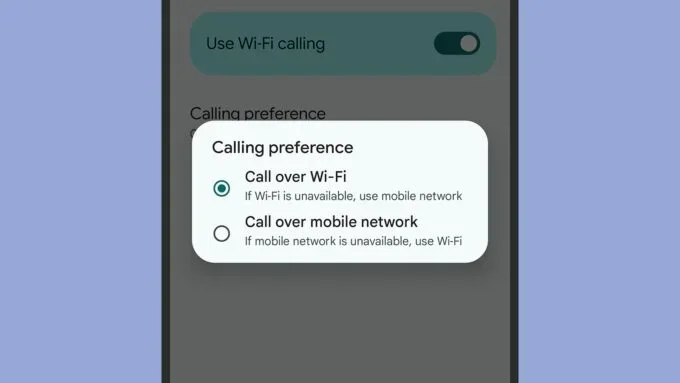
- Tap on Wi-Fi Calling or look for it under the calling settings.
- Toggle Wi-Fi Calling on.
- Accept any terms or enter your emergency address if prompted.
On Samsung phones, the path is slightly different. Go to Settings, then Connections, then Wi-Fi Calling, and toggle it on. On Google Pixel phones, go to Settings, then Network and Internet, then Wi-Fi Calling.
What If You Do Not See the Option?
If you cannot find the Wi-Fi calling setting on your phone, do not panic. Here are a few reasons this might happen:
- Your carrier does not support Wi-Fi calling on your plan.
- Your phone model is too old to support the feature.
- Your phone’s software needs to be updated.
- The feature is hidden and requires a carrier app to activate.
Try updating your phone software first. Go to Settings, then General or Software Update, and check for updates. If that does not work, contact your carrier. They can often push the setting to your device remotely or guide you through the process.
Benefits of Wi-Fi Calling
So why should you bother turning on Wi-Fi calling? There are several real-world benefits that make this feature worth using. Let us look at the biggest advantages.
Better Call Quality
One of the most noticeable benefits of Wi-Fi calling is improved call quality. When you are in an area with a strong Wi-Fi signal but weak cellular coverage, calls over Wi-Fi sound much clearer. You will experience fewer dropped words, less static, and fewer dropped calls overall.
This is especially helpful in buildings with thick walls, basements, or rural areas where cell towers are far away. Instead of struggling with a spotty cellular connection, you can rely on your home Wi-Fi to carry your calls clearly.
No Extra Charges
Wi-Fi calling does not cost extra on most plans. It uses your data plan or connects to your home network, which is already paid for. You do not need to buy a special add-on or switch to a different plan. This makes it a zero-cost way to improve your calling experience.
However, keep in mind that Wi-Fi calling does use a small amount of data. On a typical call, you will use about 1 MB of data per minute. If you are calling for an hour, that is about 60 MB. On a home Wi-Fi network, this is negligible. On a mobile data network, it is still very small compared to streaming video.
Works When You Have No Cell Signal
This is the biggest advantage of Wi-Fi calling. If you are in a place with zero cellular signal but you have access to Wi-Fi, you can still make and receive calls. This is a lifesaver in basements, elevators, remote cabins, or buildings with poor cell reception.
It is also useful when traveling internationally. Many carriers offer free Wi-Fi calling to US numbers even when you are abroad. This can save you from expensive international roaming charges. Just make sure you are connected to a trusted Wi-Fi network, especially when traveling. If you need Wi-Fi access while on the go, you might want to look into buying your own portable Wi-Fi device to stay connected anywhere.
Seamless Experience
Wi-Fi calling works automatically in the background. Once it is enabled, your phone handles everything for you. You do not need to switch between apps or use a separate calling interface. When your phone detects that your cellular signal is weak, it can seamlessly switch your call to Wi-Fi. This all happens without you lifting a finger.
The experience is so smooth that you might not even realize your call switched from cellular to Wi-Fi. Your phone number stays the same, your contacts see the same caller ID, and everything works just like a normal call.
Common Wi-Fi Calling Problems and How To Fix Them
Wi-Fi calling is generally reliable, but sometimes things go wrong. Here are the most common issues and how to fix them.
Wi-Fi Calling Keeps Turning Off
If your Wi-Fi calling keeps disabling itself, it might be because your phone is switching to mobile data. Some phones have a setting that turns off Wi-Fi calling when the Wi-Fi signal is weak. To fix this, go to your Wi-Fi settings and make sure your phone stays connected to your network. You can also try forgetting the network and reconnecting.
Poor Call Quality
If your calls sound choppy or laggy, your Wi-Fi connection might be the problem. Try moving closer to your router or reducing the number of devices using your network. You can also try changing your Wi-Fi band from 5GHz to 2.4GHz, as the 2.4GHz band has better range and wall penetration. Check out our guide on changing your Wi-Fi from 5GHz to 2.4GHz for step-by-step instructions.
Emergency Address Not Set
Wi-Fi calling requires you to register an emergency address with your carrier. This is used so that emergency services can locate you when you call 911 over Wi-Fi. If your address is not set, Wi-Fi calling may not work. Make sure you update your emergency address in your phone settings or through your carrier’s app.
Carrier Does Not Support It
Some smaller carriers or prepaid plans may not support Wi-Fi calling. If you have tried everything and still cannot find the setting, check with your carrier. They can confirm whether your plan includes Wi-Fi calling support. In some cases, switching to a different plan or carrier may give you access to this feature.
Wi-Fi Calling vs. Regular Cellular Calls
Wi-Fi calling and regular cellular calls serve the same purpose, but they work differently. Here is a quick comparison:
| Feature | Wi-Fi Calling | Regular Cellular Call |
|---|---|---|
| Connection Type | Wireless Internet | Cellular Tower |
| Works Without Cell Signal | Yes | No |
| Call Quality | Depends on Wi-Fi strength | Depends on cell signal |
| Extra Cost | Usually free | Included in plan |
| Data Usage | About 1 MB per minute | No data used |
| Emergency Services | Uses registered address | Uses GPS location |
As you can see, Wi-Fi calling is a great backup option when your cellular signal is weak. It does not replace your regular calling plan, but it enhances it. Think of it as a safety net that ensures you can always make calls when you need to.
If you are interested in learning more about how Wi-Fi calling works in different scenarios, check out our article on can I call using Wi-Fi and no service for more detailed insights on this topic.
Tips for Getting the Best Wi-Fi Calling Experience
Want to get the most out of Wi-Fi calling? Here are some practical tips to improve your experience.
- Use a modern router: A newer wireless router provides a stronger and more stable connection. If your router is more than five years old, consider upgrading.
- Stay close to your router: The closer you are to your Wi-Fi source, the better your call quality will be.
- Limit network congestion: Too many devices on your network can slow down your connection. Disconnect devices you are not using during important calls.
- Keep your phone updated: Software updates often include improvements to Wi-Fi calling performance and bug fixes.
- Use a strong Wi-Fi password: A secure network prevents unauthorized users from slowing down your connection.
- Check your internet speed: A minimum of 1 Mbps upload and download speed is enough for good call quality. You can test your speed using free online tools.
Following these simple tips will help ensure that your Wi-Fi calls are clear, reliable, and uninterrupted every time.
Final Thoughts
Wi-Fi calling is one of the most useful features on your smartphone, and the best part is that it is already built into most phones. You just need to know where to look and how to turn it on. Whether you are dealing with weak cell signal at home, poor coverage in your office, or unreliable service while traveling, Wi-Fi calling gives you a reliable way to stay connected.
Now that you know how to check if your phone has Wi-Fi calling and how to turn it on, there is no reason not to try it. The setup takes less than two minutes, it costs nothing extra, and it can make a real difference in your daily communication. Go ahead and enable it today. You might be surprised at how much better your calls sound.
Remember, having a strong and stable Wi-Fi network at home is the foundation of a great Wi-Fi calling experience. If your internet connection is weak, consider upgrading your router or adjusting your network setup. For more tips on improving your home connectivity, check out our guides on extending your Wi-Fi and connecting to Xfinity Wi-Fi away from home for additional insights on boosting your wireless coverage.
Frequently Asked Questions
Is Wi-Fi Calling Free?
Yes, Wi-Fi calling is free on most carriers and plans. It does not cost extra to enable or use. However, it does use a small amount of data from your plan or your home Wi-Fi network. If you are calling over your home Wi-Fi, there is no impact on your data allowance at all.
Can I Use Wi-Fi Calling Internationally?
Many carriers support Wi-Fi calling internationally, allowing you to call US numbers for free or at reduced rates. Check with your carrier before traveling to confirm their international Wi-Fi calling policies. This can save you from expensive roaming charges while still keeping you connected.
Will My Contacts Know I Am Using Wi-Fi Calling?
No, your contacts will not know you are using Wi-Fi calling. The call appears exactly like a regular phone call. Your phone number shows up as usual, and there is no indicator on the recipient’s end that you are connected through Wi-Fi.
Does Wi-Fi Calling Work With VPN?
In most cases, Wi-Fi calling does not work well with a VPN active. The VPN can interfere with how your phone connects to your carrier’s network for calls. If you experience issues, try turning off your VPN and making the call again.
What Happens to Wi-Fi Calling When I Switch Carriers?
When you switch carriers, you may need to re-enable Wi-Fi calling on your new plan. The feature is tied to your carrier, not your phone. Once you activate your new service, check your settings to make sure Wi-Fi calling is turned on again.
Can I Send Text Messages Over Wi-Fi?
Yes, many carriers support sending and receiving text messages over Wi-Fi, often called Wi-Fi Messaging or RCS. This works similarly to Wi-Fi calling and allows you to text even when you have no cellular signal. Check with your carrier to see if this feature is available on your plan.