Do I Need A Bluetooth Driver For My Wireless Device
Most modern devices come with built-in Bluetooth drivers, so you often do not need to install one manually. However, older computers, custom builds, and certain wireless accessories may require a separate bluetooth driver to work properly. This guide walks you through when you need one, how to check, and how to install it if necessary.
Do you own a wireless device that refuses to connect? Maybe your headphones will not pair, or your printer keeps dropping the connection. Before you panic, let us talk about one thing that often gets overlooked: the bluetooth driver.
A bluetooth driver is a small piece of software that helps your computer talk to Bluetooth accessories. Think of it as a translator. Without it, your laptop or desktop simply does not understand how to communicate with wireless peripherals like headphones, keyboards, speakers, and car adapters.
Here is the good news. Most of the time, you do not need to do anything. Modern computers come with Bluetooth already built in. But there are situations where you absolutely need to install or update a driver. This guide will help you figure out which camp you fall into.
Key Takeaways
- Built-in Bluetooth: Most newer laptops and desktops already have Bluetooth drivers pre-installed.
- Manual Installation: Older or custom-built devices may need a bluetooth driver downloaded manually.
- Device Manager: You can quickly check for missing drivers using Windows Device Manager.
- Troubleshooting: Driver updates often fix common Bluetooth connectivity issues.
- Peripheral Compatibility: Devices like printers, headphones, and car adapters may need specific driver support.
- Operating System Matters: Windows 10 and 11 handle most drivers automatically, but older OS versions may not.
- Uninstalling Drivers: You can remove a bluetooth driver if you need to reset or troubleshoot your connection.
📑 Table of Contents
- What Is A Bluetooth Driver And Why Does It Matter?
- When Do You Actually Need A Bluetooth Driver?
- How To Check If Your Device Already Has Bluetooth Drivers
- How To Install Or Update Bluetooth Drivers
- Common Bluetooth Driver Problems And How To Fix Them
- Bluetooth Driver Tips For Different Devices
- Quick Tips For Bluetooth Driver Success
- Final Thoughts
What Is A Bluetooth Driver And Why Does It Matter?
A bluetooth driver is software that lives inside your operating system. It acts as a bridge between your computer and any Bluetooth-enabled device you want to use. When you click “Pair” on your phone or headphones, the driver handles the behind-the-scenes communication.
Without the right driver, your computer might not even recognize that a Bluetooth chip exists inside it. It is like having a radio but no antenna. The hardware is there, but it cannot do its job without the proper software support.
How Bluetooth Drivers Work
Every wireless device uses a specific protocol to send and receive data. The bluetooth driver translates that protocol into something your computer can understand. When you connect a wireless accessory, the driver manages the pairing process, data transfer, and disconnection.
Different versions of Bluetooth exist, too. Bluetooth 5.0 is faster and has a longer range than older versions. Your driver needs to support the version your device uses. This is why keeping your driver up to date matters so much.
Why Drivers Get Outdated
Technology moves fast. Bluetooth standards evolve, and manufacturers release updates regularly. An outdated driver can cause all sorts of problems, from slow connections to devices that simply will not show up in your Bluetooth menu.
Here are some common reasons drivers become outdated:
- You upgraded your operating system but did not update your drivers.
- Your manufacturer stopped supporting an older device.
- A Windows update changed system files that the driver depends on.
- You switched to a new computer and transferred old drivers.
When Do You Actually Need A Bluetooth Driver?
Not everyone needs to install a bluetooth driver separately. Most modern devices handle everything automatically. But certain situations make manual installation necessary. Let us break this down.
You Have An Older Computer
If your computer was built before 2018, there is a good chance it might not have the latest Bluetooth drivers pre-installed. Older machines sometimes ship with outdated drivers or no drivers at all for Bluetooth functionality. In this case, you will need to download the driver yourself.
For Windows users, you can check your Bluetooth status by opening Device Manager. Look for a section called “Bluetooth.” If you see a yellow warning triangle, that means your driver is missing or outdated.
You Built A Custom PC
Custom-built computers are awesome, but they come with a catch. If you installed a Bluetooth adapter or wireless card yourself, it likely came with a driver disc or a download link. Without installing that bluetooth driver, your wireless accessories simply will not work.
Many people buy a USB Bluetooth adapter for their desktop because the desktop does not have built-in Bluetooth. In those cases, installing the correct driver is absolutely essential. You can find drivers on the adapter manufacturer’s website or through Windows Update.
You Are Using A Specific Operating System
Different operating systems handle Bluetooth drivers differently. Windows 10 and 11 are pretty good at finding drivers automatically. But if you are running Linux or an older version of Windows, you might need to hunt down the driver manually.
Mac computers handle Bluetooth very smoothly. Apple includes the necessary drivers with macOS, so most users never need to think about it. But if you are using a Hackintosh or a non-Apple machine with macOS, you might run into driver issues.
You Are Connecting Specific Devices
Some devices need special driver support. For example, if you want to use Bluetooth headphones with a PS4, you might run into driver-related limitations. The PlayStation does not support all Bluetooth headphones natively, and a driver or adapter might be required.
Similarly, if you want to connect your Brother printer via Bluetooth, you need the right printer driver alongside the Bluetooth driver. Both pieces of software need to work together for a successful connection.
How To Check If Your Device Already Has Bluetooth Drivers
Before you download anything, let us figure out if you even need to. Checking your current Bluetooth driver status takes just a few minutes. Here is how to do it on Windows.
Step-by-Step: Checking Drivers on Windows
First, right-click the Start button and select Device Manager. A window will open with a list of hardware categories. Look for the Bluetooth section and click the arrow next to it.
If you see your Bluetooth adapter listed without any warning icons, your driver is installed and working. If you see a yellow triangle with an exclamation mark, the driver has a problem. If the Bluetooth section is completely missing, your computer might not have Bluetooth hardware, or the driver is not installed at all.
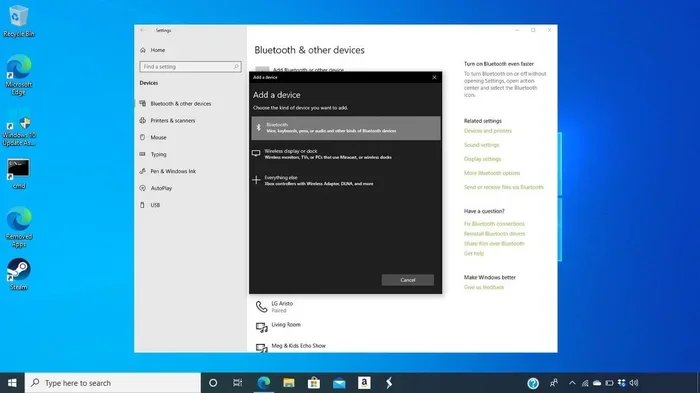
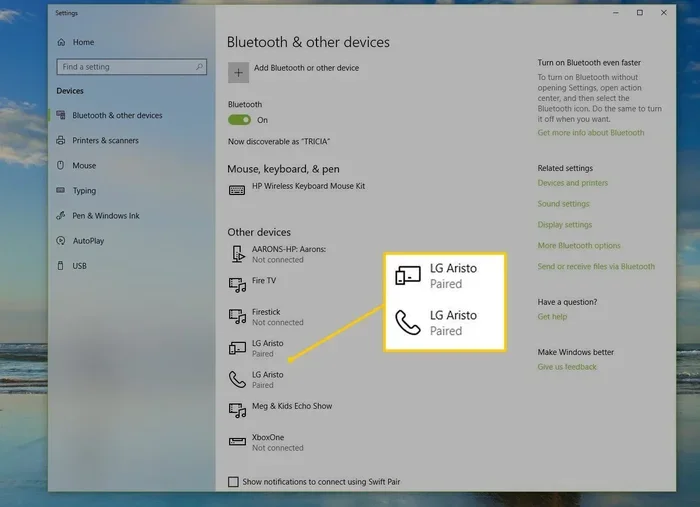
You can also check your Bluetooth status through the Settings app. Go to Settings, then Devices, then Bluetooth and Other Devices. If Bluetooth is turned on and you see your devices listed, you are good to go.
Checking Drivers on Mac
Mac users have it easier. Apple handles Bluetooth drivers through system updates. Simply go to System Preferences, then Software Update, and make sure your macOS is current. The Bluetooth driver comes bundled with the operating system.
If Bluetooth is not working on your Mac, try restarting your computer first. That fixes the issue more often than people realize. If that does not work, you can reset the Bluetooth module by holding Shift and Option and clicking the Bluetooth icon in the menu bar.
Checking Drivers on Linux
Linux users might need to install Bluetooth drivers through their package manager. The process varies depending on your distribution. Ubuntu and other popular distributions usually include Bluetooth support out of the box, but you may need to install additional packages if the driver is missing.
How To Install Or Update Bluetooth Drivers
If you have determined that you do need a bluetooth driver, the next step is installing or updating it. This process is simpler than most people think. Let us walk through it.
Method 1: Windows Update
The easiest way to get a Bluetooth driver is through Windows Update. Microsoft includes many Bluetooth drivers in its update database. Here is how to use it:
- Go to Settings, then Update and Security.
- Click Check for Updates.
- Wait for Windows to search for available updates.
- If a Bluetooth driver update appears, it will be listed under Optional Updates.
- Select it and click Install.
This method works for most users. Windows handles the download and installation automatically. You do not need to know your hardware model or visit a manufacturer website.
Method 2: Manufacturer Website
If Windows Update does not have the driver you need, you can download it directly from the manufacturer. This is especially common for USB Bluetooth adapters and internal wireless cards.
Here is what to do:
- Find out what Bluetooth hardware your computer uses. Open Device Manager, expand the Bluetooth section, and look for the adapter name.
- Go to the manufacturer’s website.
- Search for your adapter model.
- Download the latest driver for your operating system.
- Run the installer and follow the on-screen instructions.
This method gives you the most control and ensures you get the latest version. It is especially useful for downloading Bluetooth drivers for Windows 10, where compatibility can sometimes be tricky.
Method 3: Third-Party Driver Update Tools
There are also third-party tools that scan your system and suggest driver updates. These tools can be convenient, but use them carefully. Stick to reputable companies and avoid anything that asks for unnecessary permissions.
Updating Drivers on a Mac
On a Mac, you update Bluetooth drivers by updating macOS. Go to System Preferences, then Software Update. Apple bundles Bluetooth driver updates with regular macOS updates, so keeping your system current is the best approach.
Common Bluetooth Driver Problems And How To Fix Them
Even with the right driver, Bluetooth problems can still happen. Let us look at the most common issues and how to solve them.
Bluetooth Not Showing Up in Settings
If Bluetooth does not appear in your Settings menu, the driver is likely missing or corrupted. Try uninstalling the Bluetooth driver through Device Manager and then restarting your computer. Windows will usually reinstall the driver automatically.
If that does not work, you might want to uninstall Bluetooth completely and then reinstall it fresh. This can resolve stubborn driver conflicts that prevent Bluetooth from appearing.
Devices Pair But Keep Disconnecting
This is one of the most frustrating Bluetooth problems. Usually, it happens because the driver is outdated or there is interference from other wireless devices.
Try these fixes:
- Update your Bluetooth driver to the latest version.
- Move closer to the device you are connecting to.
- Turn off other wireless devices temporarily to reduce interference.
- Remove the device from your Bluetooth list and pair it again.
Audio Quality Issues With Bluetooth Headphones
Low audio quality or laggy sound often comes from an old or incompatible driver. Make sure your Bluetooth driver supports the audio codec your headphones use. Some headphones use aptX or LDAC codecs, and the driver needs to support those.
Driver Conflicts After a Windows Update
Sometimes a Windows update breaks Bluetooth drivers. This happens more often than you might think. If your Bluetooth stops working after an update, try rolling back the driver. Go to Device Manager, right-click your Bluetooth adapter, select Properties, and click Roll Back Driver.
If rolling back does not work, you can try uninstalling the driver and letting Windows reinstall it fresh on the next restart.
Bluetooth Driver Tips For Different Devices
Bluetooth drivers work differently depending on the device you are using. Here are some tips for common scenarios.
Desktop Computers
Most desktop computers do not come with built-in Bluetooth. You will need a USB Bluetooth dongle or an internal Bluetooth card. Once you have the hardware, install the driver that comes with it or download it from the manufacturer’s website.
If you want to make your TV Bluetooth-capable, a Bluetooth adapter is a great solution. Just make sure you install the adapter driver before trying to pair any devices.
Laptops
Most modern laptops have Bluetooth built in. You rarely need to install a driver separately. But if you bought a used laptop or reformatted your hard drive, the driver might be missing. Check Device Manager and install the driver from the laptop manufacturer’s support page if needed.
Smartphones and Tablets
Phones and tablets do not need separate Bluetooth drivers. The operating system includes everything you need. You just go to Settings, turn on Bluetooth, and pair your device.
Car Audio Systems
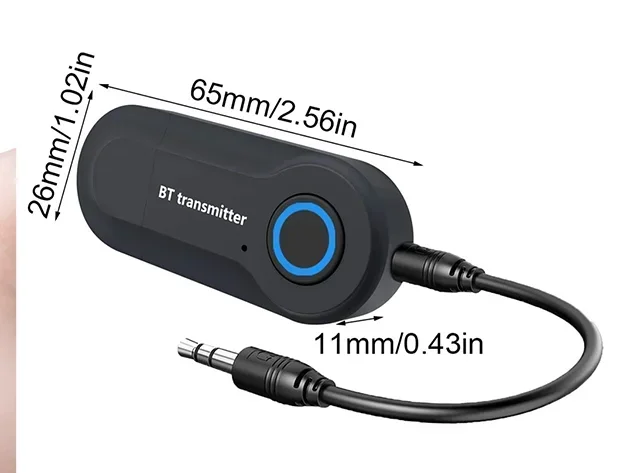
If you want to add Bluetooth to your car, a Bluetooth transmitter is a popular solution. These devices plug into your car’s audio output and create a wireless connection with your phone. The transmitter handles its own internal driver, so you do not need to install anything on your car’s computer.
For more details on using a Bluetooth transmitter in your vehicle, check out our guide on using a Bluetooth transmitter for your car.
Quick Tips For Bluetooth Driver Success
Keep these tips in mind to avoid common Bluetooth driver headaches:
- Keep your system updated. Windows and macOS updates often include driver improvements.
- Do not ignore warning signs. A yellow triangle in Device Manager means something is wrong.
- Restart after installing drivers. A simple reboot can activate a new driver and fix connection issues.
- Use official sources. Always download drivers from the manufacturer or through Windows Update.
- Remove old drivers before installing new ones. This prevents conflicts between driver versions.
- Check Bluetooth compatibility before buying accessories. Not all devices work with all Bluetooth versions.
Final Thoughts
The short answer to “do I need a Bluetooth driver” is: it depends. Most modern devices handle Bluetooth drivers automatically. You probably do not need to do anything if you are running Windows 10 or 11 on a relatively recent laptop or desktop.
But if you have an older machine, a custom-built PC, or a specific wireless accessory that is not working, installing or updating a bluetooth driver can solve the problem. It is a simple process that takes just a few minutes and can save you hours of frustration.
Remember to check your Device Manager first, keep your drivers updated, and do not be afraid to reinstall a driver if things go wrong. Bluetooth technology is incredibly convenient, and with the right driver in place, it works seamlessly in the background so you can focus on enjoying your wireless devices.
Whether you are connecting headphones, printers, car adapters, or speakers, the right bluetooth driver makes all the difference. Take a few minutes to make sure yours is current, and you will enjoy a much smoother wireless experience.
Frequently Asked Questions
Do I need a Bluetooth driver for Windows 10?
Most of the time, no. Windows 10 includes built-in Bluetooth drivers that install automatically. However, if your computer does not have Bluetooth or if the driver is missing, you may need to download one manually from the manufacturer’s website or through Windows Update.
Can I use Bluetooth without installing a driver?
Yes, if your device already has a built-in Bluetooth adapter with a pre-installed driver. Most modern laptops and desktops come with Bluetooth drivers already in place. You just need to turn on Bluetooth in your settings and start pairing devices.
How do I know if my Bluetooth driver is outdated?
Open Device Manager and look for your Bluetooth adapter. If there is a yellow warning icon, the driver may be outdated or corrupted. You can also check for driver updates through Windows Update or visit your manufacturer’s website for the latest version.
What happens if I uninstall my Bluetooth driver?
If you uninstall your Bluetooth driver, you will lose the ability to connect to any wireless Bluetooth devices until you reinstall the driver. You can reinstall it through Windows Update or by downloading it from your hardware manufacturer’s website.
Why does my Bluetooth keep disconnecting even with the right driver?
Disconnections can happen due to interference from other wireless devices, outdated firmware on your accessory, or being too far from the connected device. Try updating both your Bluetooth driver and your device firmware, and move closer to the accessory to see if the issue resolves.
Do I need a separate Bluetooth driver for each device I connect?
No. One Bluetooth driver on your computer handles communication with all Bluetooth devices. However, some accessories like printers may need their own specific software or driver in addition to the Bluetooth driver for full functionality.