How Do I Connect A Bluetooth Transmitter To Non Bluetooth Tv
Adding a Bluetooth transmitter to a non Bluetooth TV is one of the simplest upgrades you can make. This guide walks you through everything from picking the right transmitter to pairing your headphones. You will learn the connection methods, top products, and common fixes for audio lag.
Do you own a TV that does not support Bluetooth? You are not alone. Many TVs still lack wireless audio capabilities. But that does not mean you cannot enjoy your favorite shows without disturbing anyone. A Bluetooth transmitter solves this problem quickly and affordably. In this guide, we will show you exactly how to connect a Bluetooth transmitter to a non Bluetooth TV. You will learn the steps, the best products, and how to fix common issues.
Wireless audio has become the norm. People expect to use Bluetooth headphones with their TV. But not every TV manufacturer includes this feature. Even some newer models skip Bluetooth to save costs. This is where a Bluetooth transmitter becomes essential. It acts as a bridge between your TV and your wireless headphones or speakers. The process is simpler than most people think.
Whether you want to watch movies late at night or share audio with a partner, a Bluetooth transmitter makes it possible. This article covers everything you need to know. We will break down each connection method step by step. You will also find tips to reduce audio lag and improve your experience. Let us get started.
Key Takeaways
- A Bluetooth transmitter unlocks wireless audio on any non Bluetooth TV without needing expensive new equipment.
- There are three main connection types: 3.5mm jack, optical audio, and RCA cables to fit almost any TV.
- Audio lag or latency is the most common issue and can be fixed with the right transmitter and settings.
- Picking the right transmitter depends on your TV’s audio output and what you want to listen with.
- Pairing is simple and usually takes less than two minutes once the transmitter is connected.
- Using a Bluetooth transmitter also lets you share audio with multiple headphones for a movie night.
📑 Table of Contents
- What Is A Bluetooth Transmitter?
- Why Do You Need A Bluetooth Transmitter For A Non Bluetooth TV?
- How To Connect A Bluetooth Transmitter To Your Non Bluetooth TV
- Best Bluetooth Transmitters For Non Bluetooth TVs
- Common Problems And How To Fix Them
- Tips For The Best Bluetooth TV Experience
- Can You Use Bluetooth Headphones With Any TV?
- Final Thoughts
What Is A Bluetooth Transmitter?
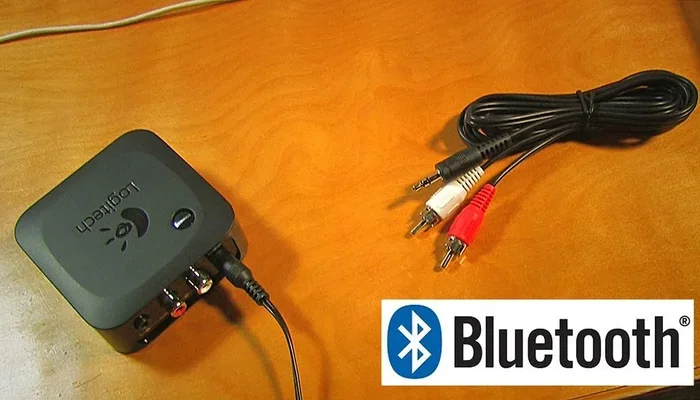
A Bluetooth transmitter is a small device that sends audio wirelessly. It connects to your TV through a cable or adapter. Then it pairs with your Bluetooth headphones, earbuds, or speakers. Think of it as a translator between your TV and your wireless gear. Your TV does not need to have Bluetooth built in for this to work.
These devices are small and plug and play. Most transmitters are about the size of a USB drive. They draw power from a USB port or a wall adapter. Some even come with a built-in battery for portable use. The range typically extends 30 to 50 feet. This means you can move around your room freely while watching TV.
The transmitter receives the audio signal from your TV. It then encodes it and sends it out over Bluetooth. Your headphones or speaker receives this signal and plays the sound. The whole process happens in milliseconds. Modern transmitters support Bluetooth 5.0 or higher. This means a stronger connection and better sound quality.
Why Do You Need A Bluetooth Transmitter For A Non Bluetooth TV?
Many people assume their TV must have Bluetooth built in to use wireless audio. This is not true. A Bluetooth transmitter for non Bluetooth TV setups opens up a world of possibilities. Here is why you might need one.
- Your TV lacks Bluetooth: Many budget TVs and older models do not include Bluetooth. A transmitter adds this feature instantly.
- You prefer wireless headphones: Watching TV with wired headphones can be annoying. A transmitter lets you move freely.
- Late night watching: Bluetooth headphones let you watch TV without waking up the household.
- Shared listening: Some transmitters support dual pairing. This means two people can listen on separate headphones at the same time.
- Better audio quality: A good transmitter can deliver clearer sound than your TV speakers. This is especially true for budget TVs.
- No smart TV subscription needed: You do not need a smart TV or any special apps. Just a simple transmitter and your headphones.
Using a Bluetooth transmitter is also much cheaper than buying a new TV. A quality transmitter costs between $20 and $60. Compare that to replacing an entire TV. It is an easy upgrade that makes a big difference. If you already own Bluetooth headphones, this is the only purchase you need.
Some people wonder if they can just use a Bluetooth adapter instead. The difference is simple. A transmitter sends audio out. An adapter receives audio in. For watching TV with wireless headphones, you need a transmitter. If you want to connect your phone to a TV speaker, you would need an adapter instead. Can I Use A Bluetooth Adapter On My Tv covers this in more detail.
How To Connect A Bluetooth Transmitter To Your Non Bluetooth TV
Connecting a Bluetooth transmitter to your TV is straightforward. The exact steps depend on what audio output your TV has. Most modern TVs have at least one of the three connection types below. Let us walk through each one.
Method 1: Using A 3.5mm Audio Jack
This is the most common and easiest method. Many TVs have a 3.5mm headphone jack. It is usually found on the back or side of the TV. Here is what to do.
- Plug the transmitter into the 3.5mm jack. Most Bluetooth transmitters come with a 3.5mm cable. Simply insert it into the TV’s headphone port.
- Power the transmitter. Plug the USB cable into the TV’s USB port or use a wall adapter.
- Turn on the transmitter. Most transmitters have a power button. Press it to turn it on.
- Put your headphones in pairing mode. Hold the Bluetooth button on your headphones until the LED flashes.
- Press the pairing button on the transmitter. The LED will flash. It will search for your headphones.
- Wait for the connection. Once paired, the LED will stay solid. You should hear audio through your headphones.
This method works great for most TVs. The sound quality is good. The only downside is that the 3.5mm jack also carries the TV’s menu sounds. So you will hear the TV interface sounds in your headphones too. This is normal and not a problem.
Method 2: Using An Optical Audio Output
Some TVs have an optical audio output. This is a small square port on the back of the TV. It looks like a small square hole with a red or black flap. Optical audio gives better sound quality than a 3.5mm jack. Here is how to connect using this method.
- Check if your TV has an optical output. Look for a port labeled “OPTICAL” or “DIGITAL AUDIO OUT.”
- Get a transmitter with optical input. Not all transmitters have an optical port. Make sure yours does before buying.
- Connect the optical cable to the TV. Plug one end into the TV and the other into the transmitter.
- Power the transmitter. Use the USB cable or wall adapter.
- Pair your Bluetooth headphones. Put your headphones in pairing mode and press the transmitter’s pairing button.
Optical audio is digital. This means it does not pick up interference. The sound quality is cleaner and more reliable. This is the best method if your TV has an optical output. It is especially good for watching action movies or playing games.
Method 3: Using RCA Cables (Red And White)
Older TVs often have RCA audio outputs. These are the red and white round ports. They are called composite audio outputs. Here is how to use them.
- Find the RCA ports on your TV. Look for red and white audio outputs on the back or side.
- Get a transmitter with RCA inputs. Many transmitters come with RCA cables included.
- Connect the RCA cables to the TV. Red goes to red, white goes to white.
- Power the transmitter. Use the USB cable or wall adapter.
- Pair your Bluetooth headphones. Follow the same pairing steps as above.
RCA cables work well but carry analog audio. This means they can be more prone to interference. If you hear a buzzing sound, try moving the transmitter away from the TV. Using shorter cables can also help reduce interference.
Method 4: Using A USB Port (For Smart TVs)
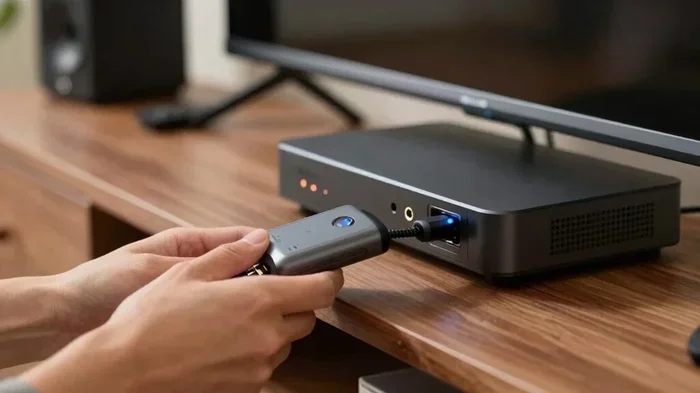
Some smart TVs allow audio output through USB. This is less common but does exist on certain models. Check your TV manual to see if USB audio output is supported. If it is, the process is simple. Plug the transmitter into the USB port and follow the pairing steps. This method is convenient because it does not require extra cables.
Best Bluetooth Transmitters For Non Bluetooth TVs
Not all Bluetooth transmitters are the same. Some are better for TV use than others. Here are the features you should look for.
| Feature | Why It Matters |
|---|---|
| Bluetooth Version 5.0+ | Better range, faster connection, and less audio lag. |
| Low Latency Mode | Reduces the delay between video and audio for sync. |
| Multiple Connection Options | 3.5mm, optical, and RCA support covers most TVs. |
| Dual Pairing | Lets two people listen on separate headphones at once. |
| Built-in Battery | Great for portability but less common for TV use. |
| USB Power | Easy to power from your TV’s USB port. |
When choosing a transmitter, read reviews carefully. Look for models that specifically mention TV use. Some transmitters are designed for music only. These may have more latency and are not ideal for watching videos. A transmitter made for TV will have a low latency mode. This keeps the audio in sync with the video.
Popular brands in this space include Avantree, TaoTronics, and 1Mii. Each offers models with different features and price points. You do not need to spend a lot of money. Even a budget transmitter can deliver a great experience. Can I Use Any Bluetooth Headphones With My Tv is another helpful guide if you are unsure about headphone compatibility.
Common Problems And How To Fix Them
While connecting a Bluetooth transmitter is easy, you might run into issues. Here are the most common problems and their solutions.
Audio Lag Or Latency
This is the number one complaint about Bluetooth transmitters. You see lips move, but the sound comes later. This is called audio lag or latency. Here is how to fix it.
- Use a transmitter with low latency mode: Many transmitters have a dedicated mode for TV watching. Turn this on in the settings.
- Stay within range: Keep your headphones within 30 feet of the transmitter. Walls and furniture can weaken the signal.
- Reduce interference: Keep the transmitter away from Wi-Fi routers and microwaves. These devices can cause Bluetooth interference.
- Update the firmware: Some transmitters have firmware updates. Check the manufacturer’s website for the latest version.
- Use a wired connection if possible: If latency is unbearable, a wired connection will always be more reliable.
Transmitter Not Pairing With Headphones
If your transmitter will not connect, try these steps.
- Make sure both devices are in pairing mode. The LED should be flashing on both the transmitter and your headphones.
- Turn Bluetooth off and on again on your headphones.
- Reset the transmitter. Most transmitters have a reset button or a reset procedure in the manual.
- Remove old pairings. Clear the memory on the transmitter and try again.
- Check the distance. Move your headphones closer to the transmitter during pairing.
Poor Audio Quality
If the sound is crackly or unclear, try these fixes.
- Check the cable connection. A loose cable can cause static or dropouts.
- Switch audio output on your TV. Make sure the TV is set to output audio through the correct port.
- Reduce distance. Closer distance usually means better sound quality.
- Avoid obstacles. Walls and large objects between the transmitter and headphones can weaken the signal.
Can I Use A Bluetooth Transmitter For My Car Instead?
Some readers wonder if a Bluetooth transmitter can also work in a car. The answer is yes. Bluetooth transmitters are versatile devices. You can use one for your TV and your car. Can I Use A Bluetooth Transmitter For My Car explains how to set one up in a vehicle. The connection process is very similar.
Tips For The Best Bluetooth TV Experience
Once you have your transmitter connected, a few tips can improve your experience significantly.
- Keep the transmitter close to the TV. Place it on a shelf right next to the TV. This gives the best signal strength.
- Use headphones with good battery life. Long movies require long battery life. Look for headphones rated for 20 hours or more.
- Charge both devices fully before use. Nothing ruins a movie night like a dead battery.
- Set your TV volume to about 70%. Let the transmitter and headphones handle the rest. This prevents distortion.
- Use a dedicated Bluetooth channel. If your transmitter supports it, set it to a dedicated TV mode rather than a music mode.
- Consider dual pairing for family movie nights. Two pairs of headphones can connect to one transmitter. Everyone watches in silence.
If you also want to make your TV Bluetooth capable for receiving audio from other devices, check out Can I Make My Tv Bluetooth With An Adapter. That guide covers the reverse setup where your TV receives Bluetooth signals instead of sending them.
Can You Use Bluetooth Headphones With Any TV?
This is a common question. The short answer is yes, with a transmitter. But not all Bluetooth headphones work equally well with all transmitters. Most modern Bluetooth headphones will pair with any transmitter. However, the experience can vary based on the Bluetooth version and codec support.
Headphones that support aptX or aptX Low Latency codecs will give you the best TV watching experience. These codecs reduce audio lag significantly. If your headphones and transmitter both support aptX, you will notice a big improvement in sync. Standard Bluetooth SBC codec works fine too. But it may have more noticeable lag during fast action scenes.
Can I Listen To My Samsung Tv With Bluetooth Headphones is a great resource if you own a Samsung TV. Samsung TVs have some unique audio settings that can affect Bluetooth performance. Understanding these settings helps you get the best results.
Final Thoughts
Connecting a Bluetooth transmitter to a non Bluetooth TV is one of the easiest tech upgrades you can make. It costs less than most people expect. The setup takes just a few minutes. And the result is a completely wireless TV watching experience. You can sit on your couch, move around your room, or even listen from another room. All while enjoying clear, synced audio through your Bluetooth headphones.
Remember to pick a transmitter that matches your TV’s audio output. 3.5mm jacks are the most common. Optical and RCA options are available on older or higher-end models. Choose a transmitter with low latency mode for the best TV experience. And do not be afraid to experiment with placement to get the strongest signal.
Once you make the switch, you will wonder how you ever watched TV any other way. Wireless audio is convenient, comfortable, and surprisingly affordable. Grab a Bluetooth transmitter today and transform your TV watching experience. Your ears and your household will thank you.
Frequently Asked Questions
Can I connect a Bluetooth transmitter to any TV?
Yes, as long as your TV has a 3.5mm jack, optical output, or RCA ports. These are the most common audio outputs on almost all TVs. If your TV has at least one of these, a Bluetooth transmitter will work with it.
Does a Bluetooth transmitter cause audio lag?
Some Bluetooth transmitters can cause a slight delay between video and audio. This is called latency. However, many modern transmitters have a low latency mode that reduces this significantly. Choosing a transmitter with Bluetooth 5.0 also helps minimize lag.
Can I connect two pairs of Bluetooth headphones to one transmitter?
Yes, many Bluetooth transmitters support dual pairing. This feature lets two people listen on separate headphones at the same time. Check the specifications of your transmitter to see if it supports this feature.
What is the best Bluetooth transmitter for a non Bluetooth TV?
The best transmitter depends on your TV’s audio output and your budget. Popular options include the Avantree Leaf, TaoTronics TT-BA07, and 1Mii B06. Look for models with low latency mode and Bluetooth 5.0 for the best TV experience.
Can I use a Bluetooth transmitter with a soundbar?
It depends on the soundbar. If your soundbar has a 3.5mm input or RCA input, you can connect a transmitter to it. However, most soundbars do not support Bluetooth input. A transmitter sends audio out, so it works best with headphones or speakers that receive Bluetooth signals.
How far can I move away from the TV with a Bluetooth transmitter?
Most Bluetooth transmitters have a range of 30 to 50 feet. This means you can move around your room comfortably. Walls and obstacles can reduce this range. Staying within line of sight of the transmitter gives the best performance.
=== CONCLUSION ===
A Bluetooth transmitter is the perfect solution for anyone with a non Bluetooth TV who wants wireless audio. The setup is simple, the cost is low, and the results are excellent. Whether you use a 3.5mm jack, optical cable, or RCA connection, you can be listening wirelessly in minutes. Pick a transmitter with low latency and good range for the best experience. Follow the tips in this guide and you will enjoy a seamless wireless TV watching setup. Your upgrade to wireless audio starts today.