How Do I Connect My Bluetooth Headphones To My Pc Via Phone
Connecting Bluetooth headphones to your PC through your phone is simpler than most people think. You can use your phone as a bridge to stream audio to your computer wirelessly. This guide walks you through every step, from initial pairing to troubleshooting common issues.
Have you ever wanted to use your Bluetooth headphones with your PC but didn’t have a direct Bluetooth connection? Maybe your computer lacks Bluetooth support, or the built-in adapter isn’t working properly. In these situations, using your phone as a bridge can be a lifesaver. This guide will show you exactly how to connect your Bluetooth headphones to your PC via phone in just a few simple steps.
The process might sound technical, but it’s actually quite straightforward. Whether you have AirPods, Powerbeats, or any other wireless earbuds, the basic method stays the same. You pair your headphones with your phone first, and then share that audio connection to your PC. It’s a clever workaround that many people don’t know about.
Before we dive into the steps, let’s quickly cover what you’ll need. A Bluetooth-enabled phone, a PC with audio output capabilities, and a pair of wireless headphones. That’s it. No fancy equipment required. Once you have these three things, you’re ready to get started.
Key Takeaways
- Bluetooth pairing between your phone and PC is the most reliable method for connecting wireless headphones to a computer without built-in Bluetooth.
- Most modern Bluetooth headphones support A2DP profiles, which allow high-quality audio streaming between devices.
- Troubleshooting connection issues is straightforward when you check Bluetooth settings, drivers, and device compatibility.
- Using your phone as a Bluetooth bridge works with both Android and iPhone devices, giving you flexibility across ecosystems.
- Audio latency and range are the two most common challenges, but both can be minimized with the right settings and positioning.
📑 Table of Contents
What You Need Before You Start
Getting your wireless headphones connected to your PC through your phone requires a few basic things. Let’s make sure you have everything ready before we begin the setup process.
Compatible Bluetooth Headphones
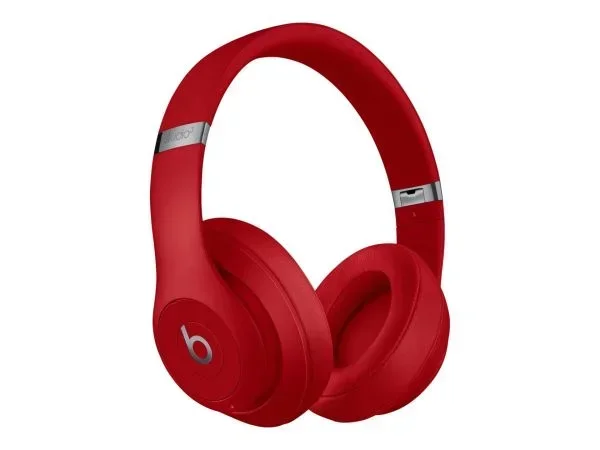
Most Bluetooth headphones work with this method. Whether you use Powerbeats, AirPods, Sony WH-series, or any other brand, the process is similar. The key requirement is that your headphones support Bluetooth pairing with a phone. Almost all modern wireless headphones do, so this shouldn’t be a problem.
If you’re unsure whether your headphones are Bluetooth-compatible, check the product manual or look for a Bluetooth symbol on the charging case or earcup. Nearly every wireless headphone released in the last five years has Bluetooth built in.
A Phone with Bluetooth Capability
Your phone needs to support Bluetooth connectivity and have enough battery to stay paired during use. Both Android and iPhone devices work perfectly for this method. The phone acts as a middleman, receiving audio from your PC and sending it to your headphones.
Make sure your phone’s Bluetooth is turned on and updated to the latest software version. Older Bluetooth versions might cause audio latency or connection drops, so keeping things updated helps a lot.
A PC with Audio Output
Your computer needs to be able to output audio. Most PCs have speakers or a headphone jack already. The goal here is to route that audio through your phone and then to your wireless headphones. You don’t need a fancy sound card or expensive setup.
If your PC doesn’t have Bluetooth built in, that’s perfectly fine. That’s actually one of the main reasons people use this phone-as-bridge method. It works around the lack of Bluetooth on PC entirely.
How to Connect Bluetooth Headphones to Your PC via Phone
Now let’s get into the actual steps. This is the core part of the guide. Follow along carefully, and you’ll have your wireless audio streaming from your PC to your headphones in no time.
Step 1: Pair Your Bluetooth Headphones with Your Phone
First, turn on your Bluetooth headphones and put them in pairing mode. Usually, you hold down the power button or a dedicated Bluetooth button until the LED light starts flashing. On your phone, go to Bluetooth settings and look for your headphones in the list of available devices.
Tap on your headphones to initiate the device pairing process. You might need to enter a PIN, which is often 0000 or 1234. Once paired, your phone should show a confirmation that the headphones are connected.
This is the same process you’d follow when using Bluetooth headphones with your phone for calls or music. The initial pairing step is identical across all devices.
Step 2: Enable Audio Sharing on Your Phone
Now that your headphones are connected to your phone, you need to set up audio sharing. On Android phones, go to Settings > Connected Devices and look for audio sharing or dual audio options. On iPhone, you can use AirPlay or the shared audio feature in Control Center.
The exact steps vary by phone model, but the idea is the same. You want your phone to accept audio from multiple sources, including your PC. Some phones call this feature “dual audio” or “multi-device connection.”
Step 3: Connect Your PC to Your Phone via Bluetooth
On your PC, open Bluetooth settings and make sure Bluetooth is turned on. Your phone should appear in the list of available devices. Click on your phone to pair it with the PC.
Once paired, your PC can send audio to your phone, which then forwards it to your headphones. This creates a wireless chain: PC to phone to headphones. The audio quality might be slightly lower than a direct connection, but for most uses, it’s perfectly fine.
If you’ve ever connected Powerbeats to a laptop directly, you know how convenient a direct connection can be. This phone bridge method gets you close to that experience, even when your PC lacks Bluetooth.
Step 4: Set Your Phone as the Audio Output on Your PC
On your PC, right-click the speaker icon in your taskbar and select Sound Settings or Open Sound Settings. Look for the output device and select your phone from the list.
Now, any audio your PC produces will be sent to your phone and then to your Bluetooth headphones. You can play music, watch videos, or join calls, and the sound will flow through the wireless chain seamlessly.
You might notice a slight delay compared to a wired connection. This is normal and is called audio latency. It’s usually just a fraction of a second and doesn’t affect most activities like listening to music or watching videos.
Setting Up Bluetooth on Your PC
Before you can use the phone bridge method, your PC needs proper Bluetooth settings configured. Let’s walk through the setup process for both Windows and Mac computers.
Windows Bluetooth Setup
On Windows 10 or 11, click the Start menu and go to Settings > Devices > Bluetooth & other devices. Toggle Bluetooth on and click “Add Bluetooth or other device.” Select Bluetooth and wait for your phone to appear in the list.
Windows sometimes needs Bluetooth drivers updated to work properly. If your PC doesn’t detect any Bluetooth devices, check your device manager for driver updates. Most modern laptops have Bluetooth built in, but older desktops might need a USB Bluetooth adapter.
Mac Bluetooth Setup
On a Mac, click the Apple menu and go to System Preferences > Bluetooth. Make sure Bluetooth is turned on, and your phone should appear in the devices list. Click “Connect” to pair the two devices.
Mac computers generally have excellent Bluetooth support out of the box. You shouldn’t need to install additional drivers or software. The Bluetooth connectivity on macOS is reliable and handles audio streaming well.
What If Your PC Doesn’t Have Bluetooth?
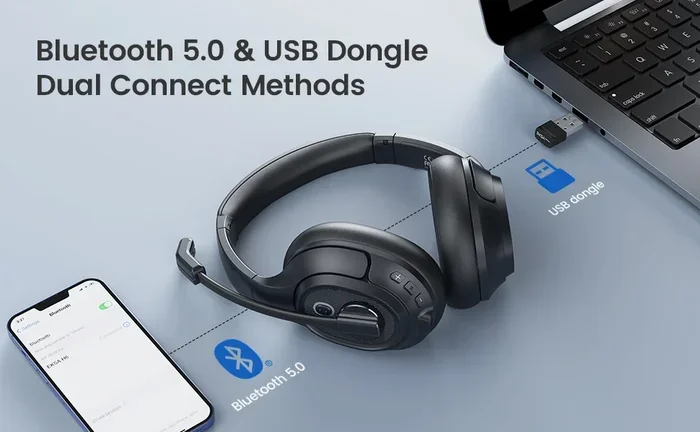
If your desktop PC or older laptop doesn’t have Bluetooth, you can buy a USB Bluetooth adapter. These small devices plug into a USB port and add Bluetooth capability to your computer. They’re inexpensive and work with most Bluetooth headphones.
Once you plug in the adapter, your PC should recognize it automatically. You can then follow the same steps above to pair your phone and use it as an audio bridge. This is a great solution for people who want to enjoy wireless audio without upgrading their entire computer.
Using Your Phone as a Bluetooth Bridge
The phone-as-bridge method is the core technique in this guide. Let’s explore it in more detail so you understand exactly what’s happening and how to get the best results.
How the Bridge Method Works
Think of your phone as a translator between your PC and your headphones. Your PC sends audio to your phone using Bluetooth, and your phone sends that audio to your headphones using a separate Bluetooth connection. The phone handles both connections simultaneously.
This is similar to how Bluetooth headphones connect to different devices like TVs and phones. The phone simply acts as an intermediary, forwarding the audio signal from one device to another.
Android vs iPhone: Which Works Better?
Both Android and iPhone can serve as a Bluetooth bridge, but they work slightly differently. Android phones generally offer more flexibility with audio sharing settings. Many Android devices have a “dual audio” or “multi-device” feature that makes the bridge process smoother.
iPhones use AirPlay and the shared audio feature for similar functionality. The experience on iPhone is polished but slightly more limited in terms of which PCs it can connect to. Both platforms work well for this purpose.
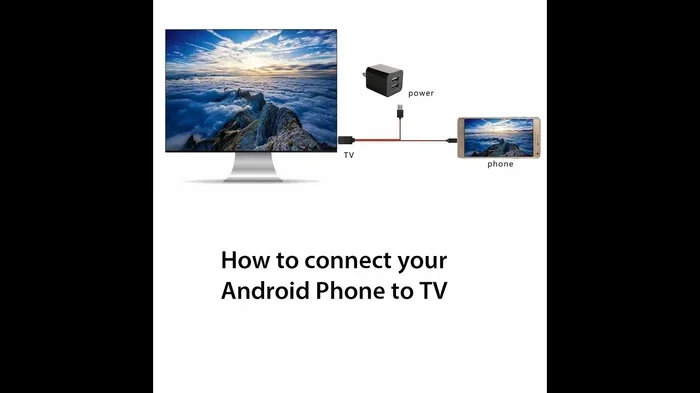
If you’re using an iPhone and want to explore more options, you might also check out how to connect your iPhone to an HDMI display for other connectivity solutions. Similarly, Android users can explore options like connecting their phone to an HDMI TV for expanded display and audio options.
Tips for a Stable Bridge Connection
Keep your phone close to both your PC and your headphones. Bluetooth has a limited range, typically about 30 feet. If your phone is too far from either device, you might experience connection drops or audio stuttering.
Keep your phone plugged in or at a high battery level. The bridge method uses your phone’s Bluetooth radio continuously, which drains battery faster than normal use. A fully charged phone will provide a more stable connection.
Close unnecessary apps on your phone while streaming audio. Some apps use Bluetooth bandwidth in the background, which can cause audio interruptions or reduce the quality of your wireless connection.
Troubleshooting Common Connection Problems
Even with the best setup, you might run into issues from time to time. Here are the most common problems and how to fix them.
Headphones Not Showing Up on Your PC
If your PC can’t detect your phone or headphones, the first thing to check is whether Bluetooth is turned on. On both devices, make sure Bluetooth is enabled and visible. Sometimes restarting Bluetooth on both devices solves the problem.
You can also try removing the devices from the Bluetooth list and pairing them again. This resets the connection and often fixes detection issues. If the problem persists, check for Bluetooth driver updates on your PC.
Audio Cutting Out or Lagging
Interference from other wireless devices can cause audio dropouts. Wi-Fi routers, microwaves, and other Bluetooth devices can all interfere with the signal. Try moving closer to your phone or turning off nearby wireless devices to see if the issue improves.
Audio lag is normal with Bluetooth connections, especially when using the bridge method. If the lag is too noticeable for your needs, consider getting a PC with built-in Bluetooth or a dedicated Bluetooth adapter with a stronger signal.
Poor Audio Quality
If the sound is muffled or low quality, check your phone’s Bluetooth settings for audio codec options. Some phones support high-quality codecs like aptX or AAC, which deliver better sound than the standard SBC codec.
Also, make sure your headphones are fully charged. Low battery can reduce audio quality and range. A well-charged pair of wireless headphones will always sound better than one running low on power.
Phone Doesn’t Support Audio Sharing
Some older or budget phones don’t have audio sharing or dual audio features. In this case, you might need a third-party app that routes audio between devices. Apps like “Bluetooth Audio Receiver” for Android can help bridge the gap.
Alternatively, you could use a cable connection from your PC to your phone and then Bluetooth from your phone to your headphones. This hybrid approach combines wired and wireless connections for a reliable setup.
Tips for the Best Audio Experience
Once you’ve got everything connected, a few simple tips can make your wireless audio experience much better.
Keep Your Devices Close Together
Bluetooth works best when devices are within 10 to 15 feet of each other. While the range can extend to 30 feet in ideal conditions, keeping your PC, phone, and headphones close together ensures the strongest signal and the least audio lag.
Update Your Device Software
Regularly update your phone, PC, and headphones with the latest firmware and software. Updates often include improvements to Bluetooth connectivity and audio quality. A simple update can sometimes fix connection issues you didn’t even know you had.
Use High-Quality Audio Files
The quality of your audio also depends on the source files. Streaming services like Spotify and Apple Music offer different quality levels. Choose higher quality settings for the best sound through your Bluetooth headphones.
If you’re interested in exploring other connectivity options, check out how to connect your phone to a projector with a USB cable for presentations or media sharing. You can also learn about connecting your phone to an HDMI TV for a bigger screen experience.
Consider a Bluetooth Transmitter
If you use the phone bridge method often, a dedicated Bluetooth transmitter might be a better long-term solution. These small devices plug into your PC’s audio output and transmit audio directly to your Bluetooth headphones. They eliminate the need for your phone as a middleman.
Bluetooth transmitters are affordable and easy to use. They provide a more direct connection and often better audio quality than the phone bridge method. If you plan to use wireless headphones with your PC regularly, a transmitter is worth the investment.
Key Takeaways
- Bluetooth pairing between your phone and PC is the most reliable method for connecting wireless headphones to a computer without built-in Bluetooth.
- Most modern Bluetooth headphones support A2DP profiles, which allow high-quality audio streaming between devices.
- Troubleshooting connection issues is straightforward when you check Bluetooth settings, drivers, and device compatibility.
- Using your phone as a Bluetooth bridge works with both Android and iPhone devices, giving you flexibility across ecosystems.
- Audio latency and range are the two most common challenges, but both can be minimized with the right settings and positioning.
- Keeping devices updated and close together ensures the most stable and highest-quality wireless connection.
- A Bluetooth transmitter is a great alternative if you want a more permanent solution without using your phone as a bridge.
Conclusion
Connecting Bluetooth headphones to your PC via phone is a practical and effective solution for anyone who wants wireless audio without upgrading their computer. The phone bridge method works with virtually any Bluetooth headphones and any modern smartphone, making it one of the most versatile connectivity tricks you can learn.
Whether you’re listening to music, watching videos, or taking calls, this method gives you the freedom to move around without being tethered by cables. The setup process is quick, and once you’ve done it once, you can repeat it anytime you need to.
Remember to keep your devices updated, stay within Bluetooth range, and troubleshoot any issues using the tips we covered. With a little patience, you’ll be enjoying wireless audio from your PC through your headphones in no time. Give it a try today and experience the convenience of a fully wireless setup.
Frequently Asked Questions
Can I connect Bluetooth headphones to my PC without using my phone?
Yes, if your PC has built-in Bluetooth, you can pair your headphones directly. Simply go to your PC’s Bluetooth settings, put your headphones in pairing mode, and connect them. If your PC lacks Bluetooth, a USB Bluetooth adapter works just as well as using your phone as a bridge.
Why is there audio lag when using the phone bridge method?
Audio lag happens because the signal has to travel from your PC to your phone and then to your headphones. Each Bluetooth hop adds a small delay. This is normal and usually just a fraction of a second. Using high-quality Bluetooth codecs on your phone can help reduce the lag.
Does the phone bridge method work with all Bluetooth headphones?
It works with almost all Bluetooth headphones that support standard Bluetooth profiles like A2DP. If your headphones are older or use a proprietary connection method, they might not work with this setup. Most headphones released in the last five years will work perfectly.
Can I use this method to connect headphones to a smart TV?
Yes, the same bridge method works with smart TVs that have Bluetooth capability. You pair your headphones with your phone and then connect your phone to the TV. This is similar to how you can use Bluetooth headphones with your TV for private listening.
Will using my phone as a bridge drain the battery quickly?
Yes, using your phone as a Bluetooth bridge does drain battery faster than normal use because it maintains two active Bluetooth connections. Keep your phone plugged in or at a high battery level for the best experience. A portable charger can also help if you’re using this method on the go.
What’s the difference between using a Bluetooth transmitter and the phone bridge method?
A Bluetooth transmitter connects directly to your PC and sends audio to your headphones without needing your phone. It provides a more direct connection with potentially better audio quality. The phone bridge method is more flexible since most people already have their phone with them, but a transmitter is better for regular, long-term use.